☑️ Transfer a Holiday Home (Van) Between Parks in ParcVu Desktop
Last updated 7 months ago
If a Holiday Home owned by your Company (Sales, Fleet or Staff units) is moving from one of your Parks to another owned by your business, it’s not necessary to recreate it at the new Park. You are able to transfer between Parks, so you retain the full history of the unit
Putting a Holiday Home into Limbo in ParcVu Desktop
To use this function, Users will need the permission Allow HO User to Status Change or Allow Park User to Status Change, depending on which profile type they have
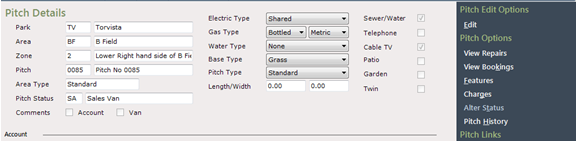
In order to transfer the Holiday Home, it must be in limbo (ie not on a Pitch). If the Van is on a Pitch, navigate to re required Pitch Details screen
Select ‘Alter Status’ from the Navigation list on the right.
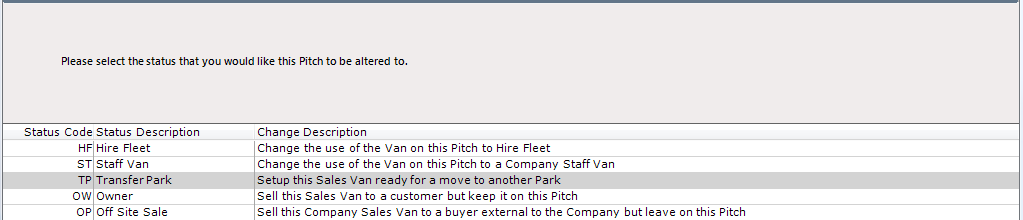
Choose ‘TP – Transfer Park’ from the status list displayed.
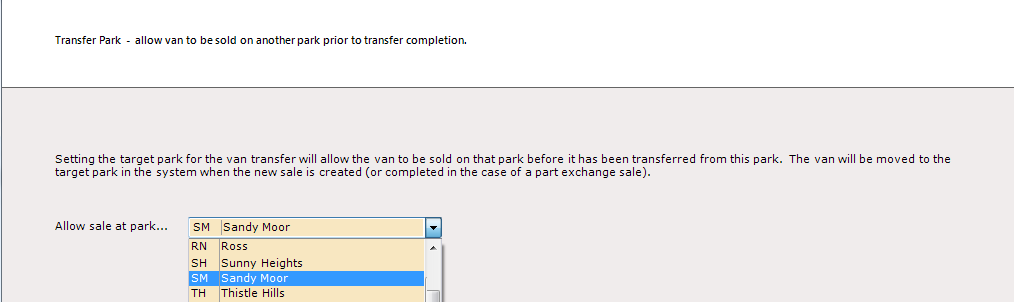
Click ‘next’ and select the Park you wish to transfer the van to, using the drop-down list.
Click ‘Next’ and ‘Finish’.
The ‘Pitch details’ screen will now be displayed showing the ‘Pitch Status’ as ‘Transfer Park’, make a note of the Van CSN Number.
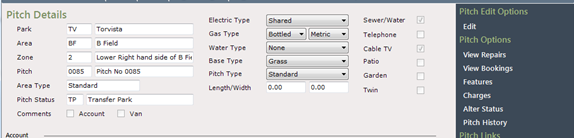
Now select ‘Alter Status’, from the Navigation list on the right, then choose ‘VA – Vacant’ from the Status list displayed.

Click ’Next’, then click ‘Finish’.
The ‘Pitch Details’ screen will now be displayed showing the ‘Pitch status’ as ‘Vacant’.
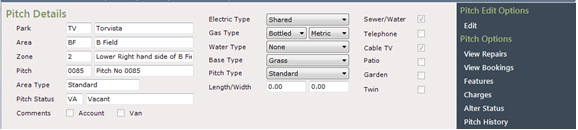
The van is now in ‘Limbo’
Transferring a Limbo Van in ParcVu Desktop
To use this function, Users will need the permissions Allow Access System Sub Menu and Allow transfer of limbo vans
From the Main Menu, go to System Maintenance Sub Menu > Transfer Limbo Van Between Parks
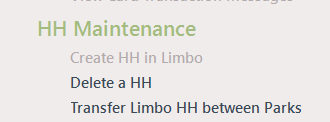
From the Van Maintenance Menu displayed, select ‘Transfer Limbo Van between Parks’

If your administrator has changed the name of ‘van’ within the system, your option on the menu will be changed to reflect this. For example, see below where the administration has been changed to use the abbreviation ‘HH’ for Holiday Home:
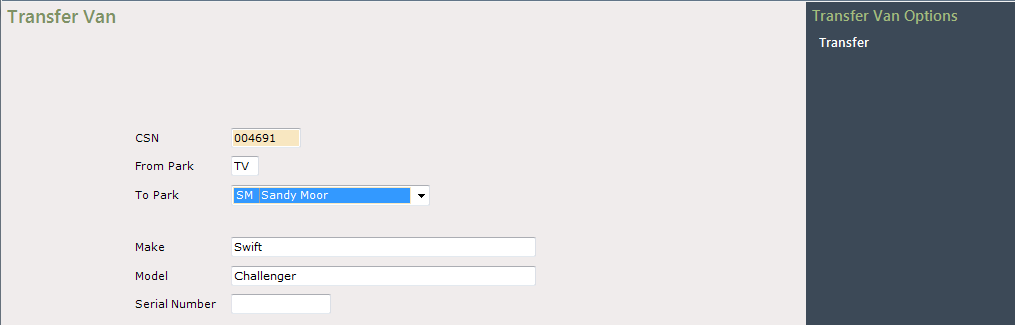
In the CSN Number field, enter the CSN of the Holiday Home you need to transfer
Click into the ‘To Park’ field and again select the Park the Van is to be transferred to from the drop-down list displayed. The remaining fields will be automatically completed by the system. Click ‘Transfer’ from the Navigation list on the right-hand side of the screen.
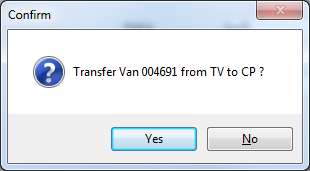
Confirm ‘Yes’ to the Transfer Message.
The Transfer Park process from the ‘Sending’ park is now complete; you should now inform the ‘Receiving’ park that the process is complete and give them the transferred van CSN number.
The transferred van will now be in ‘Limbo’ at the new Park, and a user at that Park can follow the instructions to Pitch A Holiday Home