☑️ Creating a New Holiday Home on ParcVu Desktop
Last updated 9 months ago
To access this area of the system, the User will need the permission Allow access System Maintenance Menu
From the Home Screen go to System Maintenance Sub Menu > Create Van In Limbo

From the ‘Van Maintenance’ section, Select ‘Create Van in Limbo’.
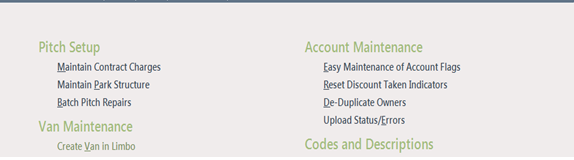
If this option is greyed out, ensure that you have a Park selected in the top right corner of the screen
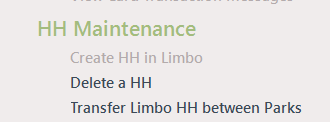
If your administrator has changed the name of ‘van’ within the system, your option on the menu will be changed to reflect this. For example, see below where the administration has been changed to use the abbreviation ‘HH’ for Holiday Home:
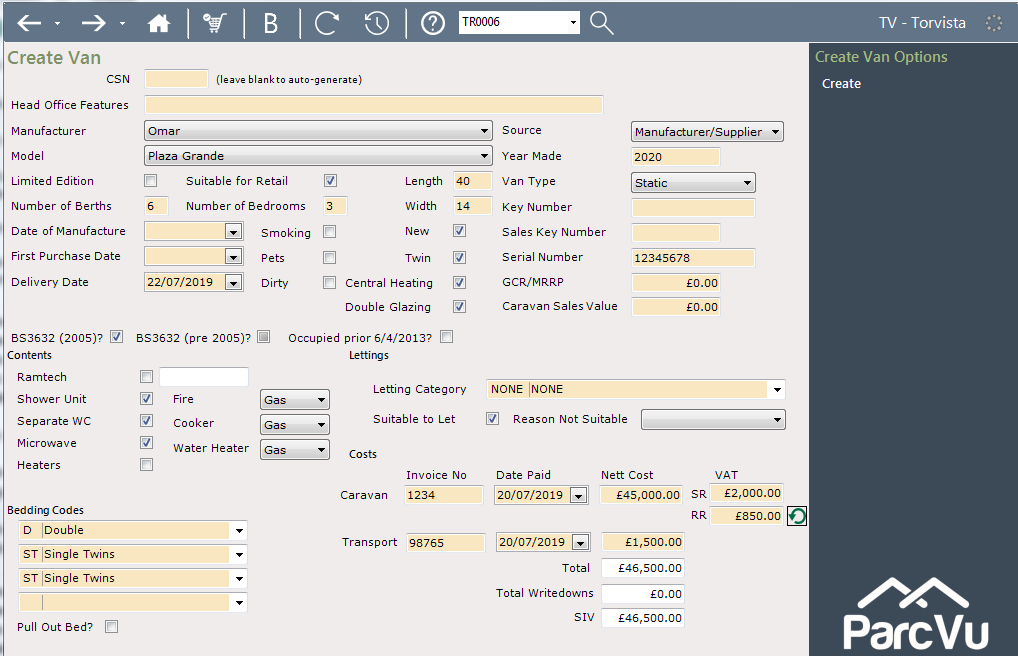
The CSN (Caravan Stock Number) can be left blank as it will be automatically set by the system on creation. This must be a unique identifier, so in most cases we recommend leaving this to auto-generate. This will then be the identifier that’s used throughout the system to allow you to see the full history throughout it’s lifetime
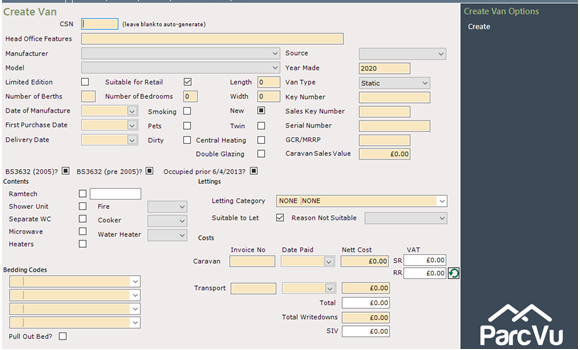
Complete the fields with the caravan information and add or remove ticks in the boxes as required. If it is a New Van, click into the ‘New’ box twice to ‘Tick’ it.

Wherever you see a filled in box in ParcVu, this means you must either tick or untick it in order to have the record correctly completed. There are several examples of this in the Create Van screen which impact VAT calculations, so it is essential to check these are correctly completed

Enter the ‘Serial number’ if known. It is not mandatory to enter any information in the ‘Date of Manufacture’, ‘Purchase Date’ or ‘GCR/MRRP’ fields
Enter the Caravan Length, Width etc., if the van is not yet on Park, you should enter the ‘Serial Number’ and ‘Delivery Date’ when it arrives.
Some information may not be known until the Holiday Home arrives on Park, such as the delivery date and serial number. This information should be entered as soon as it’s known as it’s required for other functions, such as marking the unit as in stock, or Validating a Sale
Pricing the Holiday Home in ParcVu Desktop
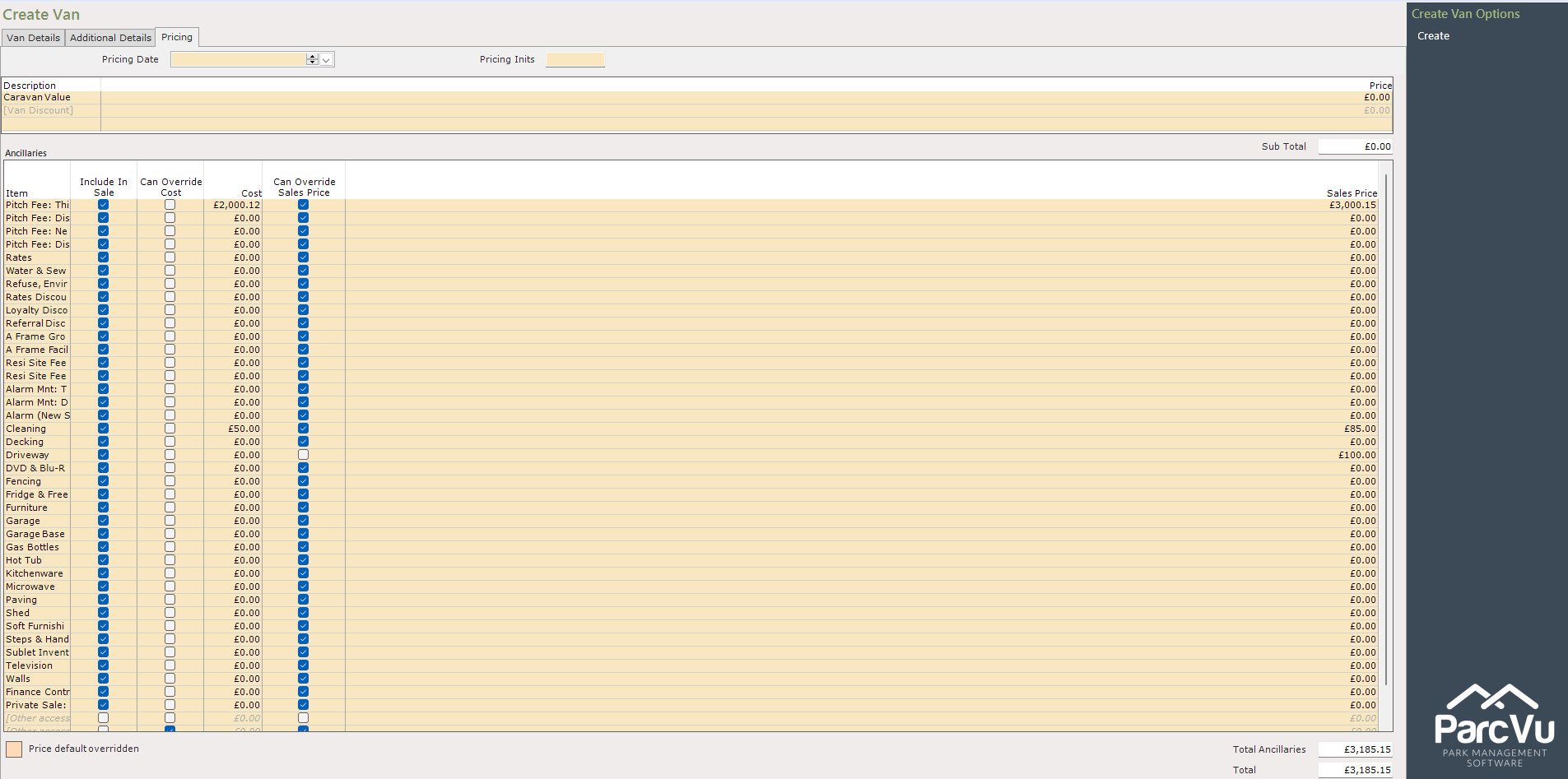
There is a tab within the screen for Pricing. This tab contains the ‘Priced Stock Details’, through this screen you can easily set the selling price for this Holiday Home and configure specific ancillaries. Additionally, there is the option to apply the same pricing details when creating multiple units.
In the ‘Costs’ section, enter the Net Cost of the Van in the ‘Net Costs’ field and enter the VAT if it is a New Van and also the Transport costs if it is a New Van, you can also enter the Selling Price of the Van in the ‘Caravan Sales Value’ field. Set the Letting Category information, the ‘Suitable to Let’ flag if appropriate, and the Bedding Codes.
Even if you don’t use the Priced Stock screen, you’ll need to enter your initials in the Pricing Inits field - the new Holiday Home won’t save without this information, so if it looks like nothing is happening when you press create, you should check this field has been completed
When done, click ‘Create’ from the Navigation list on the right-hand side, a message will appear.
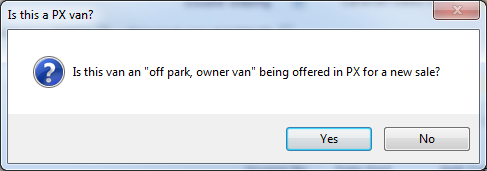
This means that the Holiday Home being created is the inbound unit on a New Business Part Exchange - eg a Holiday Home on a Park owned by another company, or a tourer.
You should NOT create a new Holiday Home for a Part Exchange from one of your Parks to another within your business - instead you should use the OLP Process Create an Owner Part Exchange at Another Park
If ’No’ is selected a further message will appear:
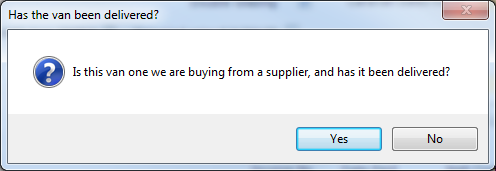
Confirm as appropriate.
A further message confirming the Van has been created will display showing the Van CSN No (Caravan Stock Number).
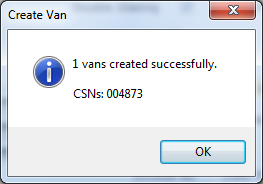
Click ‘OK’ and then if you have finished creating vans, click on the ‘Home’ tab at the top of the screen to return to the Main menu.
The Van will now be in ‘Limbo’ waiting to be ‘Pitched’. Whilst it is in ‘Limbo’ it cannot be sold, (unless it was created for a New Customer Part Exchange and then it should be left ‘in Limbo’)
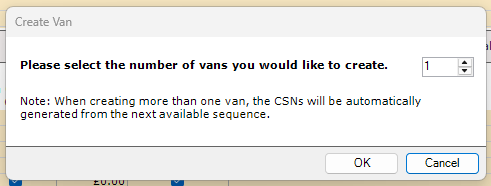
If the User creating the Holiday Home has the Head Office flag set on their profile, they will be presented with an additional popup, asking if they’d like to create multiple units with the same information. This can be helpful when creating new Hire Fleet units where lots of units of the same specification are created