☑️ Maintain Users in ParcVu Desktop
Last updated 4 months ago
To access this area of the system the user will need either need the Supervisor Account or to have the Superuser and Allow System Maintenance Menu user permissions
ParcVu Users
In order to use ParcVu, a User must be set up on the system. Once a User is created, Roles and Rights must be allocated, depending on their Job Role, to give them the required access to carry out different tasks in the system.
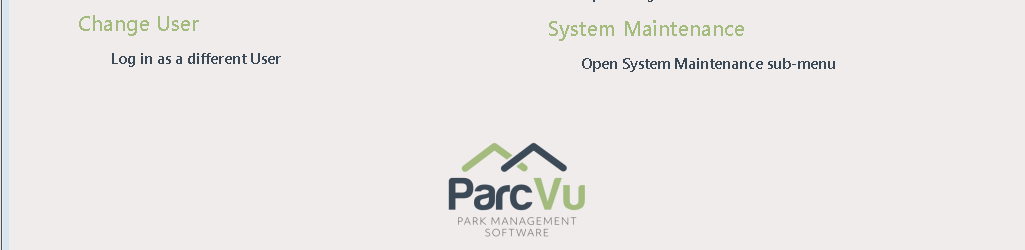
Go to System Maintenance Sub Menu > Maintain Users

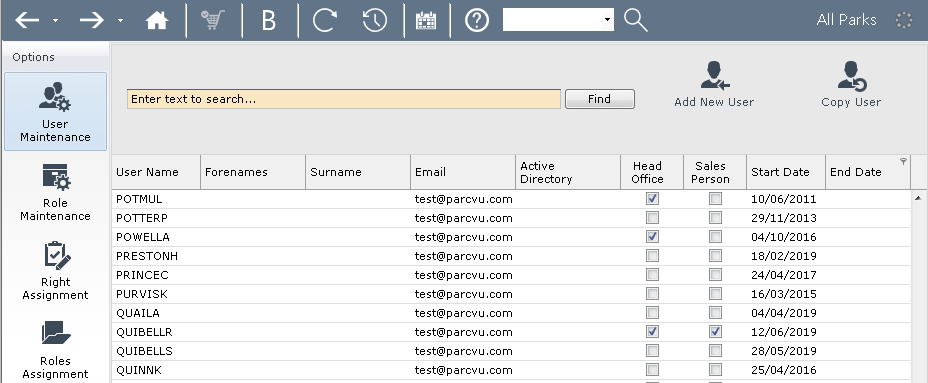
The ‘Users’ and ‘Roles’ Details screen will be displayed.
RDP Users
Do you use ParcVu Desktop on our Shared Server? Your users will also require an RDP User which is set up by ParcVu Support.
Requesting Changes to RDP Users
To request a new RDP user, or for an RDP account to be disabled, please contact our Support Team via email. All RDP requests must be in writing
Our team will send the updated password-protected spreadsheet to the designated contact within your business
We recommend at least 2 people within your business have access to this spreadsheet, to allow for Holidays and unexpected absences
To access the ParcVu servers, you must access from a Whitelisted IP Address. If you have a static IP address you can email our Support Team and request that your IPv4 address be Whitelisted (you can get this by Googling ‘What’s My IP?’) - these requests must be in writing. Alternatively, your IT Support Partner can set you up with a VPN and we can Whitelist the IP of the VPN
Logging in to an RDP Account
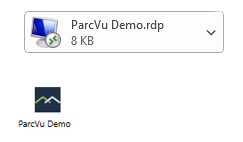
Click the RDP link sent to your with the spreadsheet - you can either click it from the email, or from a shortcut saved to your desktop. It will look like one of the below
Following a Windows update in Q2 of 2026, users will be presented with a slightly different message than they used to see when launching the RDP Connection (you may still see the ‘old’ version if your Windows Security Updates are behind). Users will now have to grant the RemoteApp permissions each time they launch - Drives, Clipboard and Printers should all be ticked
This is not an error and does not need to be reported to ParcVu Support
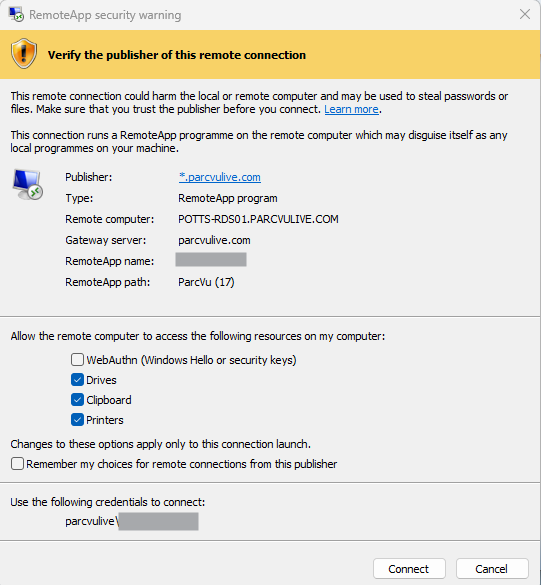
If you don’t have all the options (for example, ‘Drives’ is not available), or are unable to edit these permissions, you’ll need to speak with your IT Support Partner. This is a security update from Windows, not a change made by ParcVu. ParcVu Support cannot assist with changing these permissions
If you’re unable to copy-paste things into/out of ParcVu Desktop, the most likely cause is that you have not ticked ‘clipboard’ when launching the App
If you are unable to download or upload documents to ParcVu Desktop because your folders aren’t showing, this may be because you have not ticked ‘drives’ when launching the app
If you suddenly can’t print, or your printers are suddenly not showing as available, the most likely cause is that you have not ticked ‘printers’ when launching the app
You’ll need to relaunch the Remote App connection to grant the permissions - ParcVu Support cannot assist with this, as it’s a Windows behaviour related to your specific connection. Re-launching and granting the permissions will resolve your issue
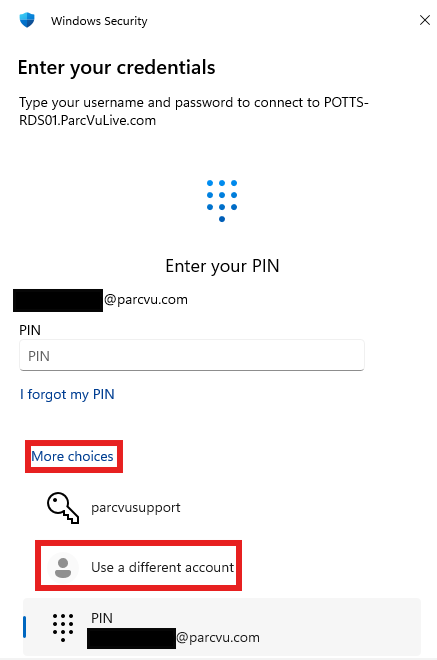
The login screen will open - often Windows will open assuming you’re going to use your Windows email and PIN, if that’s the case, you’ll need to select more choices then Use a different account to get to the correct login screen
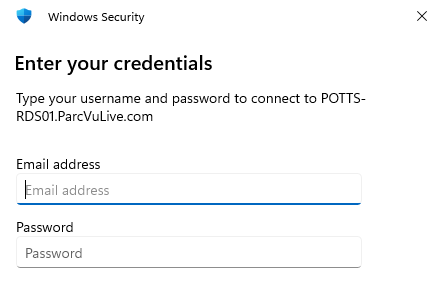
In the email address field, enter the username provided to you. This will be in the format parcvulive\ABCSurnameA
Where ABC is the code used by ParcVu to identify your business, followed by your Surname and First Initial
In the password field, enter the password supplied for your username in the spreadsheet
If you’re not able to access your RDP account check that your IP address hasn’t changed (or that you’re logged in to the VPN supplied to you by your IT Support Partner), that you have the correct format for your username, and that you’re using the password supplied by ParcVu - this will be different from the password for your ParcVu user, and cannot be changed