View Availability in ParcVu Desktop
Last updated 4 months ago
The Availability function in ParcVu Desktop is only available to existing customers who previously signed up for the legacy ParcVu Bookings module. New subscribers will be offered enrolment in the Booking Experts module. Existing customers using legacy Bookings will be offered the opportunity to upgrade to Booking Experts - contact your Account Manager for more information
While Allocations show the total number of any given Booking Product, Availability shows how many of those Products are bookable at any given point
From the Home Screen, go to Bookings Sub Menu > View Availability

Select the Park, date you’d like to check Availability from and how far ahead (this will default to Today for 28 days), and the Product Type - we recommend keeping your search as concise as possible, checking long periods will take longer and can create a huge volume of data that’s more difficult for you to analyse
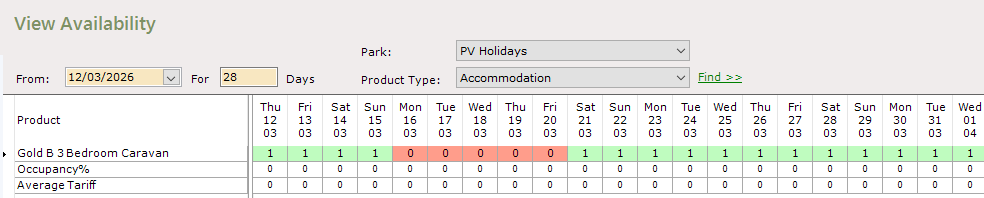
Numbers shown in green are the number of units you have available on that date
Red indicates there is no availability for that date - a negative number indicates you are overbooked for that date and you should resolve this as soon as possible
If your Availability is not as expected, you should follow the troubleshooting steps below before contacting ParcVu Support for further guidance. We recommend doing them in this order;
Check that there are no Repairs on the Unit or Pitch (Putting A Unit Under Repair)
Check that there are no Unassigned Bookings for any Booking Products (Process Unassigned Bookings)
Check that Allocations are correct (Maintaining Allocations)
Check that Booking Tariffs are entered and Refresh Cached Pricing (Setting Pricing For Bookings)