Maintaining Allocations in ParcVu Desktop
Last updated 4 months ago
The Allocations function in ParcVu Desktop is only available to existing customers who previously signed up for the legacy ParcVu Bookings module. New subscribers will be offered enrolment in the Booking Experts module. Existing customers using legacy Bookings will be offered the opportunity to upgrade to Booking Experts - contact your Account Manager for more information
Allocations display the number of any given Booking Product present in the system. In order for availability to be correct, the Allocations must be regularly reviewed to ensure they are accurate, and must always be updated when a new Product is added
If a new Booking Product is added, or a Booking Product is added to a unit and the Availability doesn’t reflect this, or the unit is not available to allocate a Booking to, you should first check that the Allocations are correct
To access this functionality, the user must have the Edit Allocations user permission
From the Home Screen, go to Bookings Sub Menu > Allocations
Select the Park and date range - you can also filter to a specific Booking Product, which can be helpful if you are only interested in a single Product - then click ‘find’
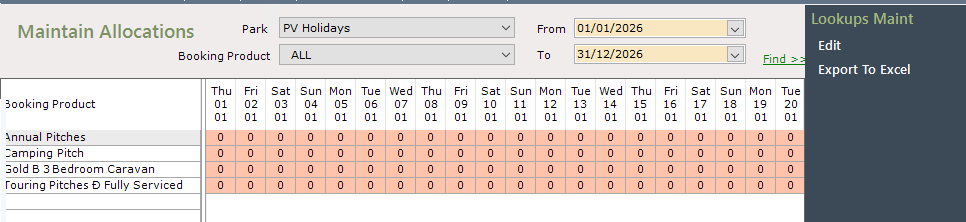
Click ‘Edit’ then ‘Quick Fill’ or ‘Reset to Default’, whichever option displays
‘Quick Fill’ appears when you’re adding Allocations for the first time - so you’re most likely to see this option when adding a new Booking Product, or setting Allocations for a new year
‘Reset to Default’ appears when you have previously set Allocations, and you need to check these for accuracy
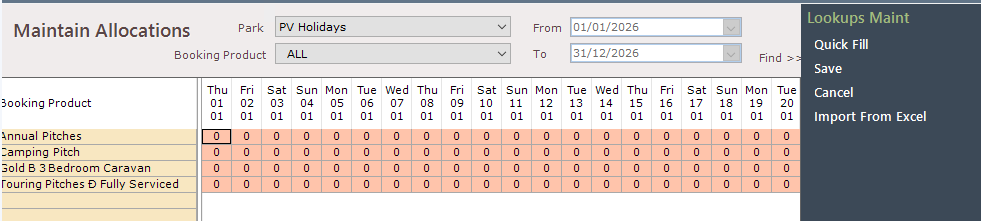
The numbers in the grid will update to the current number of Holiday Homes/Pitches with the associated Booking Product
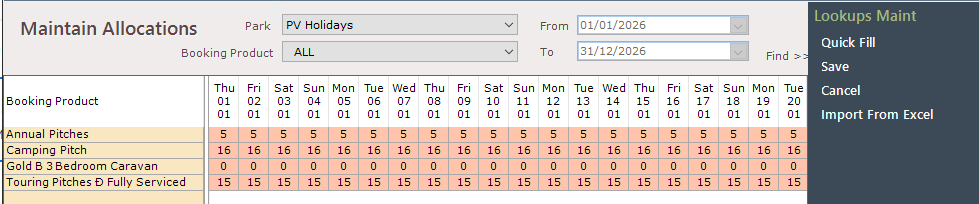
Click ‘Save’ if these numbers look correct
When choosing ‘Reset to Defaults’, a warning message will display - you should click ‘Yes’ here to preview the change. This change will not be finalised unless you click ‘Save’, so you can safely use this as a previewing tool to check your Allocations are correct
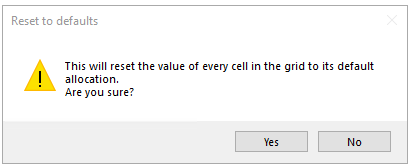
If the numbers on the grid change, you’ll know that the previous Allocations were incorrect, and you can save the change to update


After Allocations are updated, you must Refresh Cached Pricing. You can find out more about this here: Booking Tariffs in ParcVu Desktop