Bulk Assign Bookings (Process Unassigned Bookings) in ParcVu Desktop
Last updated 4 months ago
The Process Unassigned Bookings function in ParcVu Desktop is only available to existing customers who previously signed up for the legacy ParcVu Bookings module. New subscribers will be offered enrolment in the Booking Experts module. Existing customers using legacy Bookings will be offered the opportunity to upgrade to Booking Experts - contact your Account Manager for more information
Bookings can be assigned individually via the booking Details screen (you can find more information about this in the article Assign A Booking in ParcVu Desktop) or in bulk using the Process Unassigned Bookings function
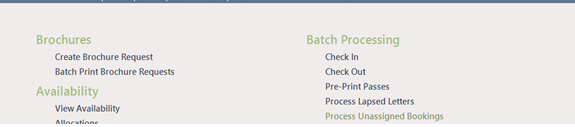
From the Home screen go to Bookings Sub Menu > Process Unassigned Bookings
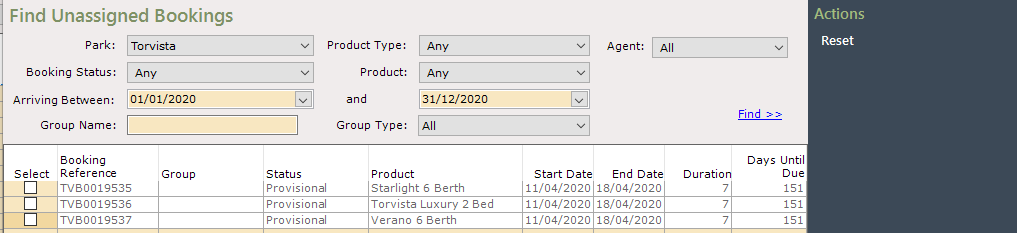
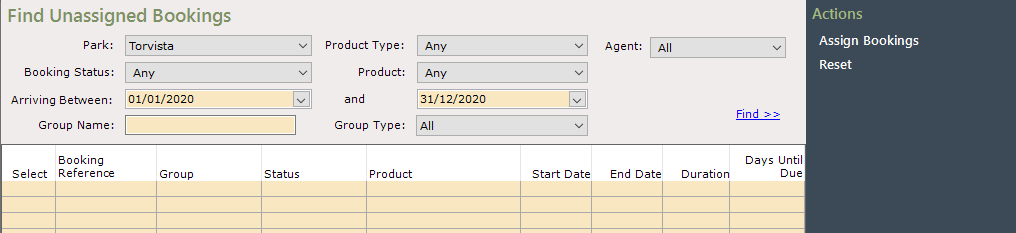
The ‘Find Unassigned Bookings’ screen will be displayed. The Filters at the top of the screen can be used to refine the search as required.

Select the required search criteria and click Find
Any unassigned Bookings with the selected criteria will be displayed in the grid, showing Booking reference and Dates.
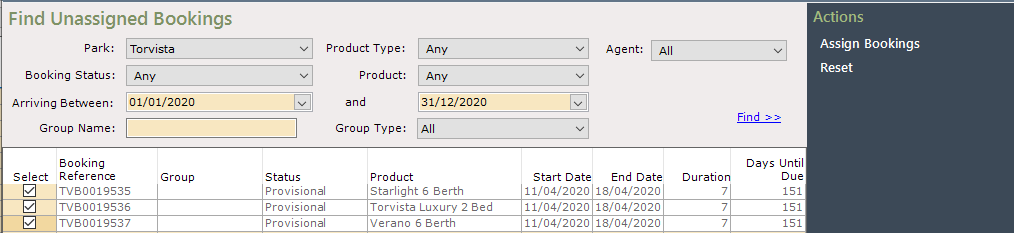
To ‘Bulk Assign’ the bookings, click into the ‘Select’ column to tick and select them, or use the button at the bottom of the grid to select all

An option to ‘Assign Bookings’ will be available on the Navigation list.
Select ‘Assign Bookings’ and all selected bookings will be displayed in a list on the left-hand side of the assignment screen by Booking Reference.
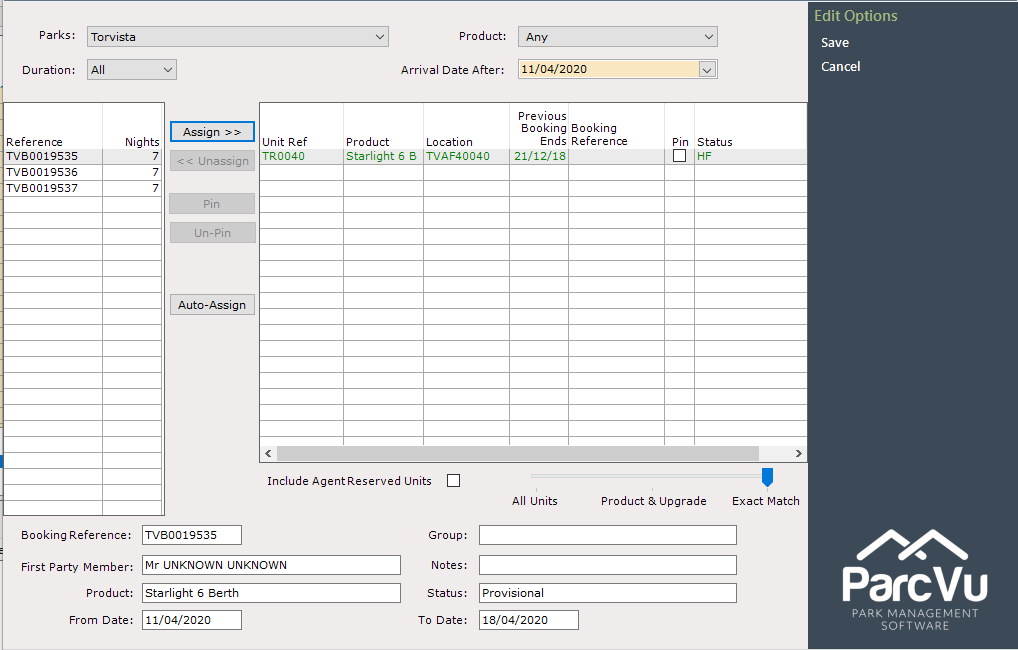
The top booking in the list will be highlighted and the units displayed will be the available units of the Product Type on the selected booking, a Booking Details summary is shown below the grid.
Click on the required Unit line in the grid and then click ‘Assign’.
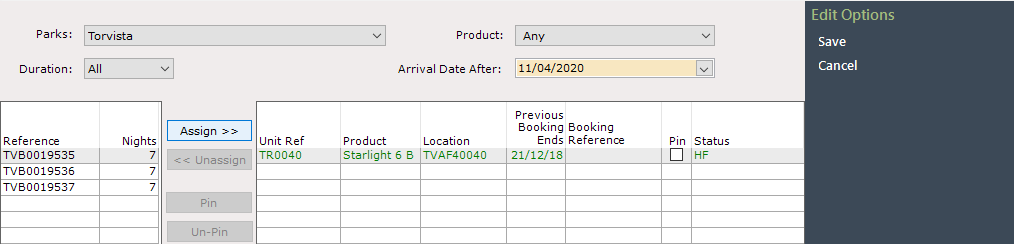
The Booking Reference and the selected Unit line will be highlighted.
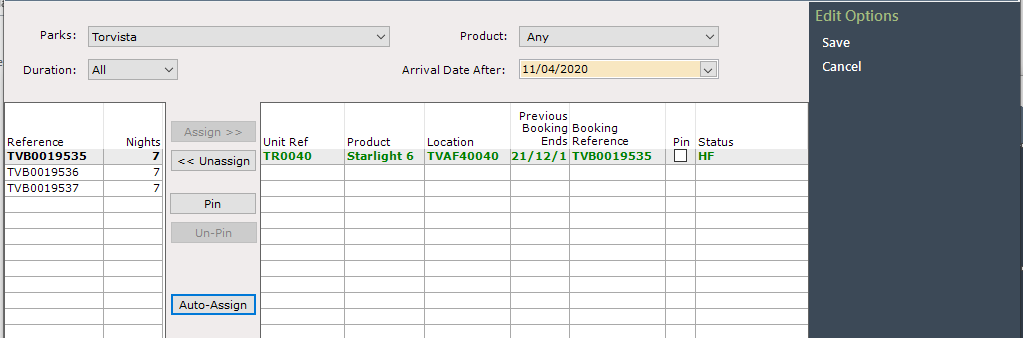
Click onto the next Booking Reference number in the list on the left and the units available list showing in the grid will be updated to show available units of this booking Product Type, again a Booking Details summary will be shown at the bottom of the grid.
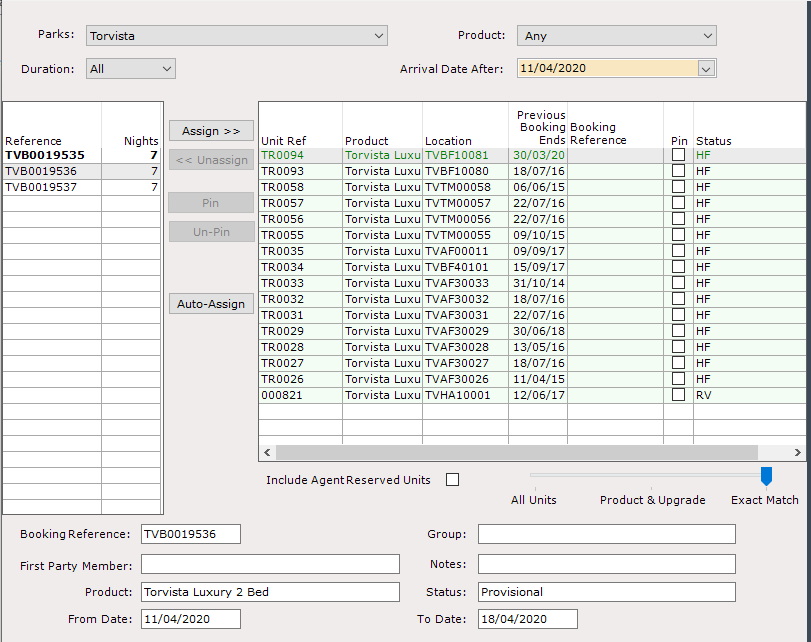
Continue down the list until all bookings are assigned as required.
You can save time by using the Auto Assign function. When the button Auto Assign is used, the system will work through the list and auto assign to any of the available units for each Booking
When finished, select Save on the Navigation list.
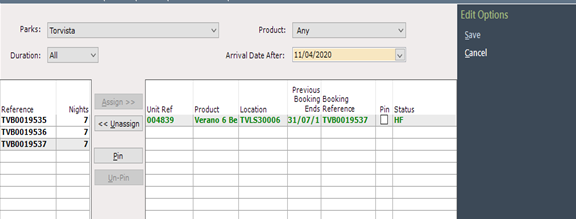
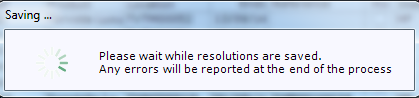
A message will be displayed to show that the assignments are being saved.
Once saved the grid will be clear.
If any errors are reported, these must be resolved before the booking can be assigned.
The Booking Assignments can now be viewed via the individual Booking details screens on the ‘Assignment’ tab.