☑️ Print or Email Automatic Invoicing in ParcVu Desktop
Last updated 7 months ago
Contract Billing Is Now Available in ParcVu Online!
This function is now available in ParcVu Online! For the best experience, we recommend switching to ParcVu Online to ensure you always have access to the latest features
Continue using Desktop:
To access this function the User will need the Allow Ledgers sub-menu permission
To send AIC invoices via email, Email AIC Invoices must be set to True in System Maintenance Sub Menu > Client Configuration
Invoices generated by the ‘Automatic Invoicing Calculate’ process need to be printed via ‘Print Auto Invoicing Request for Payment’
From the Home Screen go to Ledgers Sub Menu > (Re-)Create Auto Invoice Payment Request

A Park must be set in the top right corner of the screen for this option to be available - if ‘All Parks’ are selected, this option will be greyed out
In the ‘Account Selection’ section, the ‘Account No’s to Process’ defaults to include ‘All Accounts’ and the ‘Invoice Date for Invoicing Run’ defaults to today’s date
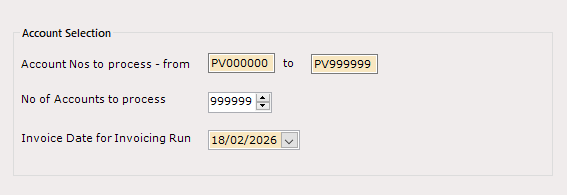
To include all accounts with Invoices to be printed, leave the Account Nos set to the default selection. To print a specific range or Account, amend the ‘from’ and ‘to’ Account Nos
Set the Invoice Date for Invoicing Run to the date you ran the AIC
When all required criteria are set, select ‘Start’ on the Navigation list
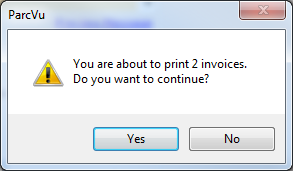
A Print warning message will appear confirming the number of invoices about to be printed.
If no Accounts are found, ensure you have the correct date entered for the Invoicing Run - the system will only find Invoices raised with an Invoice Date of the value entered
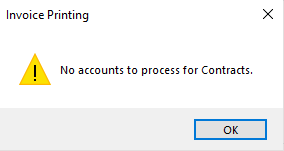
For example, if the Invoice Date on your AIC was 01/01/2026 and you’re printing 2 days later, you should still set the ‘Invoice Date for Invoicing Run’ to 01/01/2026 - leaving this date set as 03/01/2026 will return no Invoices
If all correct confirm ‘Yes’
Customers who have their default contact method set to Email will have the invoice emailed to them. The system will print letters for Customers whose default contact method is Letter
Even if all Customers have ‘Email’ as their contact method, you should not cancel the ‘printing’ - the system is generating the PDFs which are required to attach to the emails, cancelling the ‘print’ will abort the process and no invoices will be sent
This process can be repeated if necessary, so if a reprint is required for any reason, the same steps will resend the invoices