☑️ Upload a Document in ParcVu Desktop
Last updated 6 months ago
It’s possible to store documents against an Owner Account in ParcVu Desktop - this can be useful for keeping digital copies of signed agreements, insurance documentation or safety certificates
The document must first be stored in a location that’s accessible by both your PC and ParcVu - this is usually your Local Drive (often called the C drive)
Navigate to the Owner Account, and select ‘Upload Document’ from the menu on the right hand side
Enter the document detail in the Summary field and use the ‘Browse’ option to find and select the required document on your PC.
Remember to ‘Un-tick’ the ‘Delete file after Uploading’ option if you don’t want the document to be deleted from its location after upload
Select The required ‘Reason’ for the document and enter some detail about the document in the box below (at least 4 characters are required). Select ‘Save’ on the navigation list.
You can then select to ‘View Uploaded File’ to see the document if required
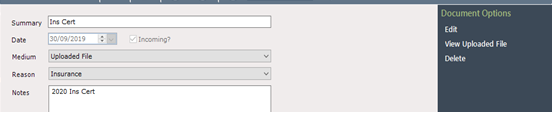
Any correspondence uploaded can then be viewed at any time via the Communication History option on the navigation list in the Communications section on the Account Details screen