☑️ Amending Owner Account Details in ParcVu Desktop
Last updated 6 months ago
Owner Accounts are created either by the Data Take On process when you are a new ParcVu customer, or via the Holiday Home Sale process once you are a Live customer
To find an Account, you can either use the global search at the top of the screen to search by Account Number or Name, or you can use the Account - by Account No, Name etc option from the Home Screen
To make any additions or amendments to the account, select ‘Edit’ from the Navigation list on the right
Owner Information in ParcVu Desktop
Within the main section of the Account Details, you can amend information such as address details, phone numbers and the Customer email
Only one piece of contact information should be entered per field, and no additional text should be added, or critical processes will fail
“email1@provider.com/email2@provider.com” in the email fail would result in any email processes failing
“+447000000000 - Bob” in the Mobile field would result in any SMS processes failing
If any email or SMS processes advise that an Account has invalid information, check that only one piece of valid contact information is set per field
The ‘Web Email’ field is automatically set by the Owner Portal registration process and should not be edited by a User
Linked Accounts
If the Account Details screen shows ‘Details used by other accounts’ in red, this means any changes made to this Account will also impact all the Linked Accounts.

If you find changes made in one Account impact another, this is the cause. If you wish to unlink the Accounts so that separate information can be held against each, you can do this using the Delink Accounts function in Data Exports
Insurance Information in ParcVu Desktop
As this is sensitive information, users will need the Can see Bank Details user permission to see this information - this tab will not show for users without this permission
Insurance and Banking details can be held against the Account in the Insurance & Banking tab
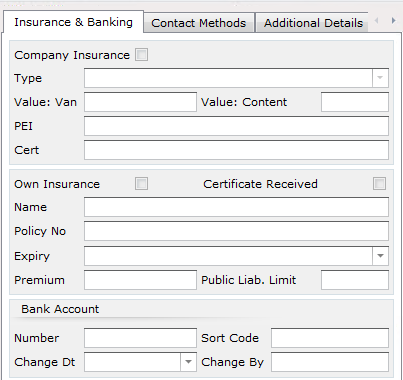
It is strongly recommended to record Insurance Details in ParcVu, to assist your Park Administrator in ensuring all Owners are appropriately insured
Billing Flags in ParcVu Desktop
At the bottom of the ‘Insurance & Banking’ tab, there are flags which are used for billing processes - for example, ‘direct debit’ to identify the customer as being part of the Direct Debit scheme
Contact & Marketing Preferences in ParcVu Desktop
Please ensure all preferences are always set in line with the Customer’s wishes - failure to comply with these preferences can be in breach of GDPR. If you are unsure, please speak with your Data Protection Officer (DPO)
Click on the Contact methods tab to check and set Contact methods for both the Account communications and Marketing communication as appropriate
You can only select a preference for which the Account has valid contact information - for example, you cannot select ‘Email’ if there is no Email address entered. The ‘Save’ action will fail, and a red cross will appear next to the missing information. Hovering over this will give further information for how to resolve

This is not a system error and you do not need to report to ParcVu Support. Following the guidance on the message will allow you to Save
Marketing and Account preferences are set separately as the Customer may have different preferences for communications relating to their Account vs marketing. Opting out of marketing does not stop the Customer from receiving Account-related communications such as invoices
The Account Default Contact preference will determine which method is used by processes which send Communications (including Invoices) to the Customer
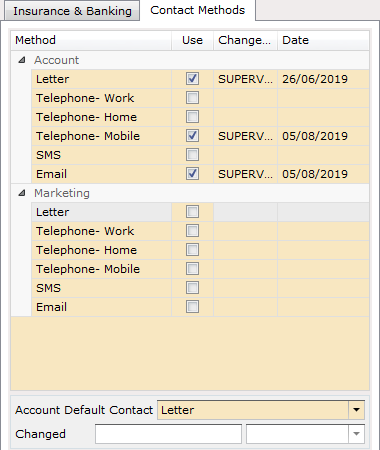

Should a Customer opt out of marketing, uncheck the ‘Willing to receive marketing’ checkbox and remove the checks from the Marketing preferences section
Under GDPR, marketing consent must be an explicit opt-in process. Before setting any marketing preferences, ensure that you are acting in line with the wishes of the customer. If you are unsure, please speak with your Data Protection Officer (DPO)
Additional Details in ParcVu Desktop
This tab holds any Dynamic (custom) Fields created by your organisation. For more information about Custom Fields, see the article Dynamic (Custom) Fields in ParcVu Desktop
Vehicle Plates in ParcVu Desktop
This tab is for use with integrated ANPR (Automatic Number Plate Recognition) systems only. If you do not currently have an ANPR integration in place, attempting to edit this information will result in a notification explaining you can’t use this function.
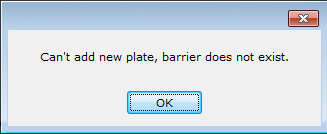
This is not an error message and you do not need to report it to ParcVu Support. This function cannot be used without an active ANPR integration
If you wish to record number plates without an active integration, you can create a Dynamic (Custom) Field for this purpose. You can find out more in the article Dynamic (Custom) Fields in ParcVu Desktop