☑️ Prospect Appointments in ParcVu Desktop
Last updated 9 months ago
To log an appointment for a Prospect, from the Main Menu, select ‘Prospect’ and the ‘Find Prospect’ screen is displayed.

Search for the required Prospect using the search fields displayed and then click
Select the required prospect from the list displayed by double clicking on it and the select Prospect details screen will be displayed.

Remember, the Prospect represents the person themselves, and their contact information. The Interest represents the ‘lead’ - the Park they’re interested in. Hence, the appointment is set against the Interest, as it relates to looking at Holiday Home Ownership at a specific Park
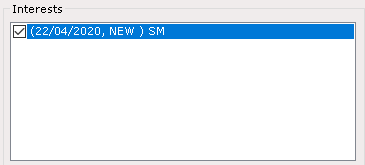
Double click on the interest
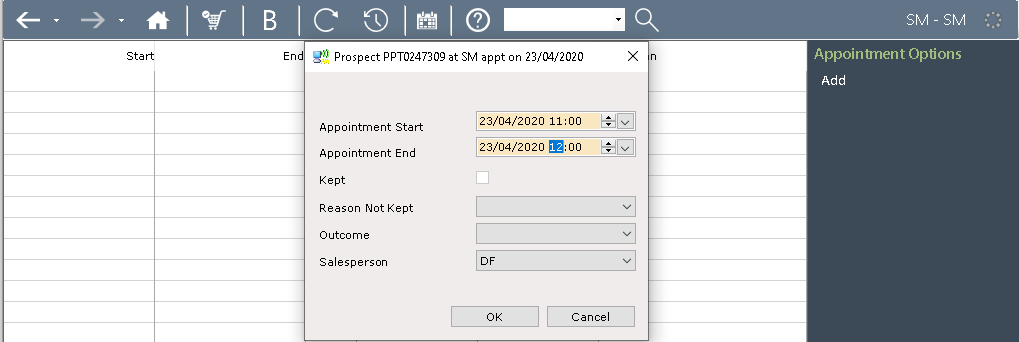
The Interest Details screen will be displayed select ‘Appointments’ from the Navigation list on the right , then select ‘Add’ and enter the required details on the ‘Appointments’ pop up message screen, click ‘OK’ when finished.

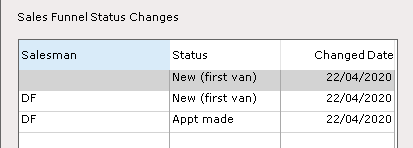
The Interest Sales funnel status will be Updated accordingly.
Editing/Updating an Appointment in ParcVu Desktop
The appointment can be edited and updated by selecting ‘Edit’ from the Navigation list on the right
The entry will now also be shown on the Prospects Diary.
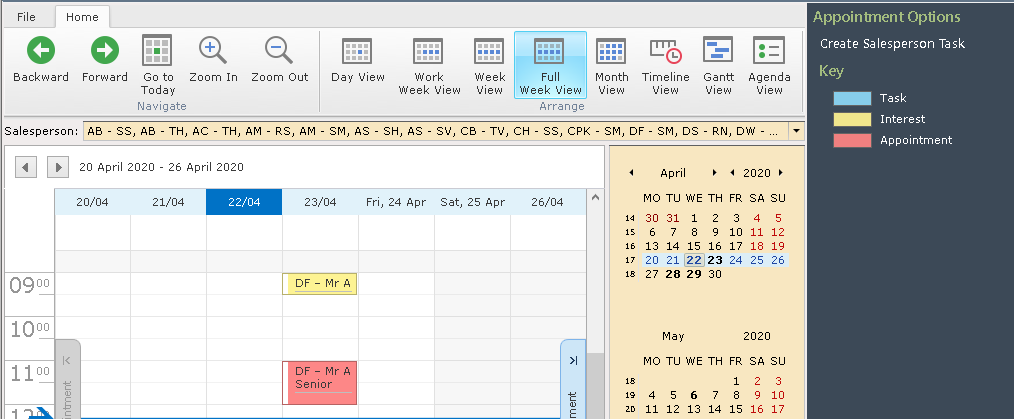
To update an Appointment, click on the appointment on the Diary and appointment pop up will be displayed.
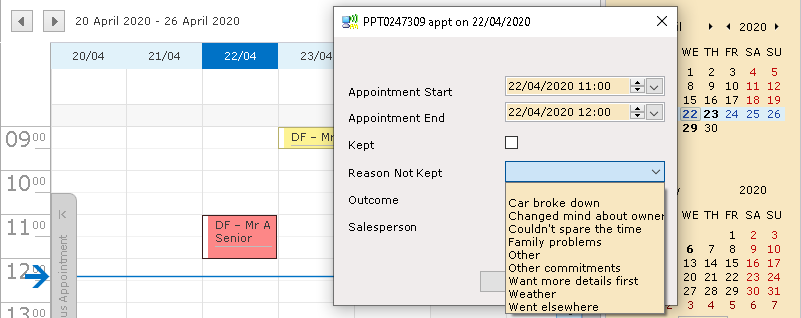
If an Appointment was not kept, select the appropriate reason for this from the drop-down list
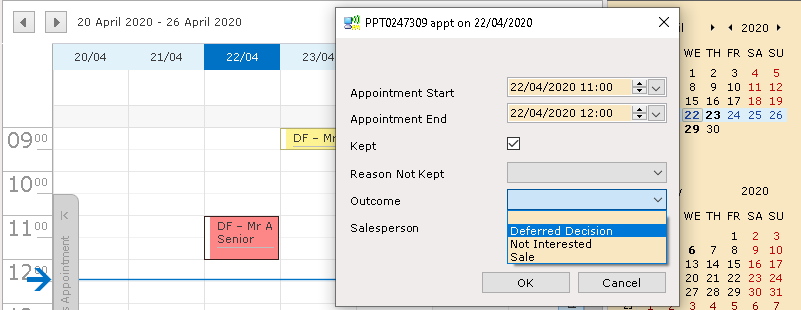
If an appointment was kept but no Sale was made, click into the ‘Kept’ field and select the appropriate outcome from the drop-down list
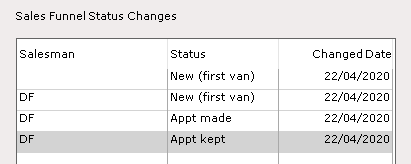
The Interest status funnel will be updated accordingly
If the Appointment outcome is a Sale, then the Sales process will update this automatically and the prospect interest will be marked as ‘Sold’ when the Sale Completes. There is no need to update the appointment as ‘Kept’
Once an appointment is updated this will be reflected in the interest appointment screen.
