☑️ Create a Prospect in ParcVu Desktop
Last updated 9 months ago
In ParcVu, Prospects represent a Person interested in Holiday Home Ownership. The Prospect holds their contact information. A single Prospect can have multiple Interests - interests represent a lead for a Park the Prospect is interested in Holiday Home Ownership at
Users will require the permission Can Use Prospects to access these functions
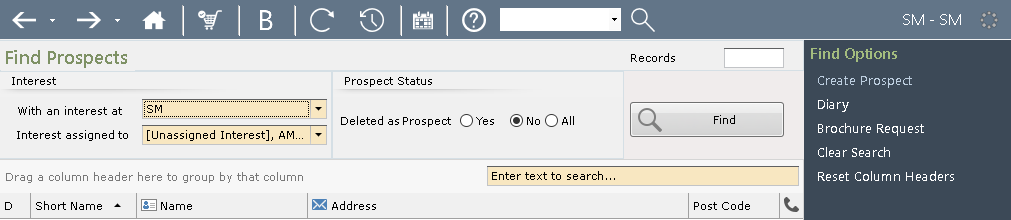
From the Home screen, click Prospect
Select ‘Create Prospect’ from the Navigation list on the right.
The ‘Prospect Details’ screen will be displayed, enter the new Prospect information and set the available Contact Methods flags on the ‘Contact Methods’ tab for both the Account and Marketing options as appropriate.
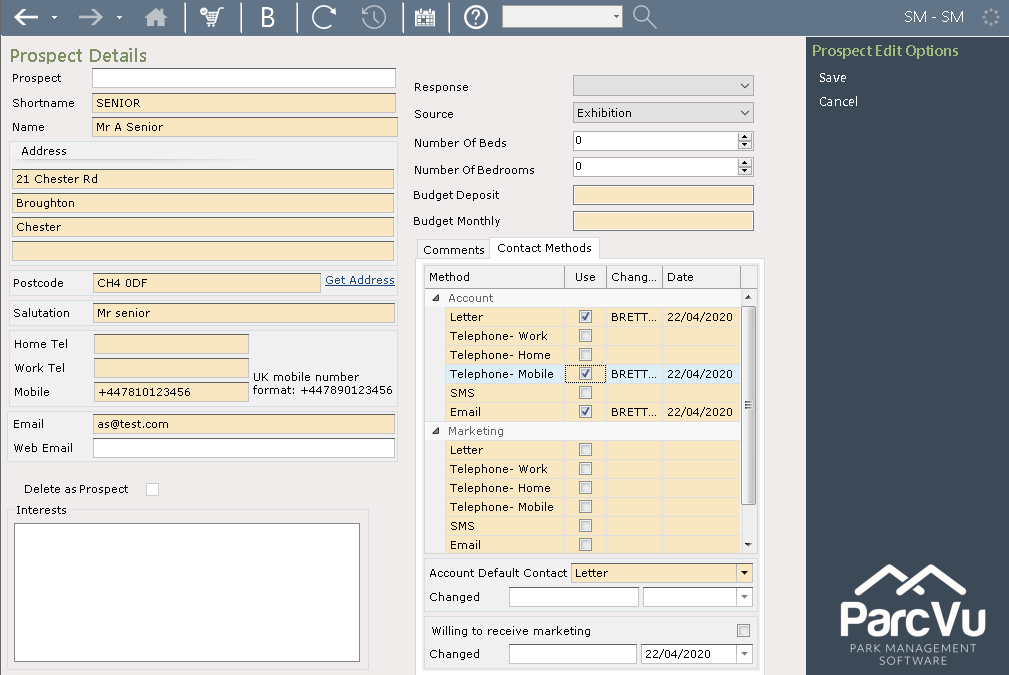
When complete, select ‘Save’ from the Navigation list on the right.
Adding Interests to the Prospect in ParcVu Desktop
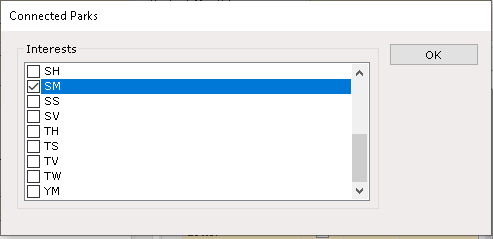
If the Prospect is being created by a ‘Head Office’ type user, select the Parks that the new prospect is interested in by clicking into the box on the left, if it’s by a Park User, then the Park will be automatically selected, then click ‘OK.
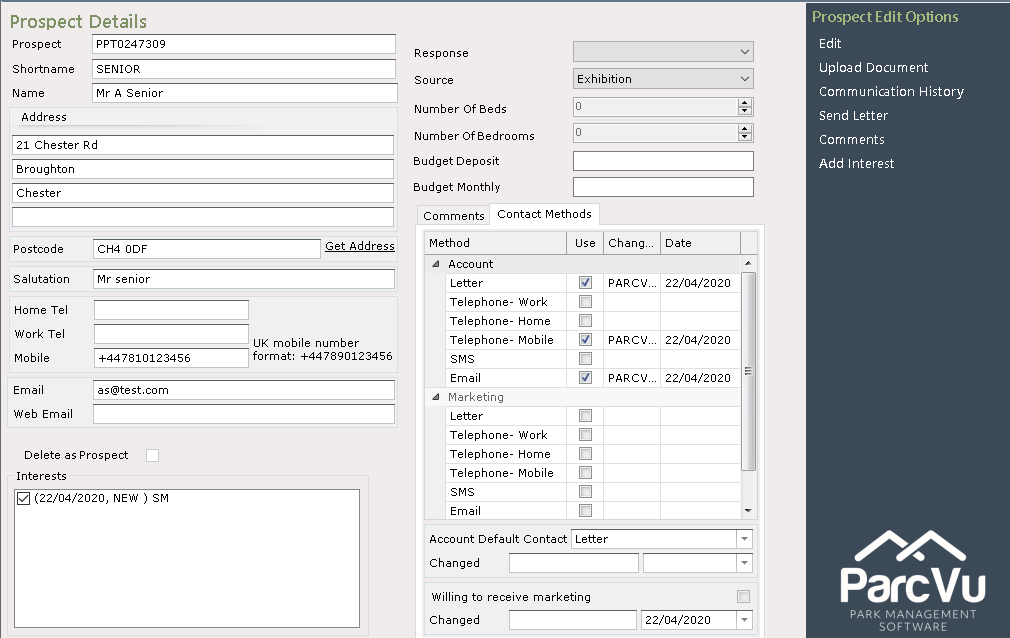
The ‘Prospect Details’ screen will now show the prospect details and the ‘Interest’ NOTE: The ‘Lead Date’ will be automatically added at this point. The ‘Contacted Date’ and the Re Contact Date’ fields are memo fields which are editable to allow Salesmen to record these details.
Assign a Salesperson to the Interest in ParcVu Desktop
Users designated as Head Office Users will require the permission Allow HO user to Change Salesman to perform this function
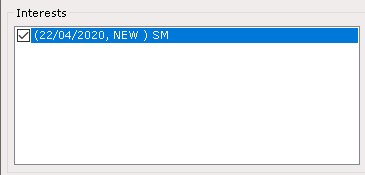
A Salesperson needs to be added to the interest, double click on the ‘Interests’ line in the ‘Interests’ section
Select ‘Edit’ from the Navigation list on the right
Use the drop-down list in the ‘Salesman’ field to select the required Salesman for the interest, click ‘Save’ on the navigation list.
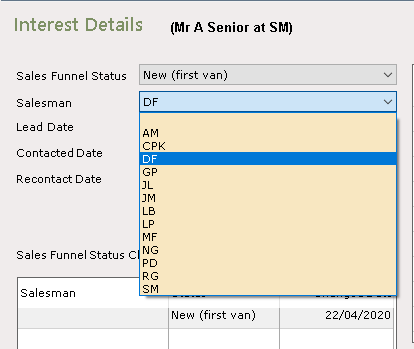
NOTE: Until a ‘Salesman’ is set on an interest, it is not possible to set appointments etc.
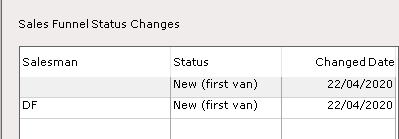
As changes are made to the Prospect, the Interests Sales Funnel Status will auto update to show this.
Adding Comments to the Prospect in ParcVu Desktop
To use this function, the User will need the permission Can edit and delete prospect comments
To add comments to this prospect’s information, select ‘Comments’ from the Navigation list on the right.
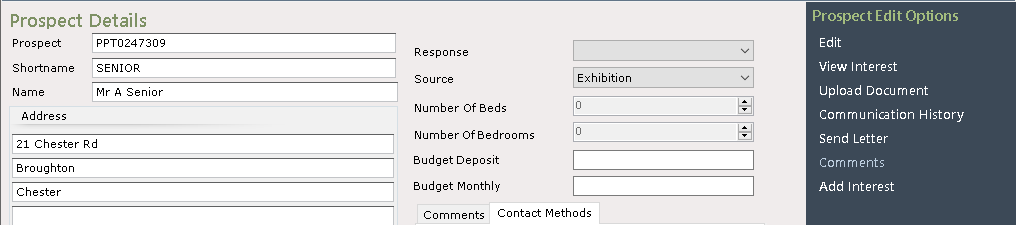
Select ‘Add Comment’ from the Navigation list on the right and a comments box will appear, type in the required details and click ‘OK’.
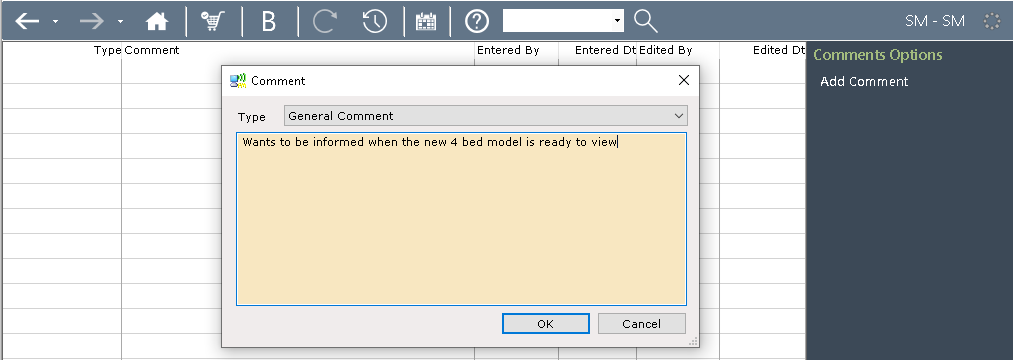
The comment will then be saved to the prospect details and can be viewed as required.

Click on the top toolbar to return to the prospect details screen. The system will have automatically assigned the New Prospect an individual Prospect Number.
The Comment summary will now show on the Prospect Details screen, the full comment detail can be viewed by selecting Comments on the navigation list.
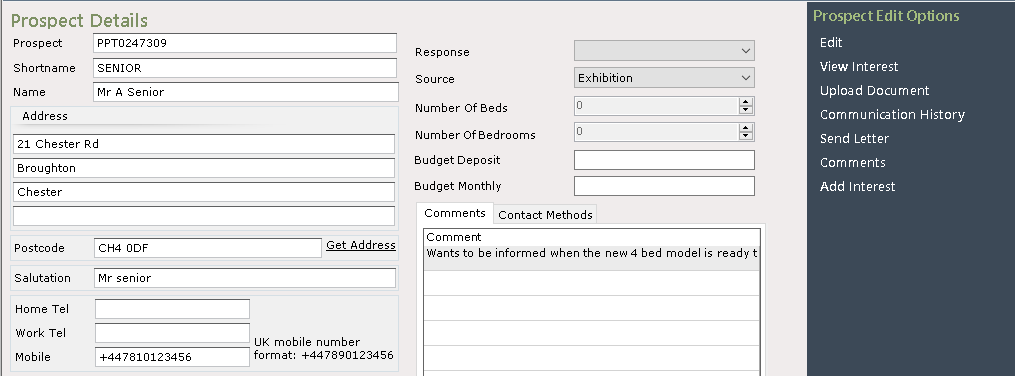
NOTE: A Comment can be set on either the Prospect Details screen or in the Prospect Interest screen.