☑️ Print a ‘Statement’ in ParcVu Desktop
Last updated 7 months ago
Navigate to the required Owner Account details screen
Once in the Owners Account, select ‘View Rent Ledger’ from the navigation list.
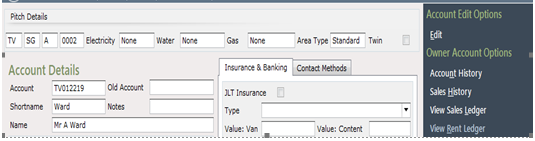
Select ‘Print Statement’ from the navigation list on the right.

The Print statements screen will be displayed, showing that the Statement criteria, has been automatically selected.
There are several options available to select to Include or Exclude postings on the Statement
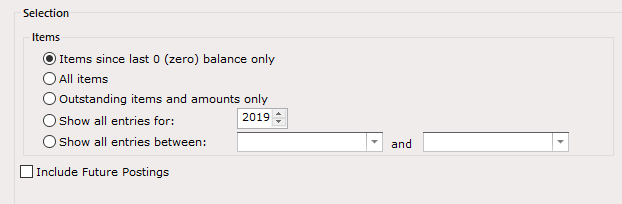
Once selected, click ‘Start’ from the navigation list on the right.

Select the required ‘Printer’ to send the Statement to and then click ‘Print’.
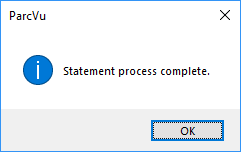
The Statement will now be printed. Click ‘OK’ to the message showing ’Statement Process Complete’
Click on the arrow at the top left of the screen to return to the Owners Rent Ledger account.

It’s also possible to email Statements following the same steps but starting with ‘Email Statement’ rather than ‘Print Statement’
For this option to be visible to the user, the setting Email Statements must be set to true in System Maintenance Sub Menu > Client Configuration, the Account must have an email address and have email selected as a contact method