☑️ Post Direct Debit Payments in ParcVu Desktop
Last updated 8 months ago
To use this function, the user will need the Direct Debit Processing permission
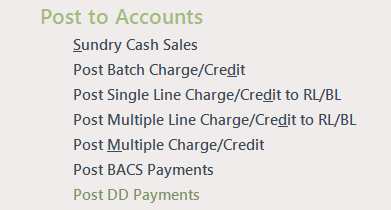
From the Main Menu, select ‘Open ‘Ledgers Sub Menu’ from the ‘Ledgers’ section, in the ‘Post to Accounts’ section of the Menu, select ‘Post DD Payments’.
The ‘Post Batch Direct Debit’ screen will be displayed select ‘Create New Posting’ and highlighted for entry
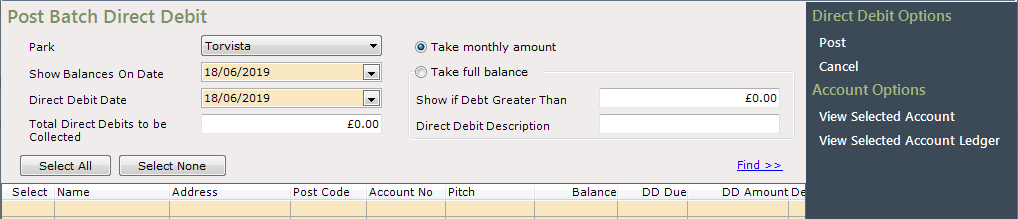

Use the filters above the grid to set the required criteria for the Accounts to be returned, the Direct Debit Date and enter the Direct Debit Description, click and the accounts that fall into the specified criteria will be displayed in the grid
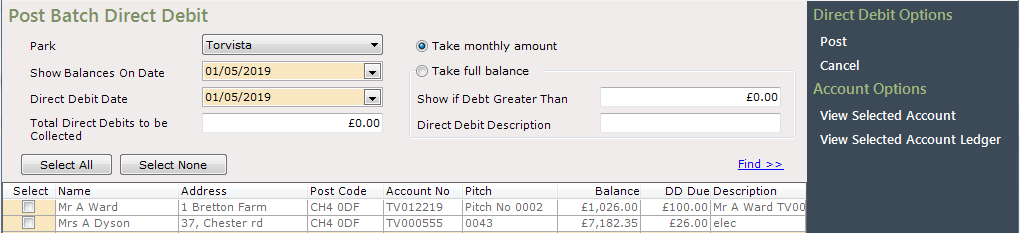
It is possible to select to ‘Take Monthly Amount or to ‘Take full Balance’, users should be mindful of this before posting the batch to ensure it is correctly set
Any outstanding balance on the account will be shown in the ‘Balance’ column, if ‘Take Monthly amount is selected, the monthly set up DD Amount will show in the ‘DD Due’ column.
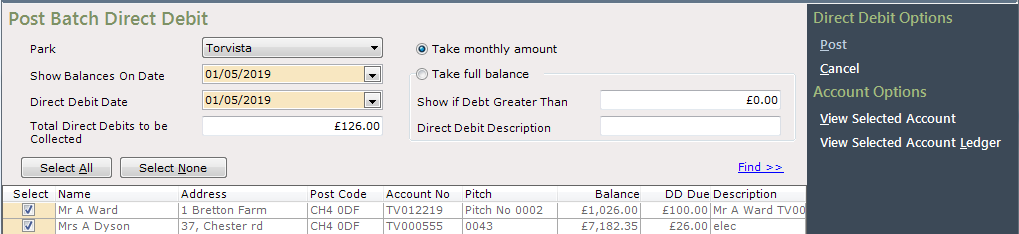
Select the required accounts by clicking into the ‘Select’ column on the left-hand side of the grid, to ‘Tick’ and select the account, or use the Select All option if all accounts should be included.

The ‘Total Direct Debits to be Collected’ field above the grid will show the total amount to be collected of all the selected accounts.

When all required accounts are selected and all Direct Debit amounts are entered, select ‘Post’ on the navigation list.
The file locater popup will appear, set the location for the file to be saved to and enter a File name for the document.
The Rent direct Debit pop up will be displayed confirming that the batch was posted successfully, and the file was saved to the location set.
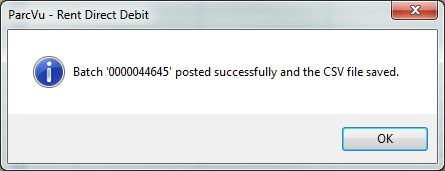
Click ’OK’ to the message and the screen will be cleared.
Navigate to the location of the saved file and open to view. The file will contain all details of selected accounts to request payments.

Navigate to one of the selected accounts and view the Rent Ledger, the Direct Debit posting will be displayed on the ledger.