☑️ Entering a Metered/Piped Gas Reading in ParcVu Desktop
Last updated 7 months ago
Utility Billing Is Now Available in ParcVu Online!
This function is now available in ParcVu Online! For the best experience, we recommend switching to ParcVu Online to ensure you always have access to the latest features
Continue Using ParcVu Desktop:
To use this function, the user must have the Allow Fuel Processing permission
In addition, for Limbo Accounts, the User needs the Edit fuel & jobs on limbo accounts permission - if the User does not have this permission, the Fuel and Jobs section will not appear in ParcVu Desktop if the Account is in Limbo
From an Owner Account, go to Metered Gas/Piped Gas from the navigation menu on the right hand side (depending on which Gas Type is set against the Pitch)
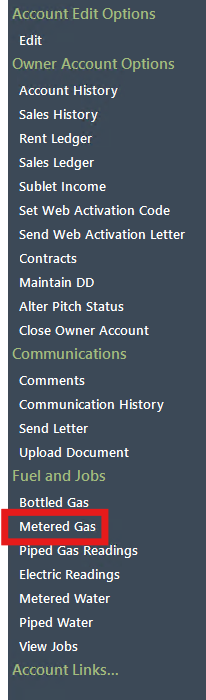
If you see Fuel and Jobs… but no menu options underneath, click on Fuel and Jobs… and the menu will expand

Where you see ‘…’ after a navigation option in ParcVu Desktop, this means that the menu has been compressed to make the screen easier to read. Clicking on the title expands the menu again
The ‘Metered Gas Details’/ ‘Piped Gas Details’ screen will be displayed, any existing readings will be displayed
To enter a new reading, click ‘Add Reading’. To update an existing reading, select the reading from the list and click ‘View Reading’
Add a Reading when a Customer is new to the Park, they move to a new Pitch, you’re managing Utilities in ParcVu Desktop for the first time, or a new meter is installed
View and update an existing Reading when you need to bill the Customer for their usage. For example, when regular monthly/quarterly meter readings are done, when a new meter is being installed or when the Customer plans to move Pitch

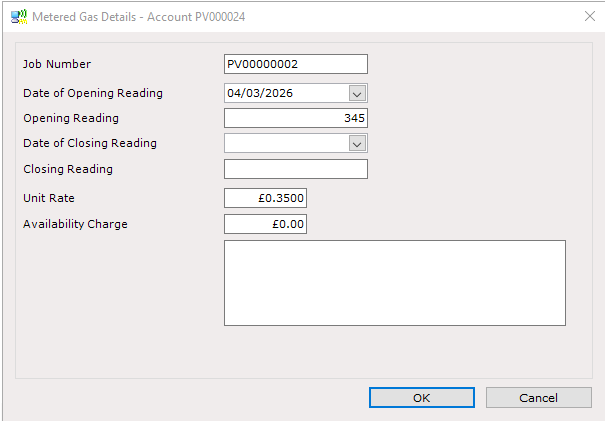
Enter the required details and click ‘OK’ once complete
You can Delete Reading if a Reading has been added in error and the Reading has not yet been invoiced
Meter readings cannot be reversed once the invoices are posted in ParcVu Desktop. We therefore recommend all Users are aware of what a reading appearing in red means, and that meter readings are always sense-checked prior to invoicing