☑️ Bottled Gas in ParcVu Desktop
Last updated 7 months ago
Utility Billing Is Now Available in ParcVu Online!
This function is now available in ParcVu Online! For the best experience, we recommend switching to ParcVu Online to ensure you always have access to the latest features
Continue Using ParcVu Desktop:
To use this function, the user must have the Allow Fuel Processing and Allow Ledgers Sub-menu permissions
From the Owner Account, in the Fuel & Jobs section, select ‘View Bottled Gas’ from the Navigation list on the right.
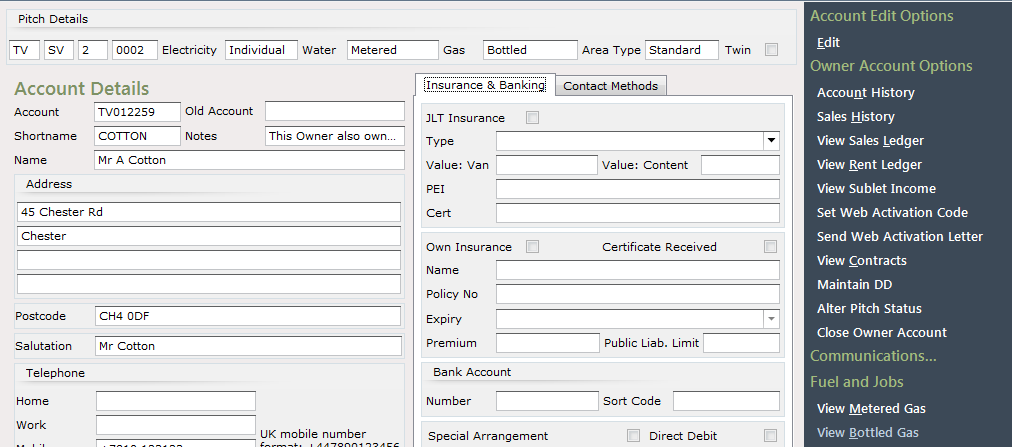
The ‘Bottled Gas Details’ screen will be displayed.
Placing a Gas Bottle Order in ParcVu Desktop
From the Navigation list on the right, select ‘Add Order’.

Enter the Name of the person placing the Order.
Enter the Name of the person who took the Order at Park
Enter the Gas Bottle Size and the Quantity Ordered
Enter the Price per Bottle, click ‘OK’ to save the details
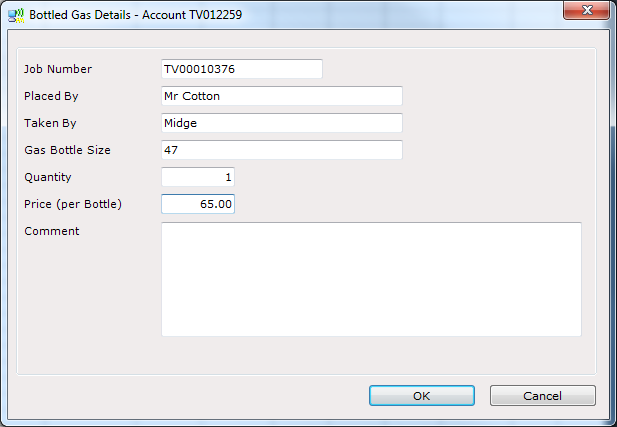
The ‘Bottled Gas details’ screen will be displayed, from the Navigation list on the right select ‘Print Order’

Confirming the Gas Bottle is Delivered in ParcVu Desktop
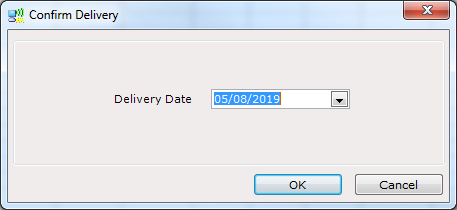
Once the Gas bottle is delivered, return to the Owners ‘Account Details’ screen, select ‘View Bottled Gas’ and the ‘Bottled Gas Details’ screen will be displayed, from the Navigation list on the right select ‘Confirm Delivery’.

The ‘Confirm Delivery’ screen will appear enter the Delivery Date using the drop-down Calendar at the side of the field and click ‘OK’.
Invoicing the Gas Bottle in ParcVu Desktop
In order for the Charge for the Gas to be posted to the Owners Rent Ledger Account, you must select ‘Site Charge Invoice’, from the Navigation list on the right.

Select whether you would like to print an invoice from the message displayed.
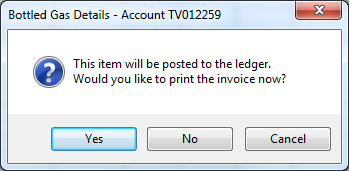
The charge will now be posted to the Owner Rent Ledger Account, a ‘Posted On’ date will be entered to the Reading.