☑️ Locked and Expired Users
Last updated 9 months ago
If your account is locked or expired, then your Internal ParcVu Administrator (the person who manages your users) will need to resolve this for you. We recommend there are a minimum of 2 team members trained in User Maintenance to allow for days off, sickness or other unexpected absences
Expired Users
If Users don’t log in to ParcVu for a long period, their account will expire. They will see a message like the below - the exact text may vary, depending on the settings within your system

Reinstating An Expired User
To access this area of the system the user will need either need the Supervisor Account or to have the Superuser and Allow System Maintenance Menu user permissions
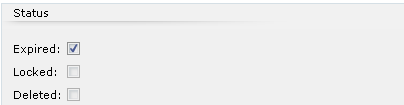
Go to System Maintenance Sub Menu > Maintain Users and find the User account. Uncheck the ‘expired’ box and the User will be able to log in as normal
Please note - If the User does not log in, they still won’t appear on lists within ParcVu, for example, you won’t be able to assign jobs to them. Unticking this checkbox just removes the restriction preventing them from logging in - their account will remain expired in the database until they successfully log in
Locked Users
This will happen when a User enters the wrong log in information too many times. The User will see a message like the below, the exact text will vary depending on your system settings

The account will automatically unlock after the period set in your Client Configuration
Alternatively, your Internal ParcVu Administrator can manually unlock the User
Manually Removing The Lock From A User Account
To access this area of the system the user will need either need the Supervisor Account or to have the Superuser and Allow System Maintenance Menu user permissions
Go to System Maintenance Sub Menu > Maintain Users and find the User account. Uncheck the ‘locked’ box and the User will be able to log in as normal
Automatic Unlock
A User Account which is locked due to entering an incorrect password too many times will automatically unlock after a specific period
To access this area of the system the user will need either need the Supervisor Account or to have the Superuser and Allow System Maintenance Menu user permissions
In System Maintenance Sub Menu > Client Configuration, under the Security section, there is a field for Failed login lock out timeout in minutes - this can be amended to match your company IT Security policy