☑️ Add Holiday Home Images via the Manufacturers & Models list in ParcVu Desktop
Last updated 9 months ago
To access this area of the system, the User will need the permission Allow Access Models and Manufacturers Screen
To add Van Images to the ‘Manufacturers & Models’ list, select ‘Caravan Manufacturers & Models List’ from the ‘Van Price List’ section on the Main Menu.
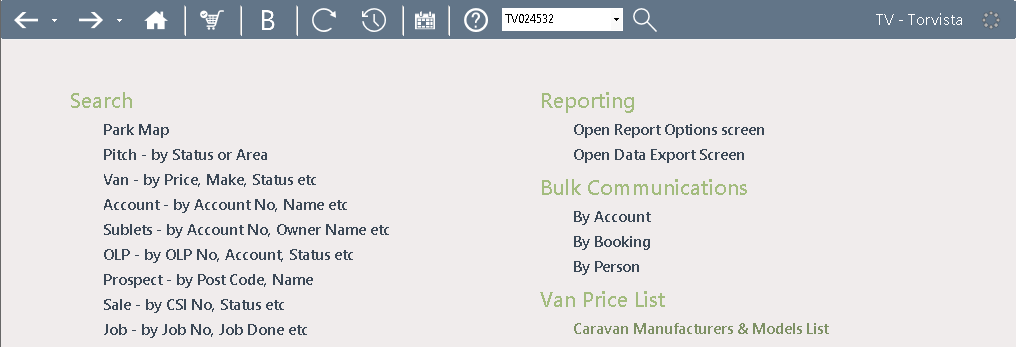
The current ‘Manufacturers & Models List’ will be displayed.
To add a New Van Image, Click on the Manufacturer / Model Name in the list to highlight it, then select ‘Images’ from the Navigation list on the right of the screen and

The Available Images screen will be displayed.

Select ‘New Image’ from the navigation list and the File Locator pop up will be displayed, navigate to the required location, click on the required image and select ‘open’

The Image Data screen showing the selected image will then be displayed
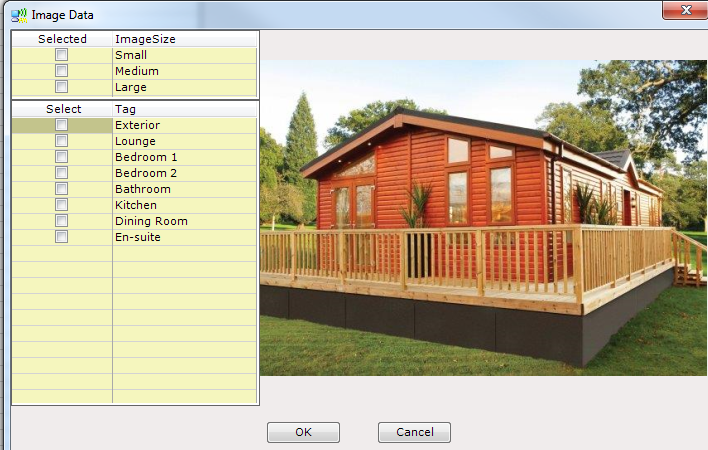
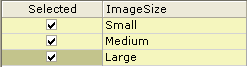
Select the ‘Image Size’ by clicking into the field next to the required size to ‘Tick’ and select it. If you require all sizes to be available then tick into all the fields.
Next select the correct ‘Tag’ for the image from the list displayed, this can be renamed at this point if required by typing the correct name into the tag column and click ‘OK’
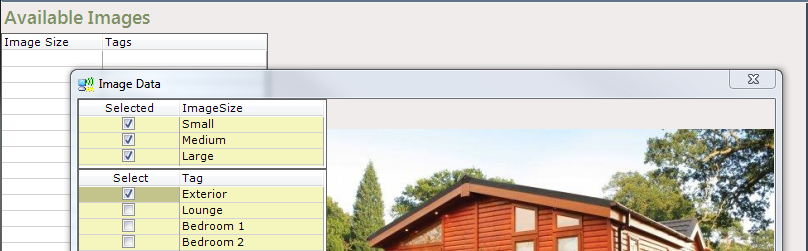
The selected image will now be displayed and if more than one size was created, these will be shown on the list on the left
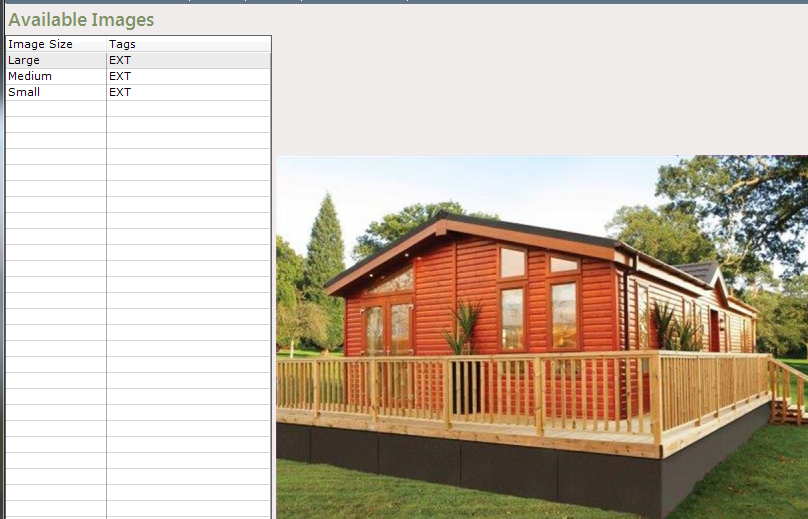
To view the other sizes, just click onto the required size in the list and the image will be displayed.
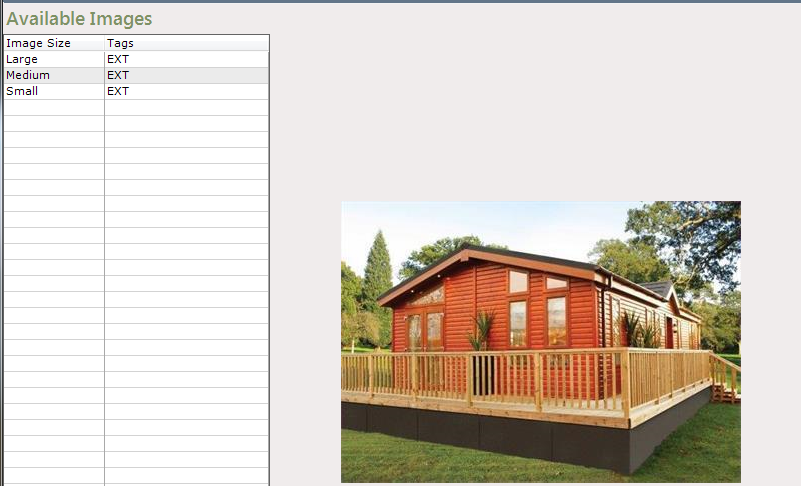
The add image process is then complete.
To add further images, repeat the above steps until all images are added.
Images added will be available to be picked up by your Web developers.