☑️ Sublet Income Statements in ParcVu Desktop
Last updated 4 months ago
The Sublet Income Statements function in ParcVu Desktop is only available to existing customers who previously signed up for the legacy ParcVu Bookings module. New subscribers will be offered enrolment in the Booking Experts module. Existing customers using legacy Bookings will be offered the opportunity to upgrade to Booking Experts - contact your Account Manager for more information
It is possible to print a Sublet Income Statement for an Owner by selecting the ‘Print/Email Statement’ option from the Navigation list on the Sublet Income screen on the Account Details screen.
This option is only visible when there are Bookings listed on the ledger
From the Owner Account, go to Sublet Income from the navigation menu on the right hand side
In the Bulk Sublet Income screen, filter to the Departure Dates range and click find

Any Bookings which meet the criteria will be shown, and more menu options will become available
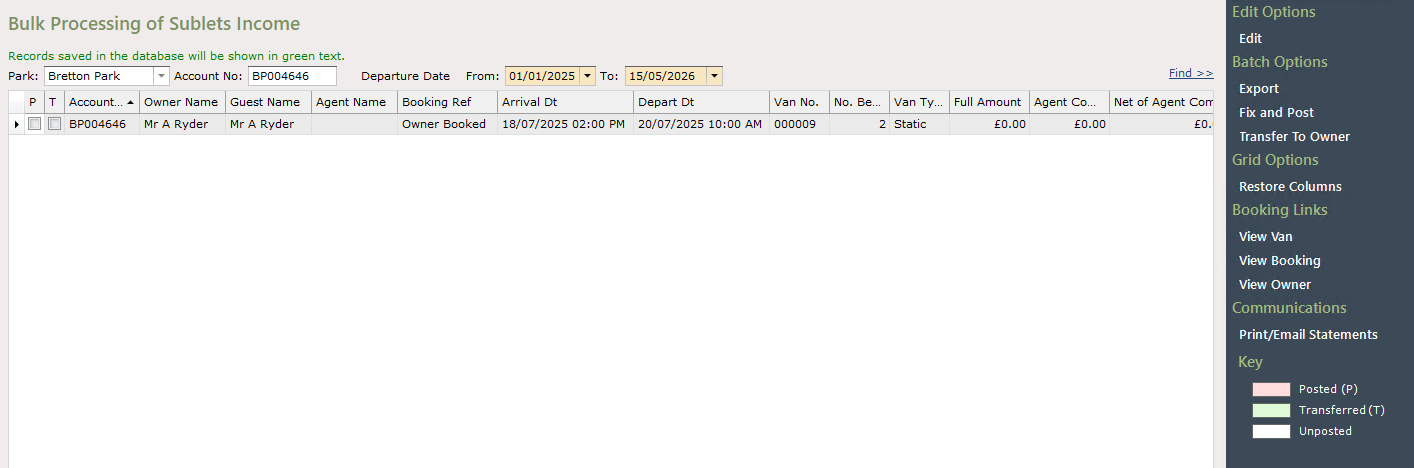
Bookings will not show in the grid until they are Checked Out
You should carefully check the values of the total amount payable to the customer and ensure that all charges are correct, prior to taking any action
Clicking Edit on the menu will show you which columns can be edited directly in this screen, so you can correct charges if required;

If the values are incorrect for the ‘Full Amount, it’s likely that at the point you assigned the break to the unit, the commission rate setup was incorrect. First, check that the rate against the Booking Product and Sublet Agreement are correct now.
Once you can see that they are, you’ll need to:
View the Booking
Override the Booking Status back to ‘confirmed’
Unassign the Booking from the unit, save, and exit
Go back into the Booking and reassign the unit
Override the Booking Status back to ‘checked out’
The values will then update in the Bulk Sublet Income screen
Fix and Post Income
The first step to getting an Owner ‘Paid Out’ is to ‘Fix and Post’ the Income. This locks the records, confirms that the amounts being charged are correct and will allow you to include the break on a Sublet Statement even if you aren’t paying the customer out yet.
Select the row(s) to Fix and Post and choose ‘Fix and Post’ from the navigation menu on the right hand side. Check them carefully to ensure all values are correct before taking any action
You will be presented with a popup asking you to confirm if you want to perform this action, and which date you’d like the Posting to be for accounting purposes. The box includes a warning that you cannot undo this action
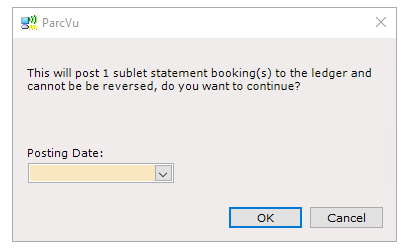
THIS ACTION CANNOT BE REVERSED, EVEN BY PARCVU SUPPORT - if you are unsure of any of the values at this point, you should cancel and recheck before proceeding
Once you’ve Fixed and Posted a row, the P column will be checked
If you choose the ‘Print/Email Statements’ option, this row will be included in the statement
Sending A Sublet Statement
Select ‘Print/Email Statements’ from the right hand navigation menu in the Bulk Sublet Income screen
If the Owner’s contact preference is Email, you’ll be presented with a popup to select which ‘from’ email to use
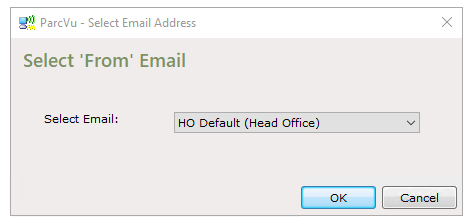
Select the email address you’d like to use as the Sender and click ‘OK’
If the Owner’s contact preference is Email, you’ll be presented with a PDF
The statement uses the Template [FIND OUT THE TEMPLATE NAME]
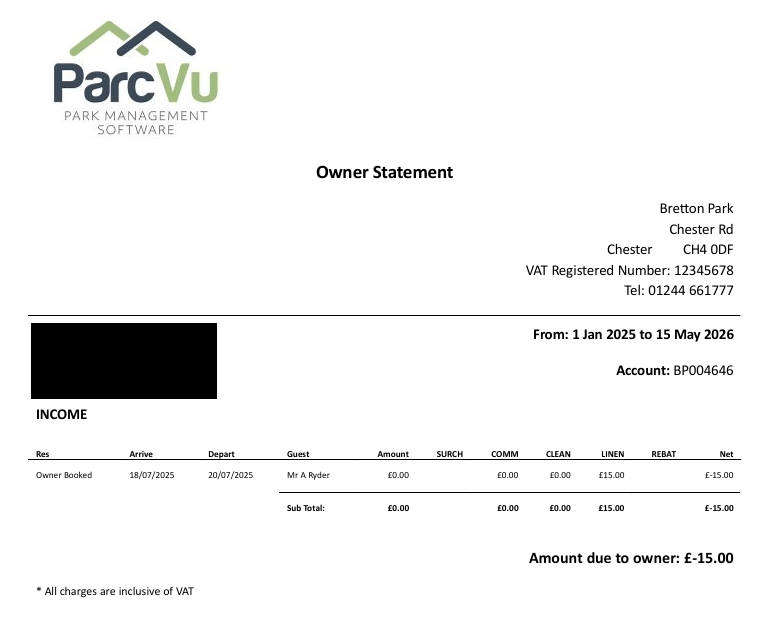
Posting Income To The Ledger
When you’re ready to pay (or charge, if applicable) the Owner, from the Bulk Sublet Income screen, click Edit and choose the row(s) you want to transfer by ticking the ‘Transfer?’ column, then Save

Choose ‘Transfer to Owner’ from the navigation menu on the right hand side

You will be presented with a popup asking if you want to confirm this action and warning that it cannot be reversed
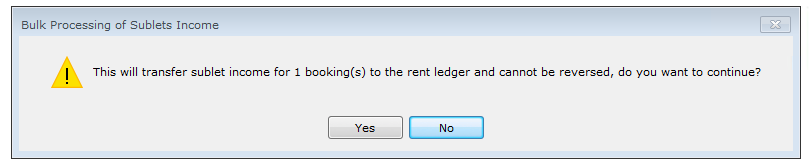
THIS ACTION CANNOT BE REVERSED, EVEN BY PARCVU SUPPORT - if you are unsure if any of this income should be immediately posted, you should cancel and recheck
Once posted, the sublet income appears on the Owner’s Rent Ledger