☑️ Record a Job as Requested in Error in ParcVu Desktop
Last updated 9 months ago
To mark a job as Requested in Error, the User must be a Head Office user or have the Mark Job As Raied In Error user permission
If a Job has been put on an Owners Account in error, if it has not been ‘Site Charge Invoiced’ you can raise a ‘Requested in Error’ closure against it.
Highlight the required ‘Job’ on the list displayed and select ‘View Job Details’ from the Navigation list on the right.

Once in the ‘Job Details’ screen, select ‘Mark Job as Done’ from the Navigation list on the right.

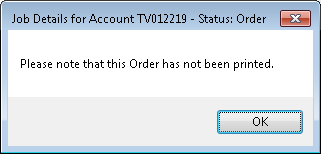
Confirm ‘OK’ to the Job Details message and select ‘Save’ from the Navigation list on the right.
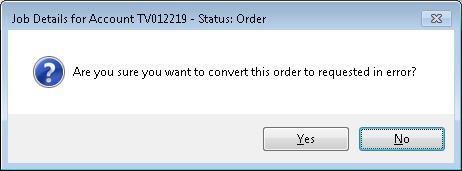
The Job Details screen will be displayed select ‘Requested in Error’ from the Navigation list on the right and confirm ‘Yes’ to the Job Details message

The job has now been recorded as ‘Requested in Error’.
From the Navigation list on the right, a comment can be added if required by selecting ‘Edit’ and ‘Add Comment.

The details can also be printed if required by selecting ‘Print’ from the Navigation list on the right.
