☑️ Set Up Cash Sale Products in ParcVu Desktop
Last updated 8 months ago
To access this function, the user will need the Allow System Maintenance Sub Menu permission
Go to System Maintenance Sub Menu > Maintain Lookups
From the ‘Available Lookups’ list on the left, select ‘Cash Sale Products’
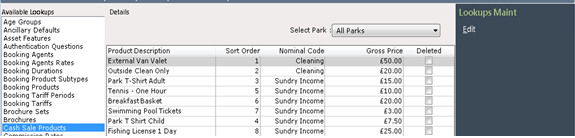
Add a Cash Sale Product for ‘All Parks’ in ParcVu Desktop
To perform this action, the user must be a Head Office user
With ‘All Parks’ selected in the ‘Select Park’ field, click ‘Edit’ on the Navigation list.

The screen will be highlighted and an * will mark the line for the new Cash sale Product to be added.
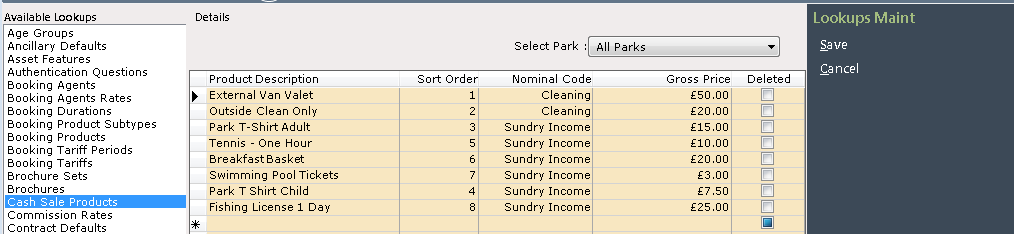
Double click on this line in the ‘Product Description’ column, swipe out the default text that appears and enter the required description for the new Cash Sale Product.
Use the dropdown list in the ‘Nominal Code’ column to select the required Nominal for this Cash Sale Product. Double click into the ‘Gross Price’ column and enter the Price to be charged for the Cash sale Product,
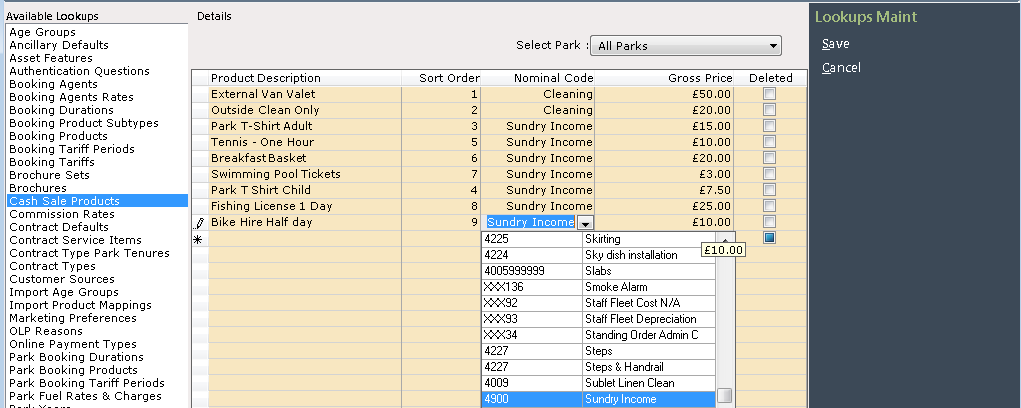
Click ‘Save’ on the Navigation list and the new Cash sale Product will be updated on the system.
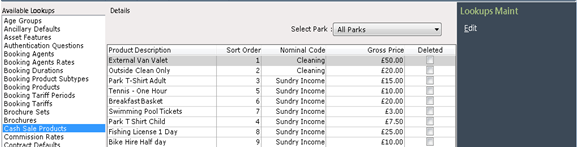
The new Cash Sale Product will now be available for Sale at all Company Parks via the ‘Sundry Cash Sales’ screen in the Ledgers section of the Menu, or by selecting the Cash Sales icon on the top toolbar of the menu


Cash Sales Products added with ‘All Parks’ selected will be visible and available for Sale at every Park
Add a Cash Sale Product for a ‘Specific Park’ in ParcVu Desktop
Park users will only see their own Park(s) when accessing this Lookup
Go to System Maintenance Sub Menu > Maintain Lookups
From the ‘Available Lookups’ list on the left, select ‘Cash Sale Products’
Select the required Park from the dropdown list in the ‘Select Park’ field, click ‘Edit’ on the Navigation list.

The screen will be highlighted and an * will mark the line for the new Cash sale Product to be added.
Double click on this line in the ‘Product Description’ column, swipe out the default text that appears and enter the required description for the new Cash Sale Product.
Use the dropdown list in the ‘Nominal Code’ column to select the required Nominal for this Cash Sale Product. Double click into the ‘Gross Price’ column and enter the Price to be charged for the Cash sale Product,
Click ‘Save’ on the Navigation list and the new Cash sale Product will be updated on the system.
The new Cash Sale Product will now be available for Sale at all Company Parks via the ‘Sundry Cash Sales’ screen in the Ledgers section of the Menu, or by selecting the Cash Sales icon on the top toolbar of the menu
The Product added will only be visible and available for Sale at the specified Park
Delete a Cash Sale Product in ParcVu Desktop
If a Cash Sale Product is no longer used, it can be marked as ‘deleted’ so that it is no longer available on the Cash sale Product list in Sundry Cash Sales.
Select Edit from the navigation list and click into the ‘Deleted’ column next to the required product
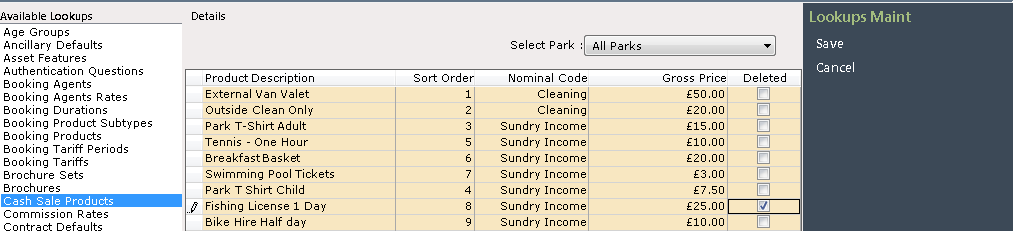
Select ‘Save’ and the product is now marked as deleted.
This product will no longer appear in the list of available items in Sundry Cash Sales.