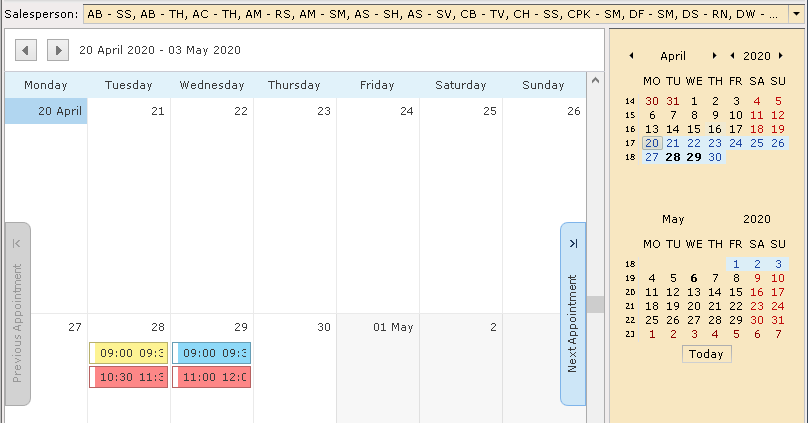
* The Prospect Diary in ParcVu Desktop
Last updated 11 months ago
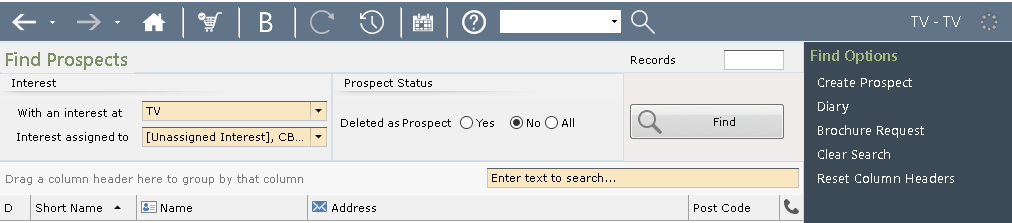
From the Main Menu, select ‘Prospect’ and the ‘Find Prospect’ screen displayed. Click on ‘Diary’ from the navigation list on the right.
.
The Diary will be displayed.
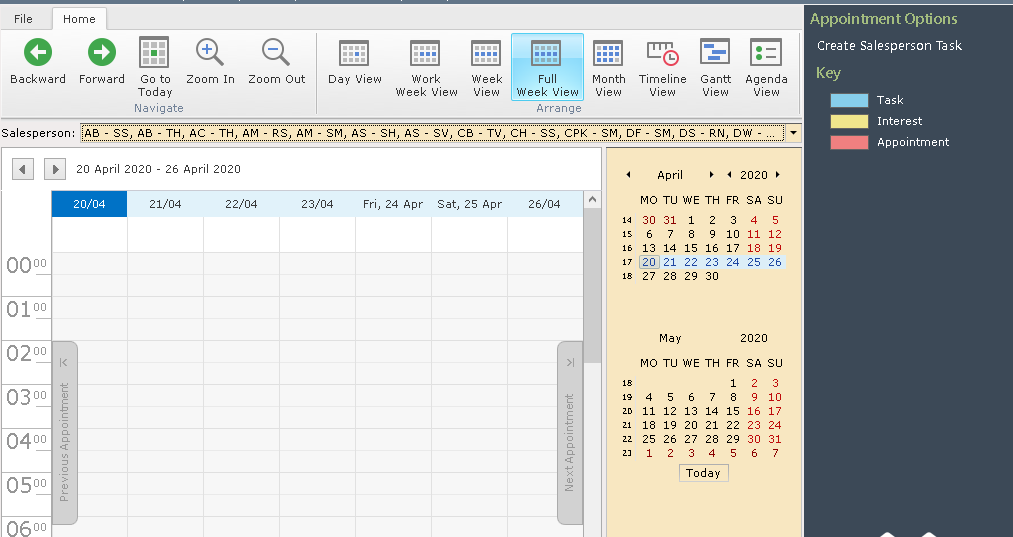
This form shows the appointments and tasks for any given day or date range for the salesman.
By default, the Diary grid is ordered by ‘Full Week View’, but this can be changed by clicking on the ‘View’ options the options along the top of the screen.
The ‘Salesperson’ dropdown is automatically populated when your user is marked as a salesperson and a specific salesperson is assigned to a Prospect.
Alternatively, Users with the ‘View Multiple Salespeople’ right, may select any Salesperson from the dropdown.
A Salespersons tasks and appointments will be displayed.
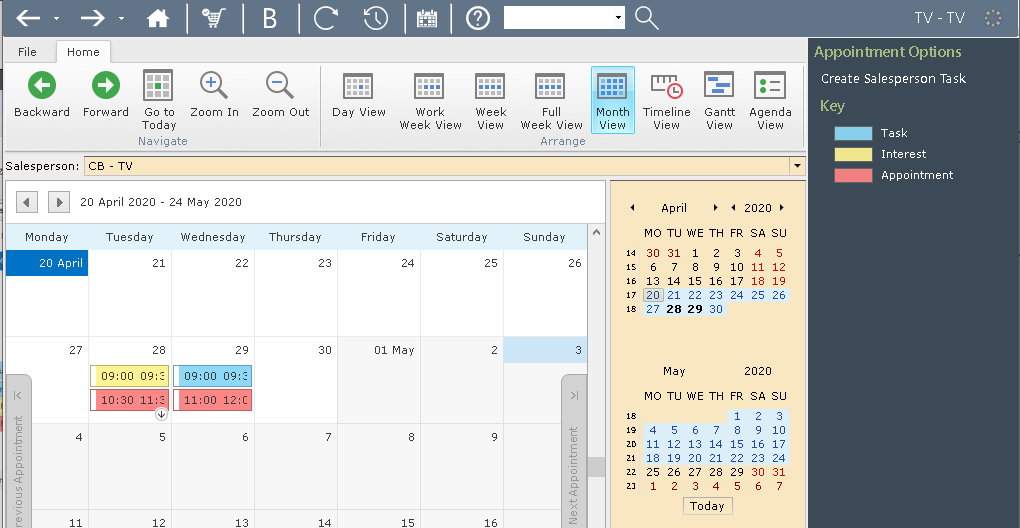
All tasks and appointments on the grid are colour-coded, with a key on the right-hand side to differentiate between the types of entries shown
Hovver over an entry and the details will be displayed.
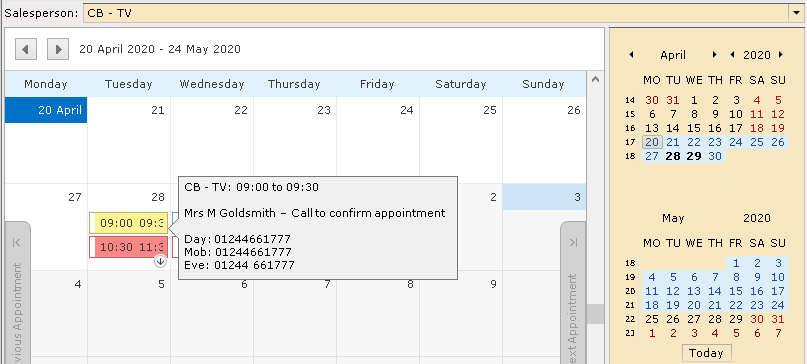
A useful feature that exists within the diary grid is the ability to drag and drop appointments. Appointment times (found when double-clicking on selected task) are dynamically updated. A user can reschedule these appointments using drag & drop by simply left clicking on the chosen appointment and dragging it to the appropriate date within the grid.
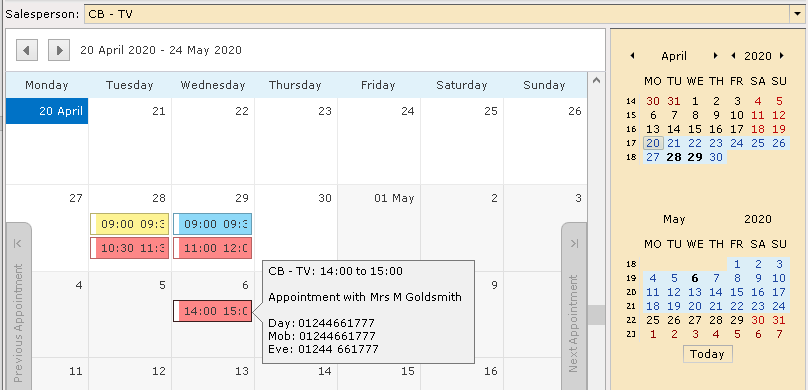
Using the calendar view on the right-hand side of the screen, the user can filter by date range.
To do this, simply left click over the starting date and drag over a date range. The grid will dynamically update as the date range is selected.
A user can also jump to specific days quickly by clicking an individual day on the calendar.