☑️ Printing or Emailing Receipts in ParcVu Desktop
Last updated 8 months ago
Printing Receipts in ParcVu Desktop
Receipts can be printed from the Ledgers - simply click on the required payment on the Ledger and select ‘Print Receipt’ on the navigation list.
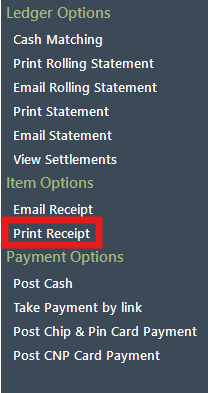
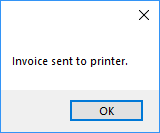
Select the printer to send the receipt to and click ‘Ok’ on the Print popup. A message will confirm that the Receipt has been printed.
The receipt will be printed out.
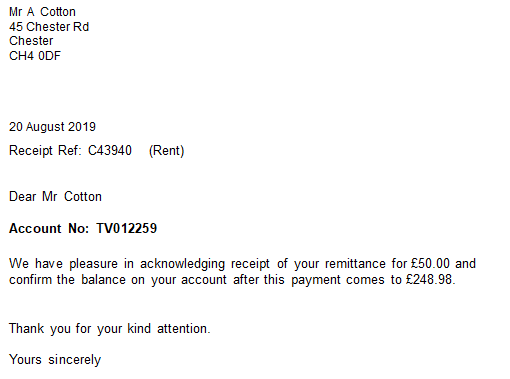
A Receipt can be re printed in the same way at any time
Emailing Receipts in ParcVu Desktop
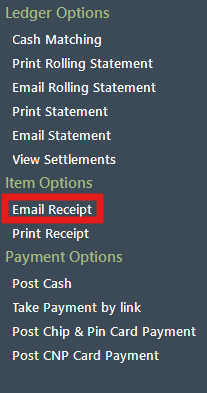
Receipts can be printed from the Ledgers - simply click on the required payment on the Ledger and select ‘Email Receipt’ on the navigation list
You can customise your receipt template if you have the appropriate setting (Print Receipts With Word must be set to ‘True’ in System Maintenance Sub Menu > Client Configuration)
You should amend the existing template. Do not add new templates for receipts, or delete the original template - this is a special type of template called a System Template and there should only be one or the receipt will fail to print
To find out more about amending templates, see the guide Amend or Replace a Template in ParcVu Desktop