Add a New Booking Product in ParcVu Desktop
Last updated 4 months ago
The Booking Products function in ParcVu Desktop is only available to existing customers who previously signed up for the legacy ParcVu Bookings module. New subscribers will be offered enrolment in the Booking Experts module. Existing customers using legacy Bookings will be offered the opportunity to upgrade to Booking Experts - contact your Account Manager for more information
Booking Products in ParcVu Desktop represent types of accommodation (sometimes called ‘grades’) or Touring Pitch (for example “Gold 3 Bedroom” or “Grass No Electric”) or Extras that can be booked as part of a holiday (for example, Pets, Additional Guests, Cot Hire etc)
The same set of Booking Products can be made available across multiple Parks with Park-specific pricing, but all must first be set up in the Booking Products Lookup
To access this function, users must have the Allow Access System Sub Menu and Edit Booking Product permissions
From the Home Screen to go System Maintenance Sub Menu > Maintain Lookups > Booking Products
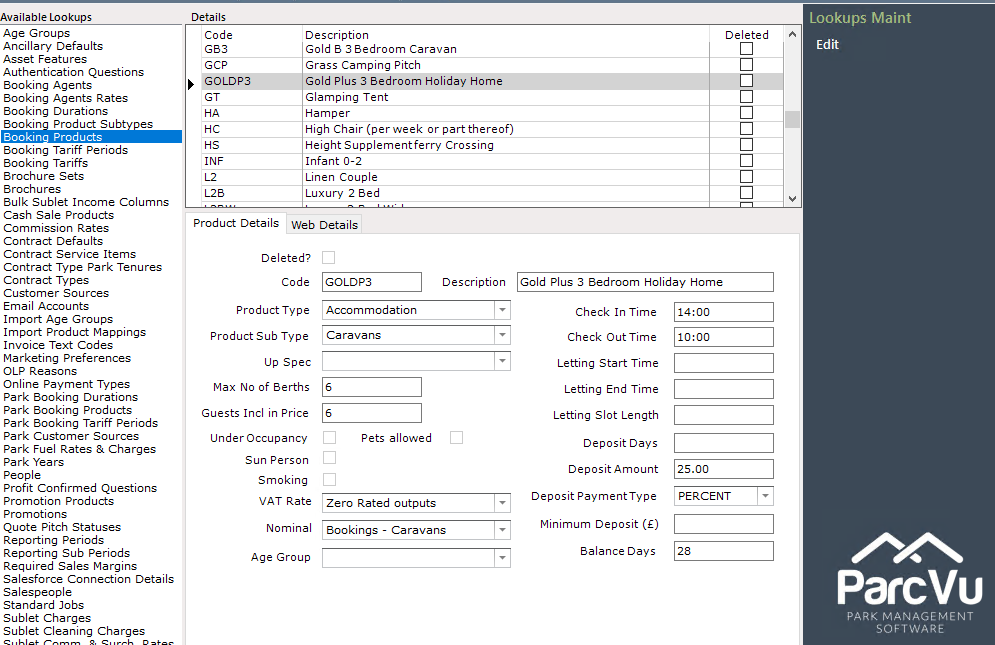
To add a new Booking Product, click Edit then Add
A blank Booking Product will be created
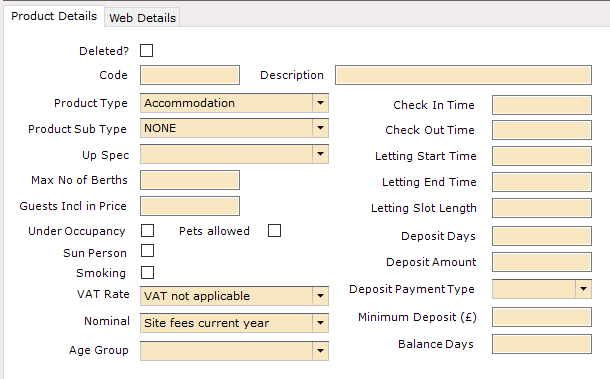
Code is the short code you want to use for this Product, for example Gold 3 Bed might be GO3 - this code must be unique for the new Product. This field must be filled in for the record to save
Description is the Booking Product itself, for example Gold 3 Bedroom. This field must be filled in for the record to save
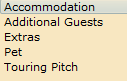
Product Type is a picklist for the type of Product you’re adding. This field will default to Accommodation, and must be filled in for the record to save
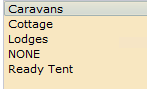
Product Sub Type is a picklist which looks at your Booking Product Subtypes list. This is an optional setting you can use to help filter available Products when making a Booking. You do not have to select a Sub Type for the record to save, you can leave this as NONE
Up Spec is the grade/Product which would be considered an upgrade from this Product for upselling purposes For example Platinum 3 bed might be an Up Spec from Gold 3 bed. This field can be left blank if preferred, it does not prevent Bookings being changed to any other available Product.
Max No of Berths is the maximum number of people that the accommodation can sleep. You only need to complete this field for accommodation. For example, a Gold 3 Bed might sleep a maximum of 8 people including a pull out bed in the living area. If you do not fill this in on an accommodation Product, you may encounter errors when making Bookings, as the system does not know the correct total number of people to allow in a Booking.
A common mistake is assuming that the number of Guests is dependent on the number of berths/bedrooms on the Holiday Home record - this is not the case, you must ensure it’s set against the Booking Product to prevent issues
Guests Incl in Price is the number of guests included in the price of the accommodation itself. This may be the same as the Max No of Berths, or it could be a lower number. For example, a Gold 3 bed might sleep 8 people, but you only include 6 in the price. The additional 2 guests would be charged an additional fee
Forgetting to fill in this field on an accommodation Product can result in errors when doing an availability check, as the system is unable to determine whether the number of people in your search can fit into the unit. If you see an error like the below, check that the Guests Incl in Price is set, and that you have pricing for Additional Guests in your Booking Tariffs
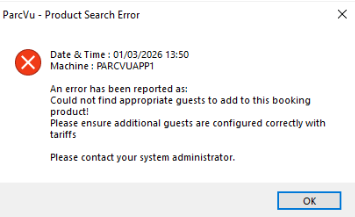
This is not a system error and does not need to be reported to ParcVu Support. If you do not have access to correct the setup issues, your internal ParcVu Administrator can assist
The checkboxes Under Occupancy, Sun Person and Smoking are from legacy functionality which is no longer used, but remain in the configuration screens for reference purposes for older Products
Pets Allowed should be checked on any Product where Pets are welcome. If this box is not checked, any availability searches including Pets will not return this product.
A common mistake is including “Pet Friendly” or “Pet” in the description of the Product, but not checking the box in the configuration. If a Holiday Home isn’t showing as available in Make Booking or to assign a Booking to, ensure that if there is a Pet included in the Booking, the flag is correctly set on the Booking Product
Note that if you have multiple Holiday Homes of the same grade, some of which allow Pets and some of which don’t you’ll need to create these as separate Products For example Gold 3 Bed and Gold 3 Bed Pet Friendly
VAT Rate can be set per Product
Nominal can be set per Product
Certain nominals are System Nominals and cannot be used in Booking Products - if you see an error message similar to the below, this means you’ll need to update the affected Booking Products to use a different Nominal code

This is not a system error and does not need to be reported to ParcVu Support - amend the nominal code in the listed Booking Product(s), and you will then be able to save as normal
Check In Time Is the default check in time allowed for that specific Product - this can vary between types For example, you may allow Touring guests to check in at 12, but Accommodation isn’t available for check in until 4pm
Check Out Time is the default time that the accommodation should be vacated by the guests - this can vary between types For example, you may allow Touring guests to check out at 11am, but Accommodation must be vacated by 10am
The Letting Start Time, Letting End Time and Letting Slot Length are no longer used
Deposit Days is how long the customer has to pay the deposit after making a Booking - if you wish to have the deposit paid immediately, you should set this to 0 days
Deposit Amount and Deposit Payment Type must be used in conjunction to determine the deposit due. You can choose to have Deposits as a flat amount or as a % of the Holiday price. For example, you might set Deposit Amount as 10 and Deposit Payment Type as PERCENT to set a deposit of 10%. You might set Deposit Amount as 100 and Deposit Payment Type as FLAT to set a deposit of £100
Minimum Deposit (£) can be set in addition to the standard deposit terms. For Example, you could set a Minimum Deposit of £100. If your normal deposit rule is 10%, and would work out at £50, your guest would instead be charged £100, as this is the greater of the two deposits
Balance Days is the number of days the customer has to pay the full balance of their Holiday, after the Booking is made
Once a Booking Product is created, it’s available to be added to the relevant Parks as a Park Booking Product. Until the Booking Product is added to a Park as a Park Booking Product, it won’t be available for Pricing in the Booking Tariffs
Find out more about how to set these up here: Park Booking Products