☑️ Create Sublet Records in ParcVu Desktop
Last updated 8 months ago
The Sublet Agreements function in ParcVu Desktop is only available to existing customers who previously signed up for the legacy ParcVu Bookings module. New subscribers will be offered enrolment in the Booking Experts module. Existing customers using legacy Bookings will be offered the opportunity to upgrade to Booking Experts - contact your Account Manager for more information
If an Owner wishes to let their unit through the Company, then the Unit needs to have a ‘Sublet Record’ so that it is recognised on ParcVu as being Suitable and Available for Letting
Assigning the Booking Product (Grade) in ParcVu Desktop
To set up an Owners Unit for Subletting, navigate to the ‘Van Details’ screen for their unit.
Click on the ‘Bookings’ tab and check that in the ‘Booking Product’ section, the ‘Suitable to Let’ field is ticked indicating that the unit meets the Letting requirements.
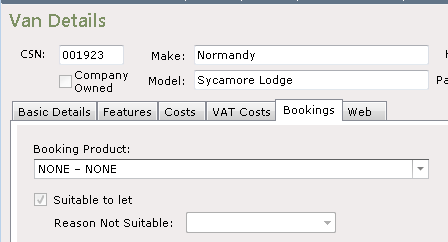
If the unit has not been flagged as suitable to let, (but it does meet the letting requirements), then select ‘Edit’ from the Navigation list on the right and click into the tick box to select it and then click ‘Save’
Check that the ‘Booking Product’ has been set to the correct Letting Category; if it is not, then follow the steps above and use the dropdown arrow on the right of the ‘Booking Product’ field to select the required category

Click ‘Save’ and the details will be updated
Creating the Sublet Agreement in ParcVu Desktop
To use this function, the user must have the Can Edit Sublets permission
From the Holiday Home details screen, select View Sublets
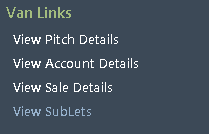
The ‘Sublet List’ screen will be displayed.

To Add a new Sublet, select ‘Add Sublet’ from the Navigation list on the right and the ‘Sublet Details’ screen will be displayed.
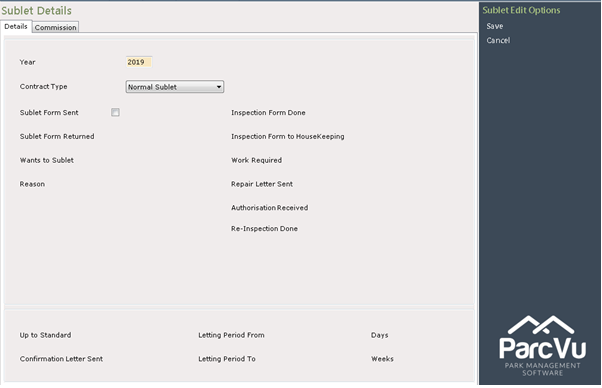
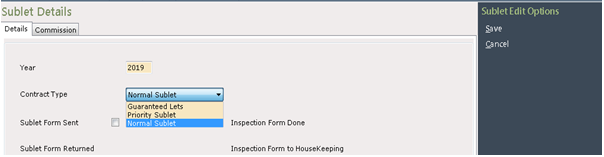
Enter the ‘Year’ for the Sublet and select the type of Sublet from the dropdown list for the ‘Contract Type’ field.
The following steps can be done in stages, as the agreement progresses. They don’t all need to be done at the same time, but must all be completed before the unit will be available for Bookings
Tick the ‘Sublet Form Sent’ box and select the date the Sublet Form was sent to the Owner.
Tick the ‘Sublet Form Returned’ box and select the date the form was returned from the Owner
Use the dropdown list in the ‘Wants to Sublet’ field and select ‘Yes’ to confirm that the Owner wants to sublet their unit.
The purpose of this field is to track Subletting trends over time - some businesses automatically create Sublet records for their Owners, and record whether the Owner decides to go ahead or not. It’s also fine to only ever create Sublets where the answer is always going to be ‘yes’ (ie Owners who have already opted in) - this is a business decision, ParcVu just gives you the flexibility to run your Sublet scheme as you see fit
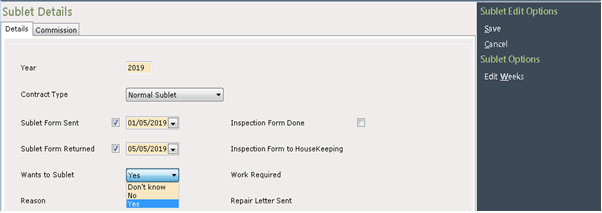
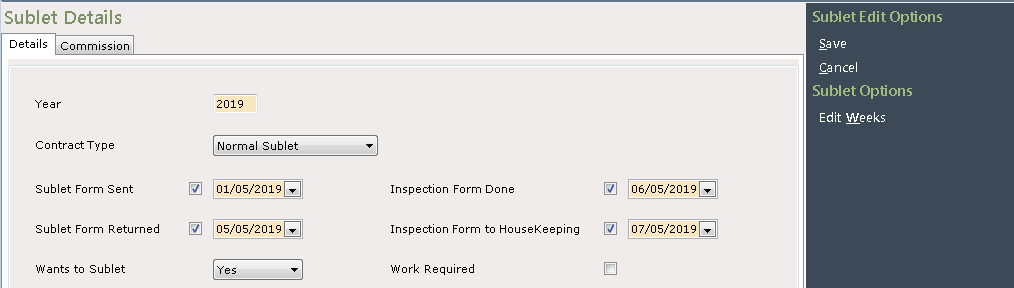
Tick the ‘Inspection Form Done’ box and select the date this was done
Then tick the ‘Inspection Form to Housekeeping’ box and select the date this was done.
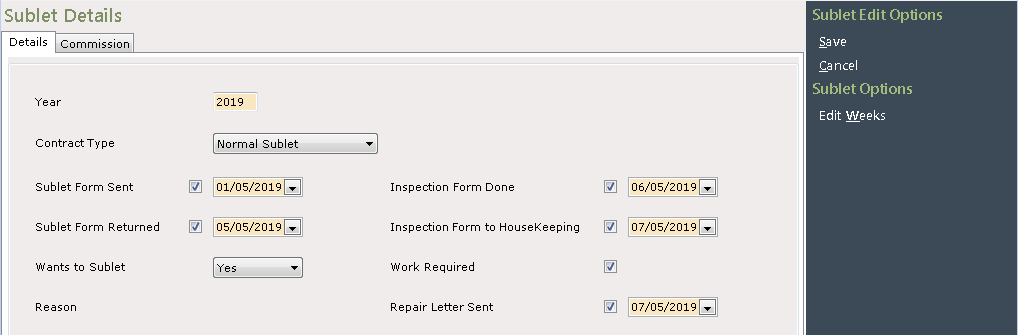
If any work on the unit is required, tick the ‘Work Required’ box and then tick the ‘Repair Letter Sent’ box and select the date this was done.
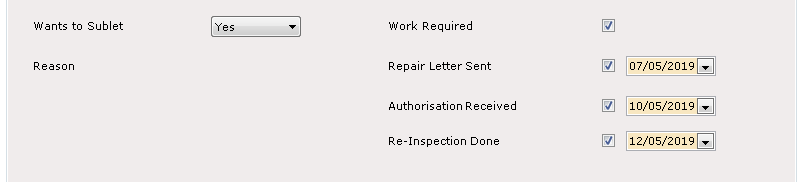
Then enter the rest of the ‘Work Required’ details in the same way, as and when these are completed.
If, however, the unit does not require any work, then this section should be left blank
Tick the ‘Up to Standard’ box and select the date that the unit met all the requirements
Select the required from/To Letting Periods dates and the system will automatically calculate the Days and Weeks from the dates selected.
Click into the ‘Confirmation Letter Sent’ field and select the date the Sublet Confirmation letter was sent to the Owner.

Click ‘Save’ on the Navigation list on the right and the details will be updated.
A letter will be sent to the Printer to be sent or given to the Owner confirming the Subletting details. This can also be sent as an ‘Email with Attachment’
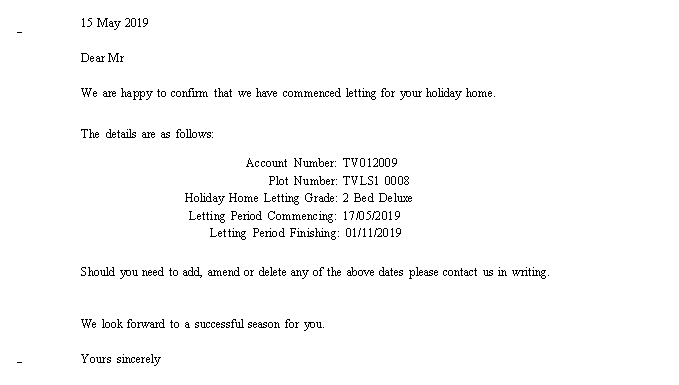
You can customise the default templates if you wish, but should not add new versions or delete this template - this is a specific type of template called a System Template and is the only one the system will recognise
The ‘Sublet List’ will be displayed again, showing the details of the new Sublet Record.
The unit will only become available for letting in ParcVu when the ‘Up to Standard’ date is set on the Sublet record.

Before the unit will show as available to rent, the ‘Allocations’ will need to be reset (see Update Allocations) and the pricing will need to be entered (see Update Booking Tariffs)