Forgotten Password in ParcVu Online
Last updated 4 months ago
If a user forgets their Password, they should use the self-service ‘Reset Password’ option on the ParcVu Online login page
ParcVu Support do not have access to user passwords for ParcVu Online - if you are unable to use the self-service reset function, you should contact your internal ParcVu Administrator for assistance

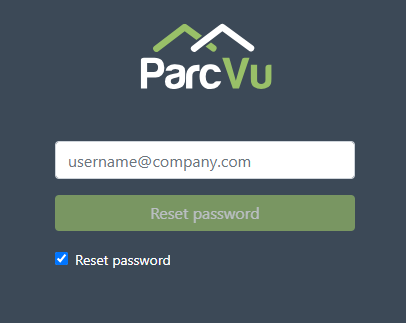
Enter your email address and tick Reset Password then click the button to receive a reset email
The button will not be clickable until your email address is entered

You’ll receive an email with a link to follow
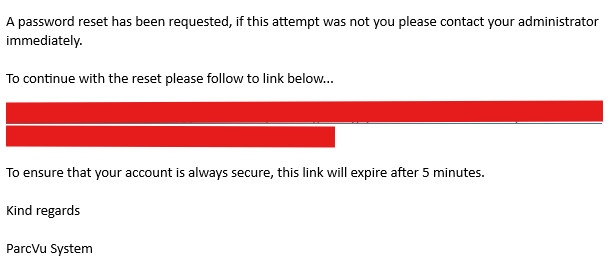
This link is only active for 5 minutes - if you do not set a new password within this time frame, you’ll need to start again
Follow the link in the email, and the password reset screen will be displayed
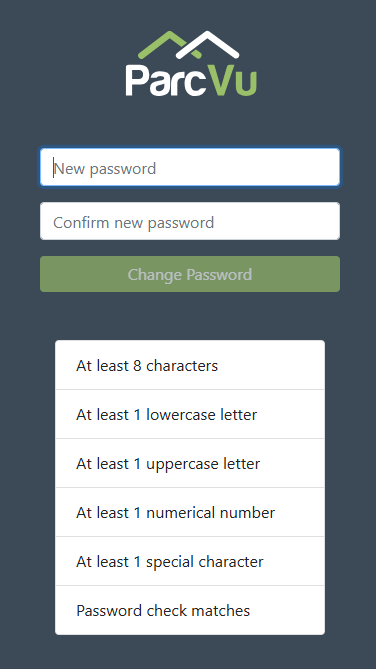
As you enter the new password and each criteria is met, that criteria will turn green
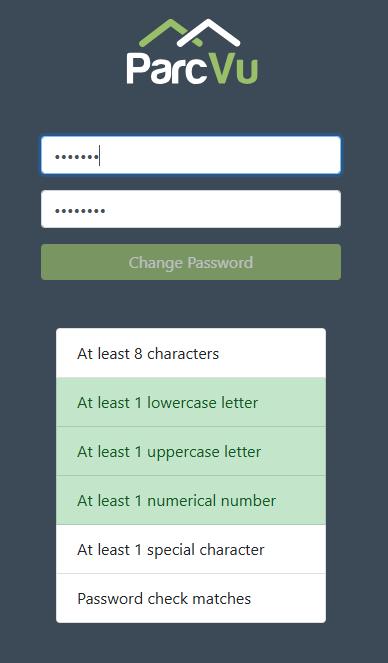
Once all criteria are met, the Change Password button becomes active. Click this and you’ll get a confirmation message
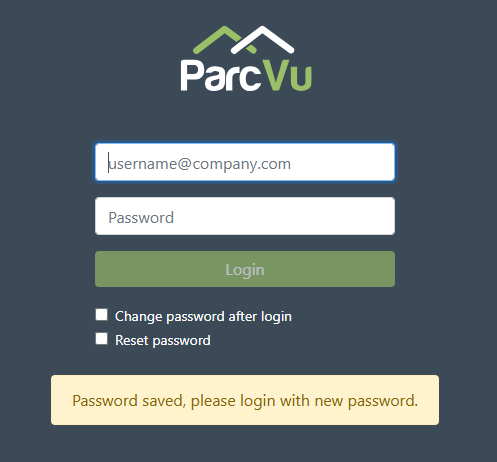
You’ll then be able to log in as normal
As an additional security measure, you’ll receive a notification that your password has been changed and when
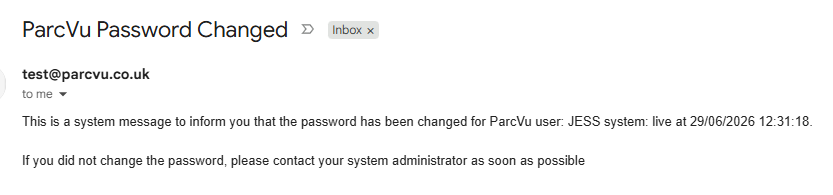
If you receive this email and did NOT change your password, you should immediately inform your internal ParcVu Administrator and change your password as soon as possible
Was this helpful?
Still need help? Share an idea