SMTP Email Authentication in ParcVu Online
Last updated About 2 months ago
❗Microsoft are ending support for basic SMTP authentication no later than December 2026 - your specific support may end sooner. We recommend switching to OAuth as soon as possible to prevent issues sending emails from ParcVu❗
To access System Settings, the user must have the Allow System Maintenance Menu user permission
To use SMTP Authentication, you must have the main SMTP credentials entered in ParcVu
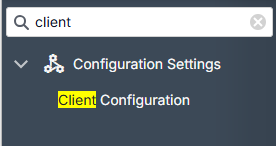
From anywhere in ParcVu Online, go to System Settings and under the Configuration Settings menu, go to Client Configuration
The System Settings menu is searchable in ParcVu Online - save time by finding the setting you’re looking for using key words!
Under the Email section, there are fields which relate to your SMTP server settings
The Client Configuration menu is searchable in ParcVu Online - save time by finding the setting you’re looking for using key words!
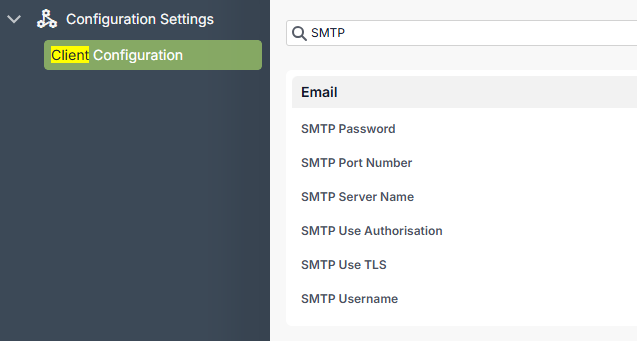
SMTP Server Settings
You should not edit any of these settings without consulting your IT Support partner. Altering these settings incorrectly will result in no emails being sent from ParcVu - this will mean not only will no customers receive emails, but your Team will be unable to receive authentication codes to login to ParcVu Online
SMTP Password: This is the password for your SMTP server - this is a global setting, it is usually not your password for your own email account
SMTP Port Number: The SMTP Port Number
SMTP Server Name: This is the name of the SMTP Server, not the username
SMTP Use Authorisation: This must be set to True if you use SMTP as your authentication method
SMTP Use TLS: Set this to True to use TLS encryption for sending emails
Was this helpful?
Still need help? Share an idea