Maintain Dynamic (Custom) Fields in ParcVu Online
Last updated 5 months ago
To create or edit Dynamic (Custom) Fields, the user must have the Allow System Maintenance Menu and Allow Maintain Dynamic Fields user rights
It is possible to set up custom fields on the following record types, without the need to pay for costly development work
Prospects
Sales
Vans
Pitches
Bookings
Accounts
Parks
Jobs
Creating A Dynamic Field in ParcVu Online
From anywhere in ParcVu Online, click System Settings
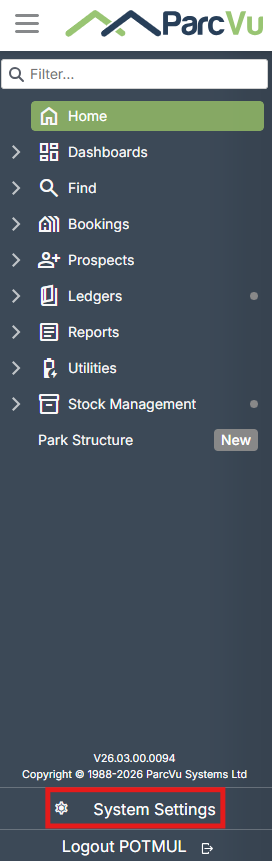
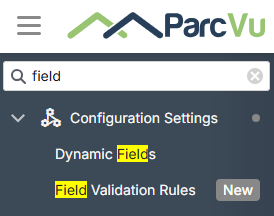
Dynamic Fields can be found under Configuration Settings > Dynamic Fields
The System Settings menu is searchable in ParcVu Online - save time by finding the setting you’re looking for using a key word!
First, select the type of Field you want to add using the dropdown (for example, a new Field on the Account screen)
Click the Fields tab then click New to add a new Field
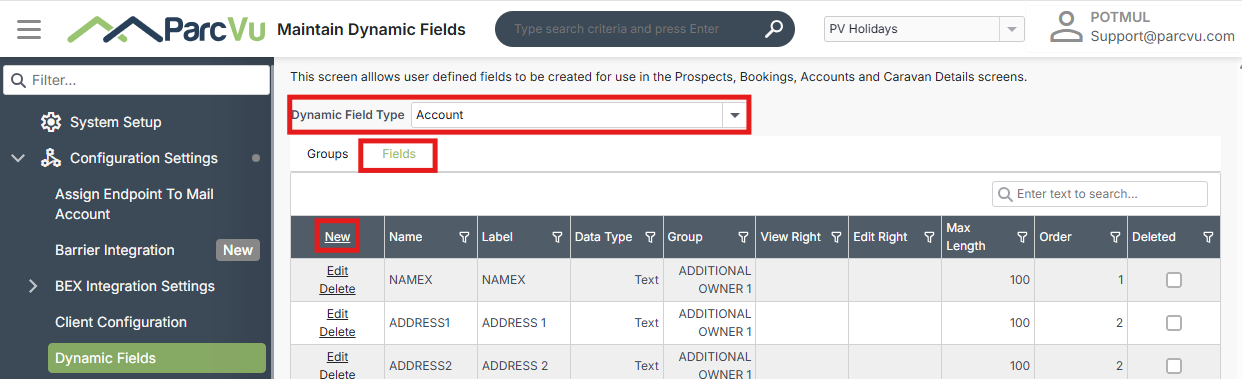
Enter the details for the new field(s) and select the required permissions for use
Name: Enter the name of the customized field.
Label Name: Can be the same as the customized field name.
Data Type: Choose how the data should be entered (e.g., Text, Numbers, Boolean — Yes/No or True/False).
Group: Select only if a group has already been created.
View Right: Optional — assign permission if needed.
Edit Right: Optional — assign permission if needed.
You can leave the View Right and Edit Right blank if you’d like all users to be able to see/edit these fields. If you’d like to control access, simply enter the permission the user must have to be able to see or edit. This must be an existing user permission, it’s not possible to create custom permissions
Max Length: Define the maximum length for text or numbers.
Order: Specify the order in which the field appears in the Additional Details tab (e.g., 1st, 2nd, 3rd).
Deleted: A tick will appear if the field has been deleted.
Once completed select 'Save'
Was this helpful?
Still need help? Share an idea