Add a New Template in ParcVu Desktop
Last updated 4 months ago
Templates are Now Available in ParcVu Online!
This function is now available in ParcVu Online! For the best user experience, we recommend switching to ParcVu Online to ensure you always have access to the latest features. Find out more about Templates in ParcVu Online here: Add a New Template in ParcVu Online
Continue in ParcVu Desktop
To access this area of the system, the User will need the permissions Allow Access System Sub Menu and Can Maintain Templates
From the Home Screen, go to System Maintenance Sub Menu > Maintain Templates
From the drop-down list in the ‘Medium’ field, select the required template type.
Add a Letter Template in ParcVu Desktop
Letter templates must be created in Microsoft Word, with the merge fields entered, and uploaded to ParcVu Desktop
The merge fields can be found here: Merge Fields in ParcVu Desktop
Select ‘Add New’ from the Navigation list on the right.

Select the ‘Reason’ from the drop-down list.

In the ‘Description’ field type in the required description for the new template
Select ‘Import Document’ from the Navigation list on the right.

Select the new template from the file locator displayed and click ‘Open’. The document will then show as ‘Imported’.
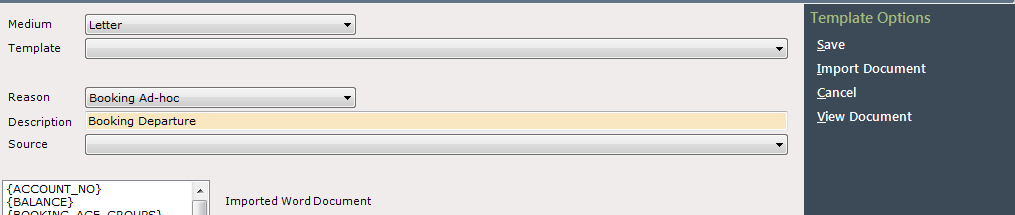
Select ‘Save’ on the Navigation list on the right and the new template will be saved on the system, it will then be available to select and send as required.

Some template ‘Reasons’ should only ever have a single template - for example, AIC Invoice. For any system-generated communications, please ensure you do not ‘Add New’, and follow the guide on how to edit an existing template instead
Add an Email Template in ParcVu Desktop
Select Email from the drop-down list in the ‘Medium’ field then select ‘Add New’ from the Navigation list on the right.

If the Email is for a specific Park, select the required Park from the drop-down list in the ‘Park’ field.

If it can be used at any Park the use the ‘Any Park’ option.
Select the ‘Reason’ from the drop-down list.
In the ‘Description’ field type in the required description for the new template
In the Template text area of the screen, type the email text you wish to send. Drag in the required merge fields from the list in the ‘Field’ column on the left of this screen.
To drag in a merge field, click on the one you require, hold down the left side of your mouse and drag the field into the text, drop it in where you would like it to be displayed on the email
If you don’t see the field you require as available in the Fields list, check that you have the correct Source set on the template. A Source is not mandatory, but some fields are available only for specific Sources, so close attention should be paid when setting up a new Template
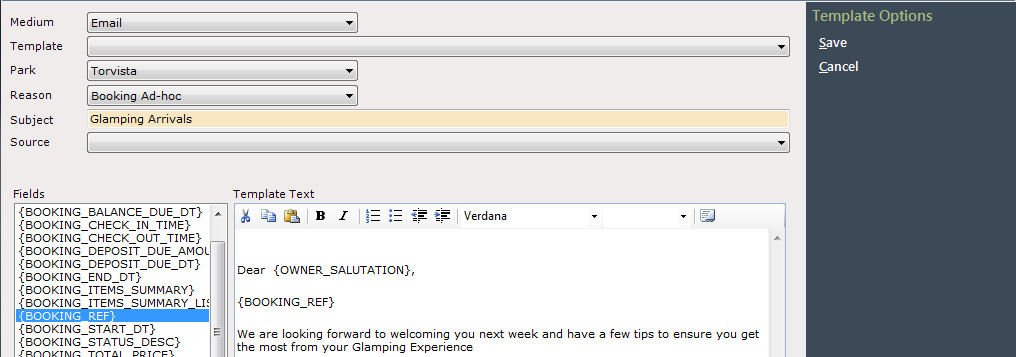
Continue doing this until your email is set up as required
Select ‘Save’ from the Navigation list on the right and the email will be saved on the system and can be selected and sent as required.
If your Template doesn’t populate a merge field when sent, return to the Edit Template function and check that the field you’re trying to use is available for your selected Source
Using HTML in Email Templates in ParcVu Desktop
HTML can be used in Email templates to add content such as logos or other images, by clicking the View/Edit HTML Code icon on the editor
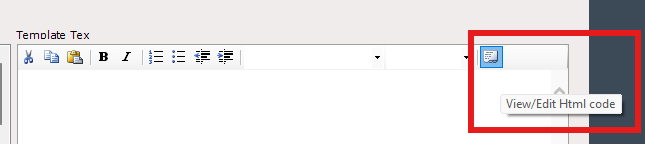
Any images entered must be hosted at an accessible web address - we recommend self-hosting images where possible (such as on your own website), to avoid copyright issues with 3rd party image hosting sites. Your web developer can assist with this
The basic HTML snippet for adding a logo to a website is as follows - replace the red text with the direct link to your image
<IMG style="HEIGHT: 124px; WIDTH: 193px" border=0 src="https://yourwebsite.com/yourimage.png">
ParcVu Support cannot assist with HTML queries beyond providing the snippet required to enter an image. In the event you need assistance with writing HTML, we recommend contacting someone who specialises in this area