Merge Field Formatting
Last updated 4 months ago
In some cases, you may want to change the format of a merge field - for example, you may want to add a currency symbol, change the number of decimal places or change the format of a date
In some cases, you’ll find a merge field looks a little odd due to it being a standard number field, for example a price looking like it has too many zeroes (100.0000 instead of 100.00) - this can easily be corrected by formatting the merge field, something you’re able to do yourself
To edit the merge field format on a letter in ParcVu Desktop, you’ll need to expose the merge fields in Word by pressing CTRL and A together, then ALT and F9 together - your document will then look something like this:
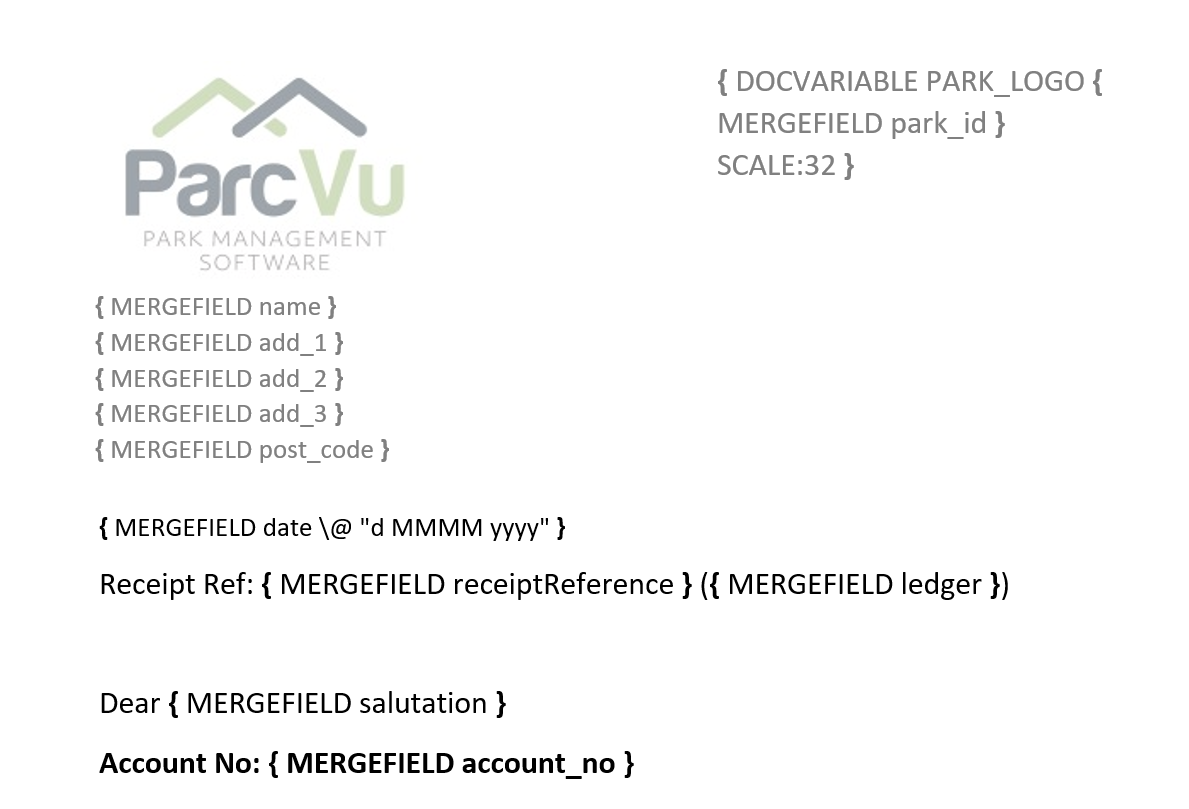
Merge field not working? Using the above method to expose merge fields means you can check it’s been entered as a merge field and not as plain text. See below an example of a correct mergefield versus a ‘mergefield’ that’s actually just typed text
Before fields exposed:
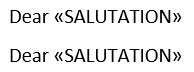
After fields exposed:

To format a number to 2 decimal places expose the merge fields then enter \# “0.00” after the name of the merge field and before the closing curly bracket. For example

To format a date as 01/01/2026 expose the merge fields then enter \@ “dd/MM/yyyy” after the name of the merge field and before the closing curly bracket. For example

You can find lots of guides and tips online for other formatting you can do within merge fields, for example if you wanted a different format for the date - ParcVu just uses the standard Word merge formats, so any online guides and forums relating to Microsoft merge fields can help!