☑️Manually Cash Matching Via an Individual Account in ParcVu Desktop
Last updated 8 months ago
From the Ledger screen, elect ‘Cash Matching’ from the navigation list at the top right of the screen

The ‘Cash Matching’ screen will now display any Posted monies waiting to be allocated in the top grid and any outstanding Ledger debts in the bottom grid.
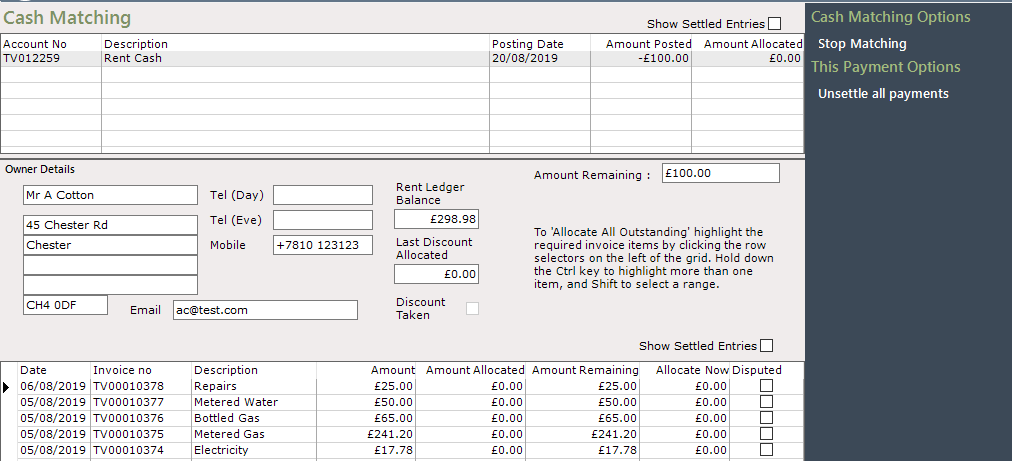
By default, this screen will only show Payments, Credits and Invoices with outstanding amounts to be matched. To see all transactions, tick Show All Entries above each grid

Click on the payment to be allocated in the top grid to highlight it.
Double click on the amount in the ‘Allocate Now’ column in the bottom grid at the bottom right of the screen, to highlight it, type in the amount you wish to allocate and then select ‘Stop Matching’ and then ‘Confirm’ from the Navigation list at the top right of the screen.

The ‘Amount Remaining’ field in the centre of the screen will show the amount of the payment waiting to be allocated to the Account
Allocate All Outstanding
It is possible to select to ‘Allocate All Outstanding’, click on the Row Selector Arrows on the left-hand side of the bottom grid against the required debt and then select ‘Allocate All Outstanding on the navigation list.
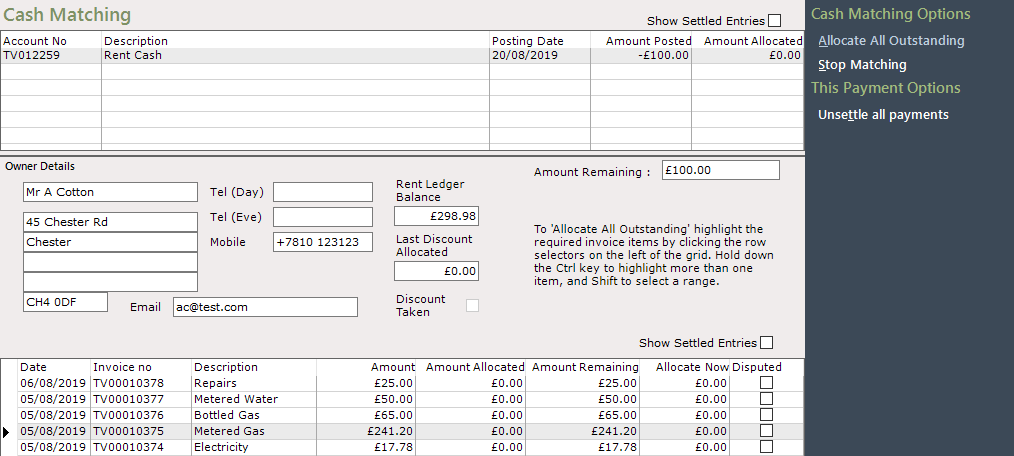
To select more than one debt to allocate to, hold down the ‘Ctrl’ key on your keyboard and click on the required invoices, to select a range of invoices, hold down the ‘Shift’ key on your keyboard and click on the first and last invoices required. Select ‘Allocate All Outstanding’ from the navigation list at the top right of the screen.
Select ‘Confirm’ from the Navigation list on the right of the screen and the selected amounts will be allocated. If the whole amount of the payment has been allocated it will then disappear from the top grid, if the payment fully paid off the selected debt in the bottom grid then that will also disappear, otherwise the debt will remain showing how much of the debt has been matched in the ‘Amount Allocated’ column and how much is still outstanding in the ‘Amount Remaining’ column
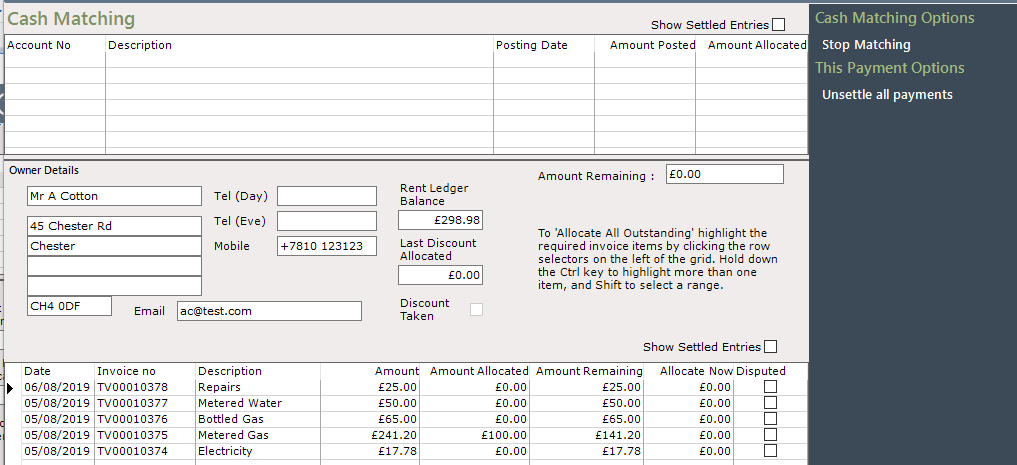
Select ‘Stop Matching’ when finished.