☑️ Private Sale in ParcVu Desktop
Last updated 8 months ago
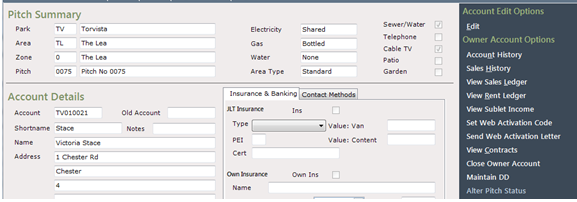
Navigate to the Seller’s Owners Account Details screen and select ‘Alter Pitch Status’ from the navigation list.
Select PS – Private Sale from the list displayed
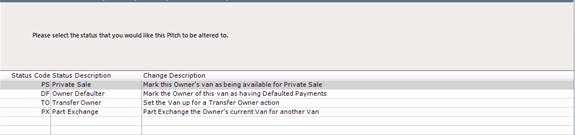

Once selected, click at the bottom of the screen.
The Van Pricing screen will be displayed where the ‘Private Sale Value’ and Private Sale Commission’ amounts should be entered along with any required Ancillary Charges and the Pricing Date’ and ‘Pricing Initials’. There should not be any ‘Caravan Value’ entered on a Private Sale.
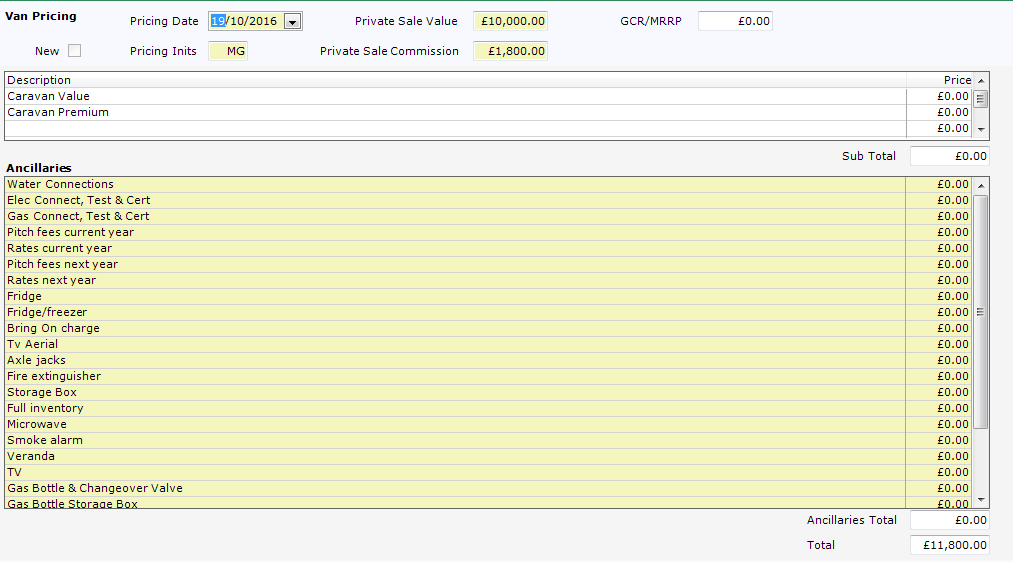

Once entered, click at the bottom of the screen.

Next, click at the bottom of the screen and the Account details screen will be displayed again, select ‘View Pitch Details’, from the navigation list and the Pitch status of the selected Owner will now show as PS – Private Sale
The Owner will stay in this status until the actual Private Sale is created.
When the Sale is to be created, navigate to the Owner Account Details screen and select ‘Alter Pitch Status’ from the navigation list.
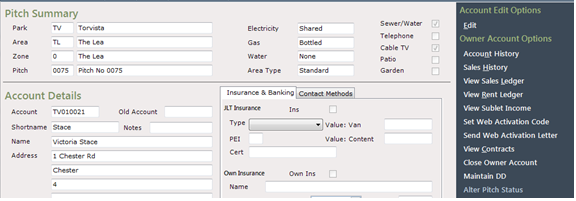
OW – Owner will be highlighted on the screen displayed, click at the bottom of the screen.

‘Proceed with the Private Sale will be selected, click at the bottom of the screen.

NOTE: Selecting ‘Revert status back to Owner’ here will cancel the Private sale Pitch Status and put the original Owner back to OW-Owner Status.
NOTE: If there are any outstanding Job Orders or missing fuel Readings, the system will show a warning message, and these will need to be addressed prior to continuing with the Private sale.

Next, select ‘Generate a new account for a prospect, Walk-on or Owner, and then click at the bottom of the screen.
Enter the new Buyers Post Code.
If the new Buyer already exists on the list displayed, select them, otherwise

click at the bottom of the screen.
Enter the details of the new buyer and set Contact method flags appropriately.
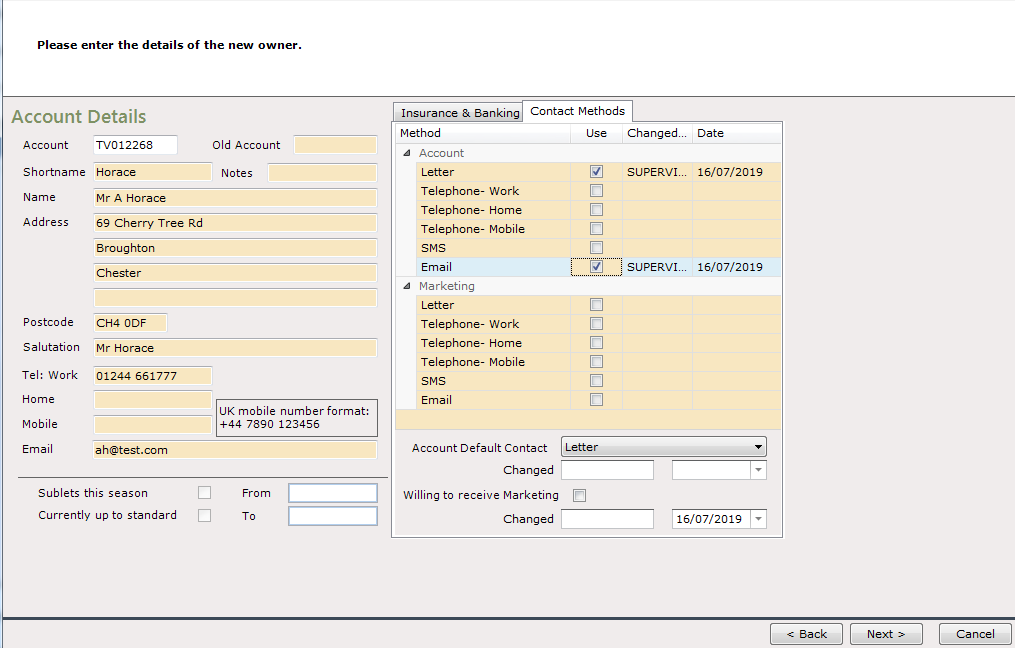

When done, click at the bottom of the screen.
Select the detail of who will be paying the Commission on the Sale, either the
‘Seller’ (Commission will be included in the current Owners OLP calculation) or the
‘Buyer’ (Commission will be included on the New Purchasers Sale Details)
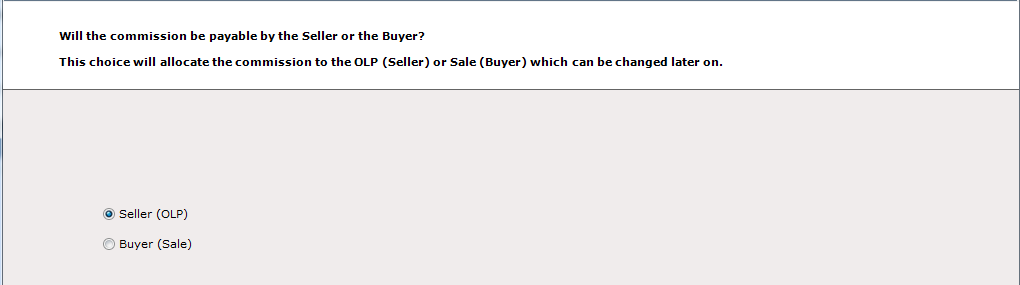

Select as appropriate and then click at the bottom of the screen.
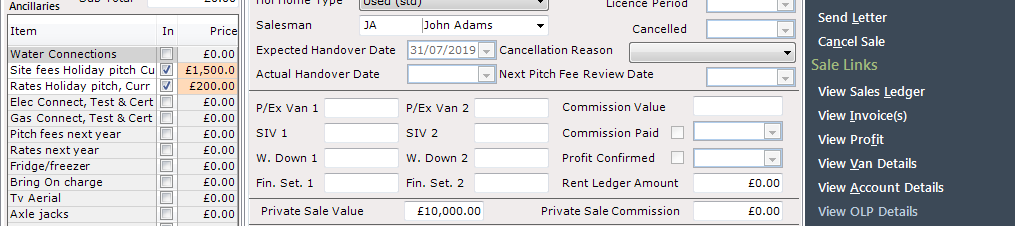
The Sales details screen will be displayed showing the values for the Private sale, Commission (if applicable) and any Ancillaries entered so far.
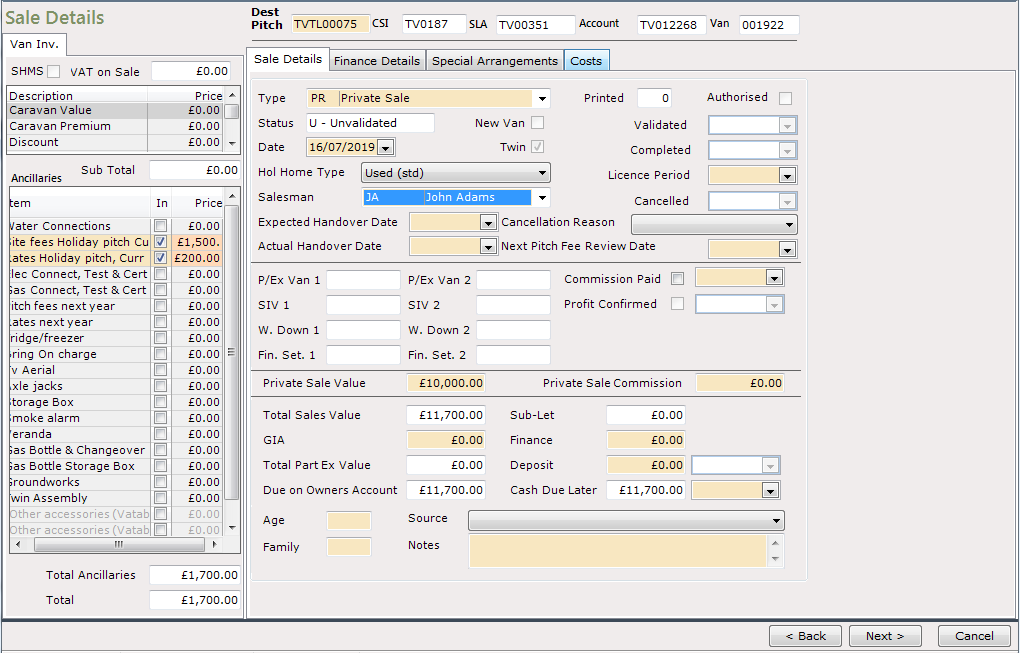

Select the Salesman and enter any further required details, then click at the bottom of the screen.
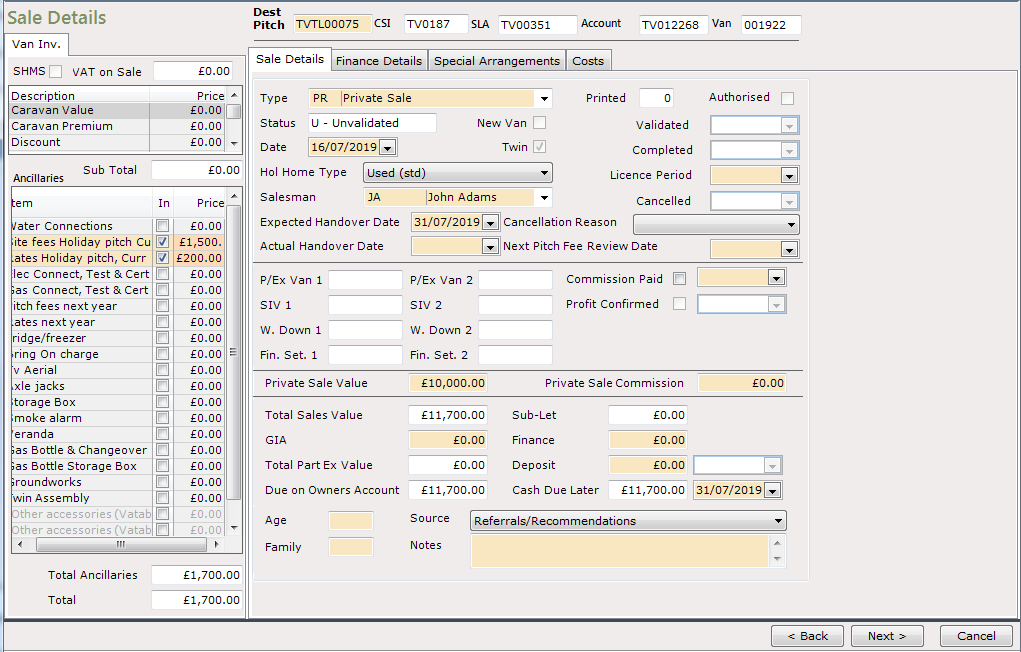
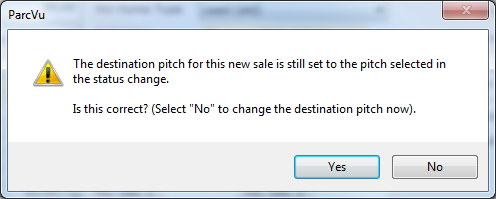
Confirm the details on the Destination Pitch message as appropriate.

Click at the bottom of the screen and the Private Sale will be created, select ‘View Sale Details’ from the navigation screen to return to the Sales screen.
Select ‘View OLP Details’ from the navigation list.
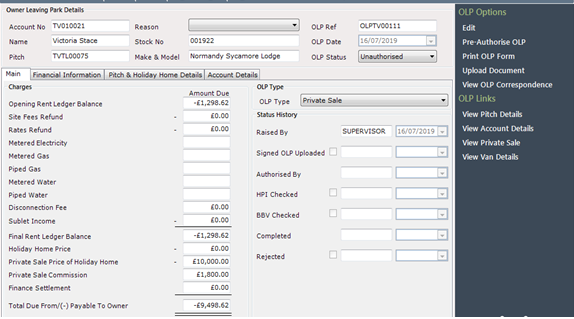
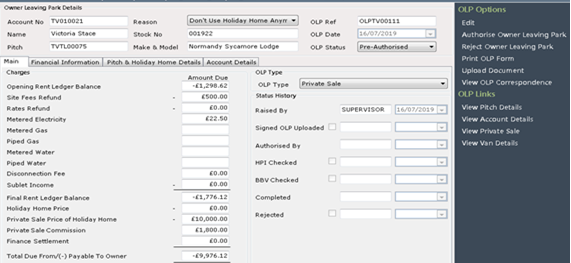
The automatically created OLP document will be displayed showing the Private Sale and Commission values already entered and the ‘Current Rent Ledger Balance’ of the leaving Owner, the OLP record will be in an ‘Un-authorised’ status awaiting completion and will show the current amount due to the Owner.
There is a link to view the Private Sale directly from the OLP, and vice versa
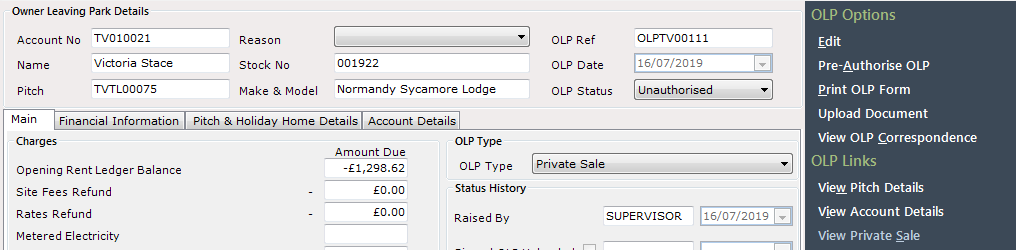
The OLP details should be completed up to an ‘Authorised’ Status, however, it’s not possible to ‘Complete’ the OLP until the Private Sale has ‘Completed’ select ‘Edit’ from the navigation list and use the drop-down list in the ‘Reason’ field to select the reason for the Owner leaving Park.
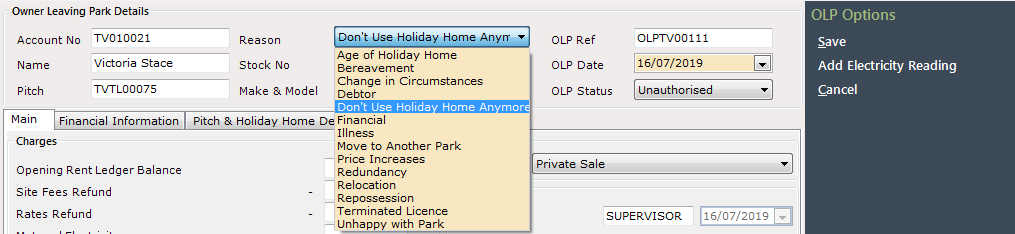
Links to add any required fuel readings will also show on the navigation list whilst in ‘Edit’ mode

The closing readings can be added now or at a later stage as appropriate, however, they must be entered in order to move the OLP on to the next stage of ‘Pre-Authorised’. Select ‘Save’ on the navigation list when finished.
Clicking on the tabs in the centre of the screen will display all the currently entered detail on the OLP. Further details can be added by selecting ‘Edit’ on the navigation list.
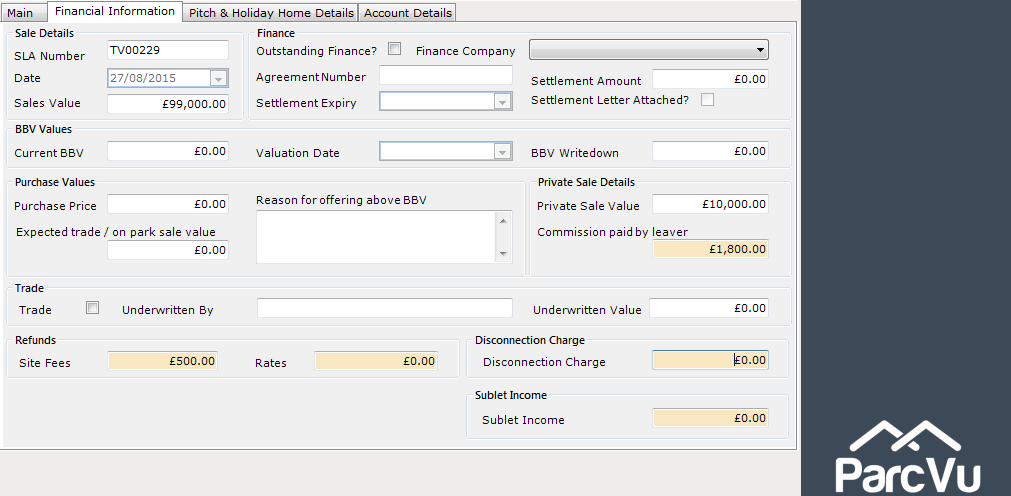
Click on to the ‘Financial Information’ Tab, If there is outstanding Finance on the unit, the details of any outstanding finance should be entered by selecting ‘Edit’ on the navigation list and clicking into the ‘Outstanding Finance’ field to select it and then entering the Finance details as relevant.
OLPs have been enhanced to automatically calculate refund values for the rest of the season for Site Fees and Rates and also any future charges which may have already been billed
The calculation used for the current season is AMOUNT CHARGED * (1- (Days Elapsed Since Charge period start/Total Number of Days in Charge Period)). If there are future charges then the full amount will be refunded on top of this seasons proportion. The refund will only calculate the charges made in AIC. If fees were charged in a sale then the automatic refund calculation in the OLP will not be calculated for those values.
If your OLP doesn’t automatically calculate, it’s possible you don’t have this setting activated. Contact ParcVu Support if you’d like it enabled
A new user right has been added called 'Allow OLP Refund Edit'.
Warning messages display when printing unauthorised OLPs where there are missing fuel readings and when the Rent Ledger balance does not match the Rent Ledger balance which has been recorded in the OLP. This will warn the user so they can go and refresh the OLP or enter the meter readings so it is up to date before the OLP form is given to the leaver, ensuring that the value in the print are up to date. The user will still be able to proceed with the print if they do not want to add the readings or update the rent ledger balance
Click ‘Save’ on the navigation list when finished.
Click on to the ‘Account Details’ tab and use the drop-down list to select the required ‘Method’ of payment for the leaving Owner.
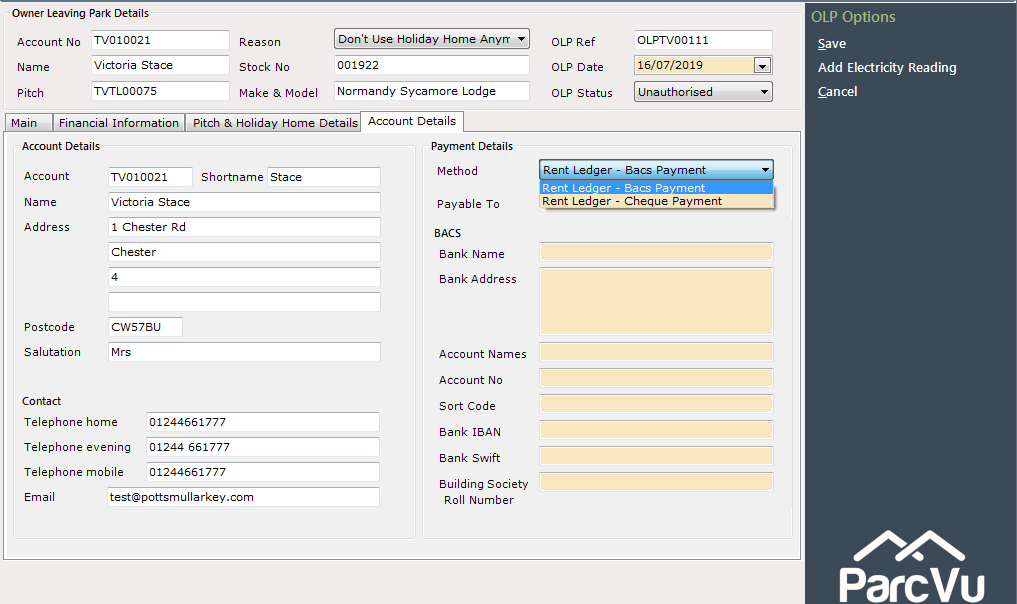
If Rent Ledger Bacs Payment is selected, then enter all required details in the ‘BACS’ section. If Rent Ledger Cheque Payment is selected, then enter the Name of the Payee in the ‘Payable To’ field.
Complete any additional Information section by clicking on the ‘Pitch & Holiday Home Details’ tab, enter the Condition of Unit and Pitch information as required and select ‘Save’ on the navigation list.
Click on to the ‘Main’ tab, all new values entered will be displayed and the OLP calculation of monies due to/from the Owner will have been updated accordingly.
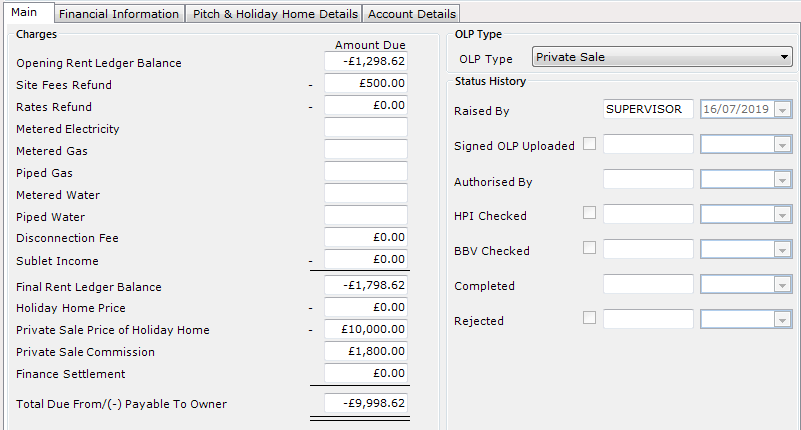
When all the required details have been entered and the record has been
reviewed by the relevant person, if all information is correct, select the ‘Pre-Authorise OLP’ option on the navigation list and the OLP will update to show an
OLP Status of Pre-Authorised.
NOTE: Closing readings will be required before Pre-authorisation (these can be added by selecting ‘Edit’ on the navigation list).