Bulk Check In in ParcVu Desktop
Last updated 4 months ago
The Bulk Check In function in ParcVu Desktop is only available to existing customers who previously signed up for the legacy ParcVu Bookings module. New subscribers will be offered enrolment in the Booking Experts module. Existing customers using legacy Bookings will be offered the opportunity to upgrade to Booking Experts - contact your Account Manager for more information
Multiple Bookings can be checked in simultaneously using the ‘Batch Processing’ function in the Booking Sub-Menu. This is particularly useful for if you have Touring Bookings checked in by a Warden who does not have ParcVu access and check ins must be done retrospectively
From the Home Screen, go to Bookings Sub Menu > Check In
The ‘Find Non ‘Checked In’ Bookings screen will be displayed.
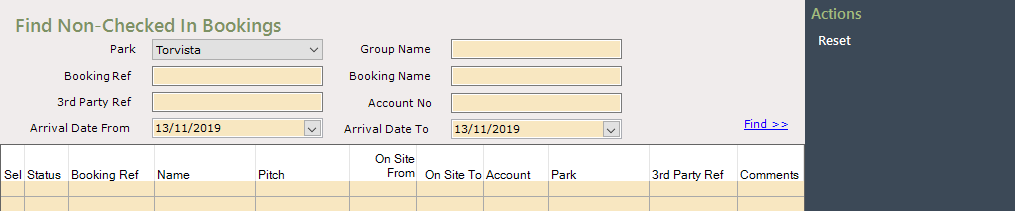
Use the available filters to find the Bookings that still need to be checked in
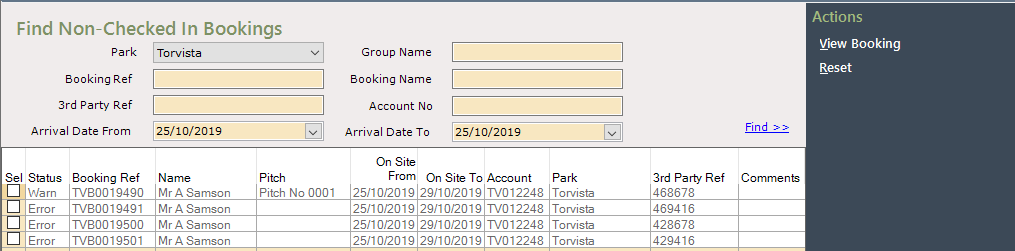
The ‘Status’ column shows whether the Booking is in a Valid state to be checked in. There are three statuses
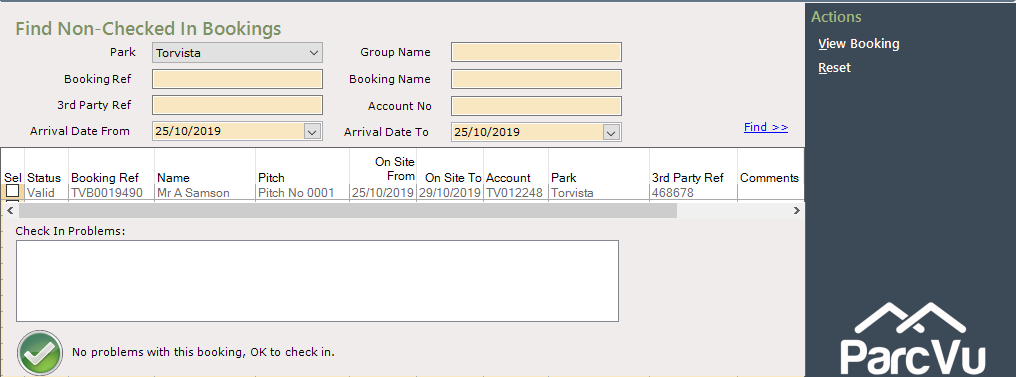
Valid means there are no issues with the Booking and the Unit is clean ready for check in. The Icon at the bottom of the screen will confirm this.
Warning means there are issues with the Booking and details of the issues are displayed at the bottom of the screen with the Warning Icon. A ‘Warning’ will not prevent the booking being checked in. If a Unit is still flagged as’ Dirty’ this would also show as a warning
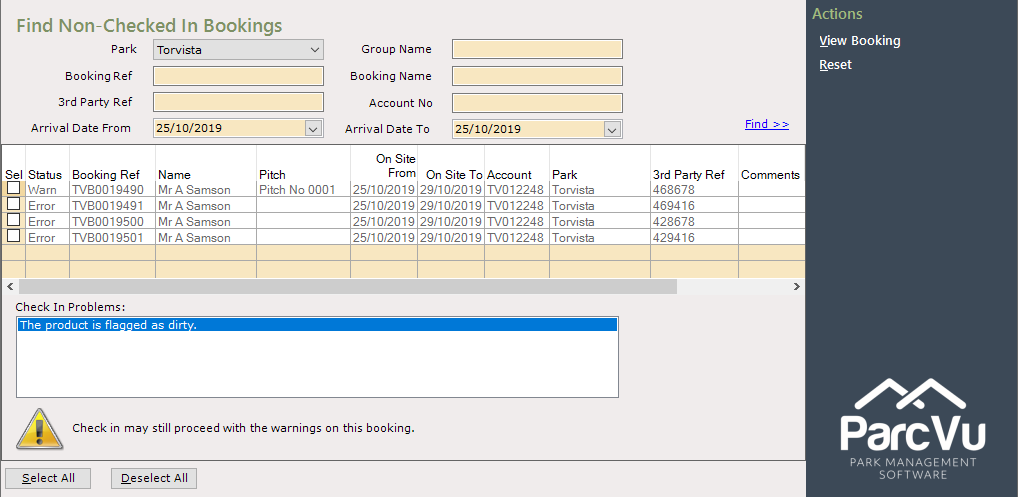
Error means there are issues with the Booking and details of the issues are displayed at the bottom of the screen with the Error Icon. A status of Error will prevent the booking being checked in, you must resolve the issue(s) based on the information provided before you can proceed
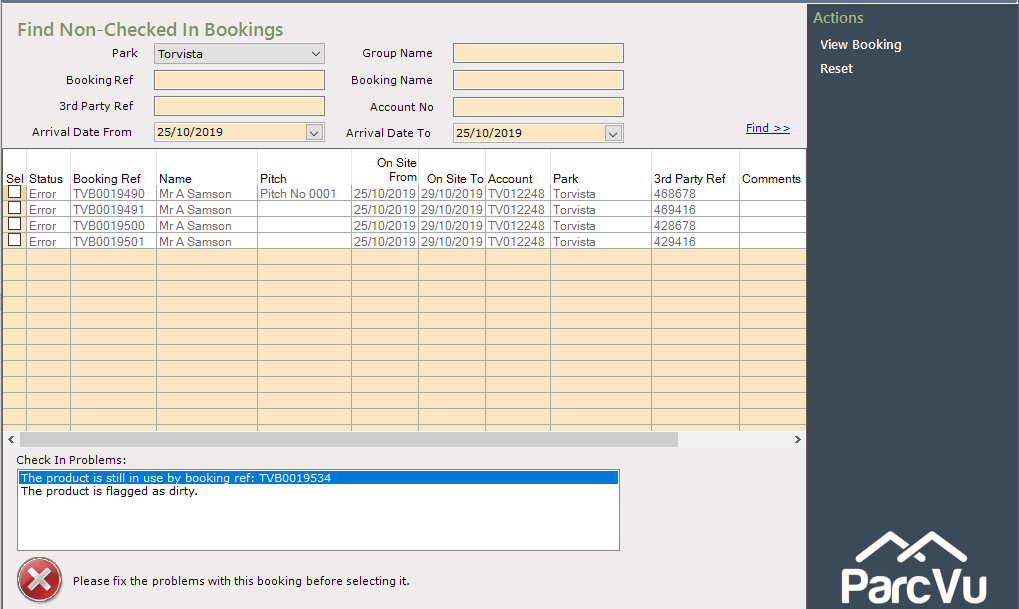
If the status is shown as ‘Valid’ and you are ready to check in the customer, click into the box in the ‘Sel’ column to ‘tick and select it
An option to ‘Check In’ will show on the Navigation list, select ‘Check In’ and any selected Bookings will be updated

The Processing Complete message will appear to confirm the ‘Check In’ has been done, click ‘OK’.
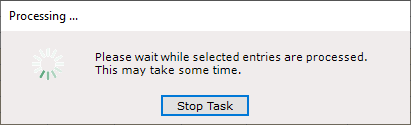
Click ‘OK’ to the processing Complete message and the selected Booking will disappear from the grid, the Booking Details screen will now show that the Booking has a Status of ‘Checked In’.