☑️ Print Statements/Rolling Statements in Bulk in ParcVu Desktop
Last updated 7 months ago
To access this functionality the user will need the Allow Ledgers submenu user permission
From the ‘Ledgers’ section of the Main Menu, select ‘Open Ledgers sub menu’

From the ‘Print Outstanding Paperwork’ section, select ‘Print Rolling Statements’ or ‘Print Statements’
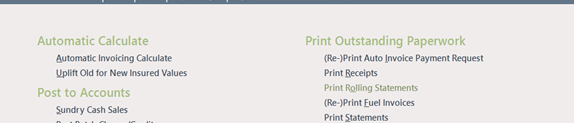
You must have a Park selected in the top right corner of the screen - these options will be greyed out if you do not have a Park selected
To print statements for the whole Park then leave the details as they appear in the ‘Account Selection’ section when it is displayed. To print statements for only a selection of Owners then enter the Start and Finish Owner Account numbers to be printed. If only accounts with a certain balance are required, this can be specified in the ‘Balance’ section.

To see All balances then leave the ‘Balance’ section blank.
There are several options available to select to Include or Exclude postings on the Statement:
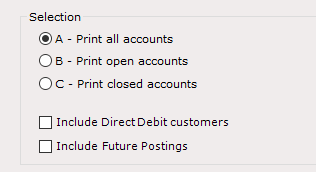
If any ‘Future Postings’ on the Ledger are to be included on the statement, click into the ‘Include Future Postings’ option to select it.
When ready, click ‘Start’ on the Navigation list.
Select the required ‘Printer’ to send the Statement to and then click ‘OK’. The Rolling Statements will now be printed. Click ‘OK’ to the message showing ’Statement Process Complete’
Select the ‘From’ Email - this is the email address that will be used as the sender for emailed statements
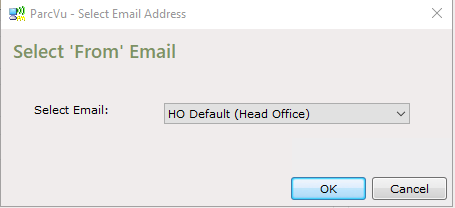
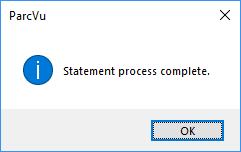
Do not cancel the ‘print’ even if all Owners have their preference set to ‘Email’ - this ‘Print’ also generates the PDF files required to send as attachments to the emails. Cancelling the print or selecting ‘no’ to the message above will result in no invoices being sent