☑️ Re-Print Batch Fuel (Utility) Invoices in ParcVu Desktop
Last updated 7 months ago
To access this function the user will need the Allow Ledgers sub-menu permission
If a re-print of a batch of Fuel Invoices needs to be resent, for example because the print failed or was cancelled in error, you can use the Reprint batch function
From the Home screen, go to Open Ledgers Sub Menu > (Re-)Print Fuel Invoices
If you have access to multiple parks and only want to reprint/resend invoices for a specific Park, ensure you have a Park selected in the top right corner
Select the fuel type and 'Reprint batch’
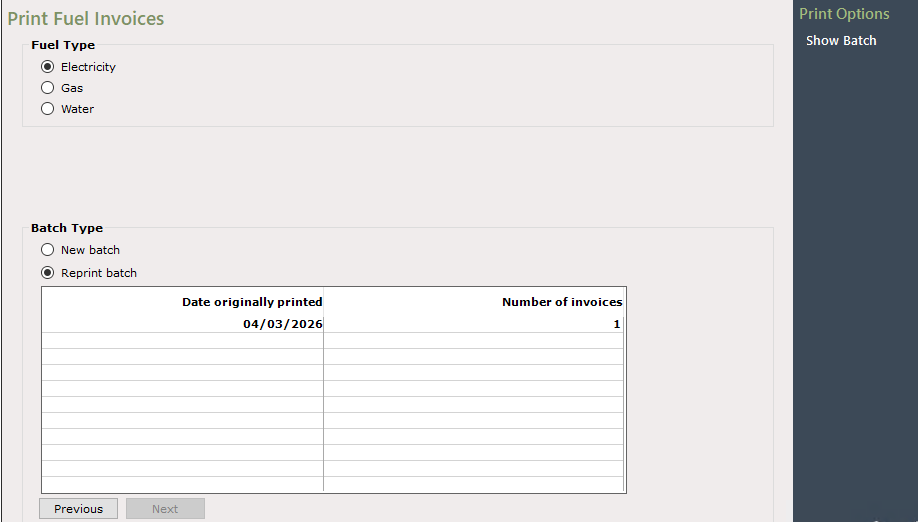
Select the batch to resend, then ‘Show batch’
All accounts/invoices included in the batch will be shown. You can choose to ‘Select All’ to resend the entire batch, or select specific invoices to ‘Reprint’
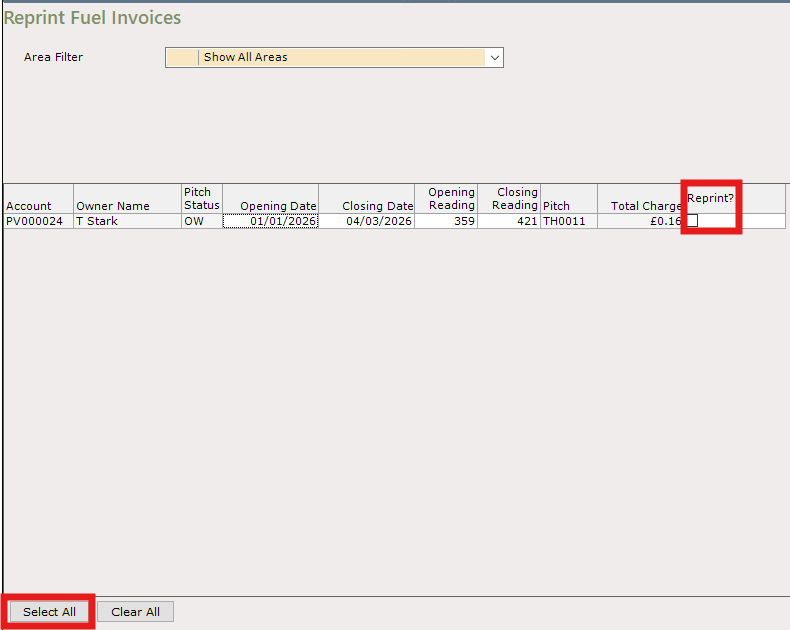
Once you select at least 1 invoice, the ‘Reprint’ option will appear on the navigation menu on the right hand side
Although the option says ‘Print’, this will actually send the invoices via email if the preference is set to email, and will generate a PDF file to print for those who need the letter version sending
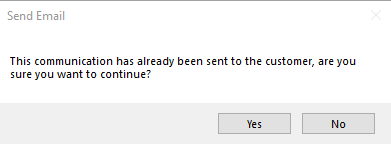
Select ‘Yes’ to the messages displayed
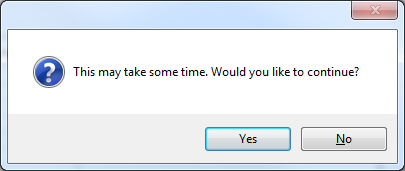
Then select the required Printer to send the invoices to from the Print dialogue box. The invoices will then be sent to the selected printer.
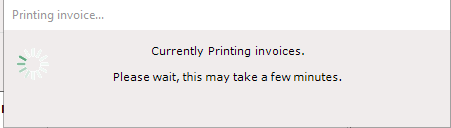
Do not cancel the ‘print’ even if all Owners have their preference set to ‘Email’ - this ‘Print’ also generates the PDF files required to send as attachments to the emails. Cancelling the print or selecting ‘no’ to the message above will result in no invoices being sent
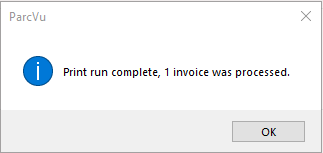
A print run message will confirm how many invoices were printed