Process Cleaning List in ParcVu Desktop
Last updated 4 months ago
The Cleaning List function in ParcVu Desktop is only available to existing customers who previously signed up for the legacy ParcVu Bookings module. New subscribers will be offered enrolment in the Booking Experts module. Existing customers using legacy Bookings will be offered the opportunity to upgrade to Booking Experts - contact your Account Manager for more information
When an Accommodation Booking is checked in, the system automatically flags the Unit as ‘Dirty’; this can be viewed on the Van Details screen by selecting the ‘Booking’ tab.
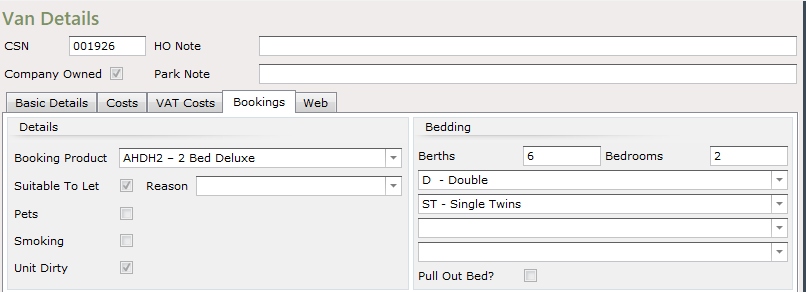
Once the Accommodation Team have cleaned and checked the unit, it must be marked as cleaned in ParcVu. To Update the Cleaning List, from the Home Screen go to Bookings Sub Menu > Process Cleaning List
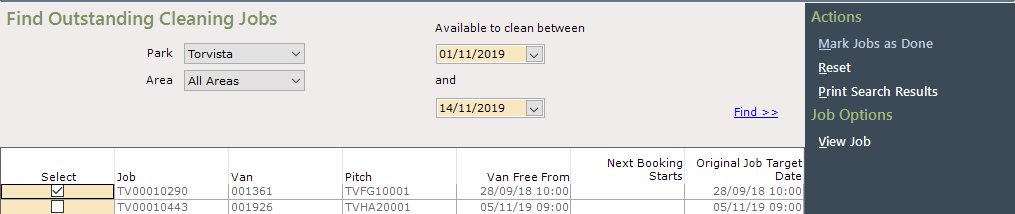
The ‘Find Outstanding Cleaning Jobs’ screen will be displayed.
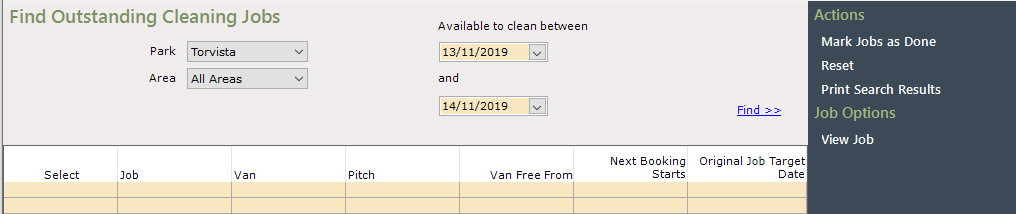
Use the filters to find the target Cleans
Any Units due to be cleaned within the selected date range will be displayed in the grid, showing the relevant Van / Pitch numbers.
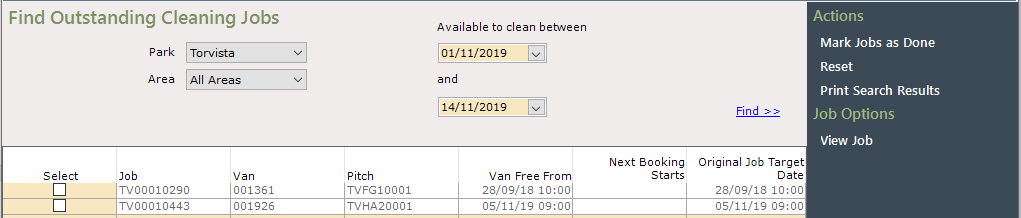
An option will be available on the Navigation list to ‘Print Search Results’, selecting this will print off a list of Cleaning Jobs to be passed to the Accommodation Team
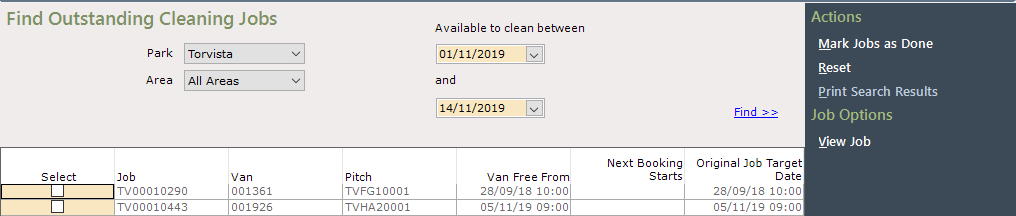
When the unit has been cleaned, click into the box in the ‘Select’ column to tick and select it. And then select ‘Mark Jobs as Done’ on the Navigation list.
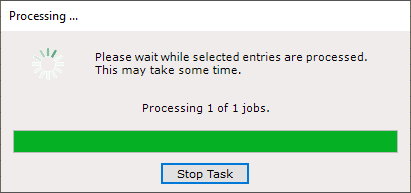
The Jobs Processing message will be displayed.
Followed by the Processing Complete message.
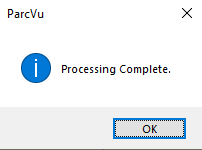
Click ‘OK’ and the Cleaning list will be update and the unit marked as ‘Clean’ will no longer appear in the grid.