Reporting Periods & Sub-Periods in ParcVu Desktop
Last updated 4 months ago
To access this function the user will need the Allow Access System Submenu permission
Some Bookings Reports rely on Reporting Periods and Reporting Subperiods being set up - this is to enable year on year comparisons by defining exactly when periods begin and end each season
Set Up Reporting Periods
From the Home Screen, go to System Maintenance Sub-Menu > Maintain Lookups > Reporting Periods
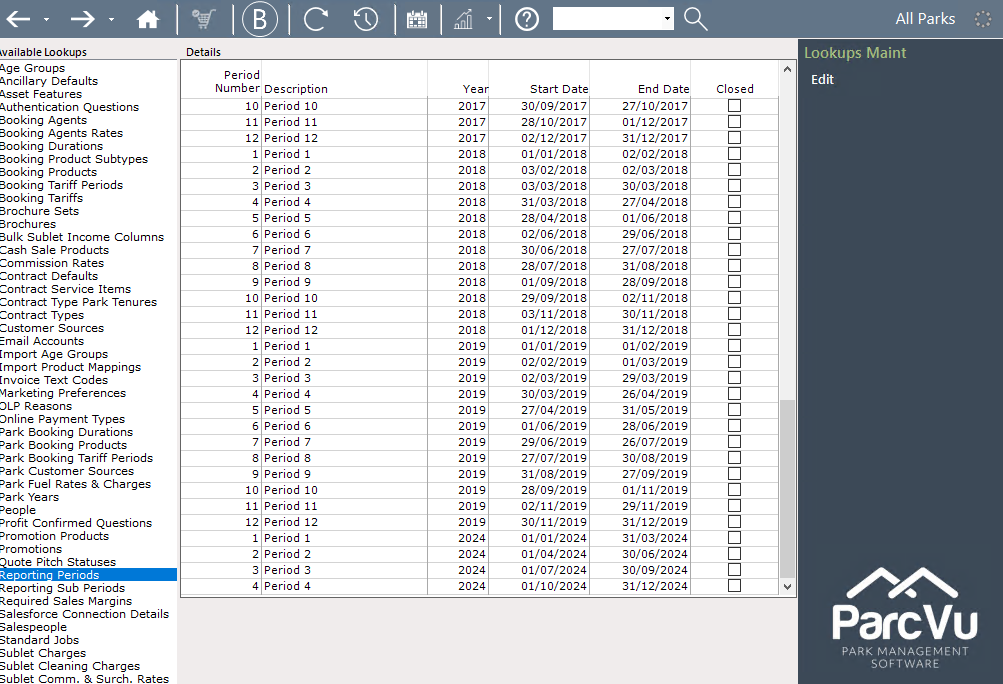
Next, select ‘Edit’ from the Navigation list on the right.
The grid will now be highlighted in yellow, click into the first blank line in the ‘Period Number’ column, enter the required Period number. Move across the columns and enter the required ‘Description’, ‘Year’, Start Date’ and ‘End Date’ is entered for the new Reporting Period.

Continue until all required periods are entered, the select ‘Save’ from the Navigation list on the right, the new information will then be updated on the system
You can configure the Periods however best suits your business - for example, each ‘period’ could be a calendar month, span the first 4 weeks, be a financial quarter etc
However you define a Period, the combined Periods must span the whole calendar year
To accurately compare YOY performance, you should define your Periods the same way each year
When new ‘Reporting Periods’ are added, it is then necessary to set up ‘Reporting Sub Periods’ - these generally define the weeks contained within the Period
Set Up Reporting Sub-Periods
From the Home Screen, go to System Maintenance Sub-Menu > Maintain Lookups > Reporting Periods
Use the scroll bar on the right of the top grid to find and select (by clicking on the line), the required ‘Reporting Period’

Select ‘Edit’ from the Navigation list on the right of this screen.
The bottom grid will now be highlighted in yellow, click into the first blank line in the ‘Sub Period Number’ column, enter the required Sub Period number. Move across the columns and enter the ‘Description’, ‘From’ date and ‘To’ date until all the required Sub Periods are entered for the new Reporting Period.
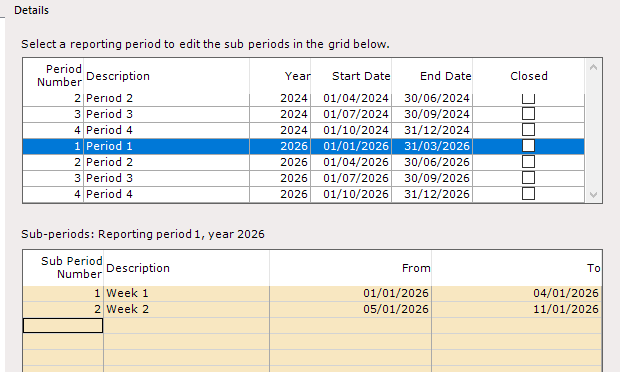
Click ‘Save’ on the Navigation list on the right once you have entered all the weeks for that period, then select the next Period and continue
Your Sub-Periods must cover the whole Period when combined
Your Sub-Period numbers relate to the Year, rather than being numbered within the Period - for example, if Period 1 contains Sub-Periods 1-4, Period 2 must begin at Sub-Period 5, you could not have Sub-Period 1 again within Period 2