☑️ Amend an Existing Ancillary in ParcVu Desktop
Last updated 10 months ago
Users require the Allow System Maintenance Menu or the Supervisor Account to manage Ancillaries
Ancillaries are items you can include in a Holiday Home Sale. You can choose to include them by default and use pre-set pricing, or enable the settings for users to be able to override the pricing. Costs can also be set for the Ancillaries, to enable you to factor them in to your margin (profit) calculations
New Ancillaries can only be created by a ParcVu Developer. To request a new Ancillary, send an email to our Support Team with the following information;
Name of the Ancillary
VAT Rate
Nominal Code (please ensure the Nominal Code exists in System Maintenance Sub Menu > Maintain Nominal Codes)
Please note, we can’t take these requests over the phone!
To find the Ancillary Defaults lookup in ParcVu Desktop, go to System Maintenance Sub Menu > Maintain Lookups > Ancillary Defaults
To set the rules for an Ancillary or to make a change to an ancillary setting, select ‘Edit’ on the navigation list
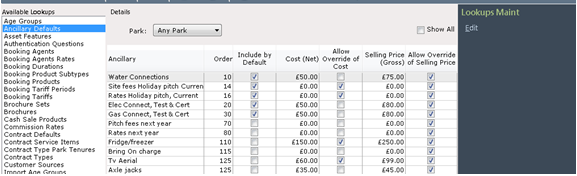
Set the required flag rules and values against the required ancillaries and then select ‘Save’ on the navigation list.
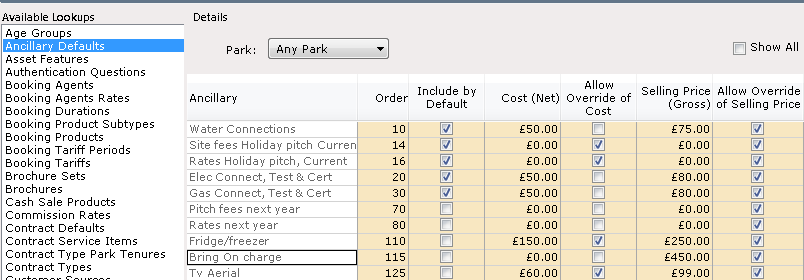
Park-Specific Pricing and Rules for Ancillaries in ParcVu Desktop
It’s possible to set prices and flags for All Parks with the ‘Any Park’ option selected on the Park drop down list.

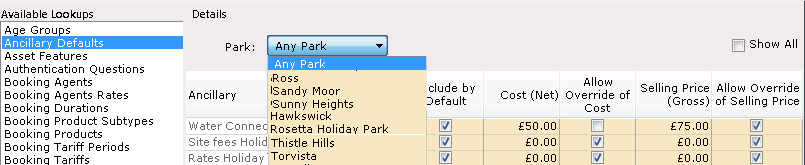
Or, to set prices and flags for individual Parks by selecting the required Park from the dropdown list in the Park field.
These Default Values will only be passed through to the Sale if the Priced Stock screen has been completed for the Holiday Home prior to the Sale being created. To find out more about Priced Stock, click here: Priced Stock in ParcVu Desktop