☑️ Failed Payments in ParcVu Desktop
Last updated 8 months ago
Occasionally, a card payment may fail and not be fully processed. The payment will appear on the Customers Sales, Rent or Booking Ledger in red

The payment will not appear on the End of Day Report ‘Cash Received Payments’ (213), but will be shown on the 213b Report
You can choose to ‘Repair’ or ‘Fail’ these payments once you have checked the Opayo portal to confirm whether they were actually processed
Repair a Card Payment in ParcVu Desktop
To use this function, the user will need the Can Repair or Fail card payments permission. The user will not see the option unless they have the correct permissions
If a payment is showing in red on the Ledger, but you have confirmed in your Opayo portal that the payment has in fact been processed, you can Repair the payment to post it to the Ledger
Click on the required Payment line in the grid to highlight it

The option to ‘Repair Card Payment’ will be displayed on the Navigation list
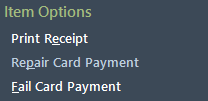
Select this option and a pop-up message will confirm that the transaction has been repaired and will now appear on Report 213. The transaction will no longer show in red on the Ledger
Fail a Card Payment in ParcVu Desktop
To use this function, the user will need the Can Repair or Fail card payments permission. The user will not see the option unless they have the correct permissions
If a payment is showing in red on the Ledger, and you have confirmed in your Opayo portal that the payment has not been processed, you can Fail the payment to correct the Ledger
Click on the required Payment line in the grid to highlight it

The option to ‘Fail Card Payment’ will be displayed on the Navigation list
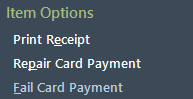
Select this option and a popup message will confirm that the ‘Failure’ of the transaction has been Completed
The message also asks if you would like to ‘Post a Reversal’ of the payment, Select ‘Yes’ and the ‘Reversal’ transaction will be displayed returning the Ledger balance to the amount previously displayed