☑️ Manually Cash Matching via main ‘Post Cash’ screen in ParcVu Desktop
Last updated 8 months ago
If payments have been posted to more than one account, then all the accounts which have had a payment posted to them will be displayed showing amounts posted.
In the top grid, click on the first entry in the list displayed (if more than one is showing) to highlight it, and the Account details will be shown in the centre of the screen.
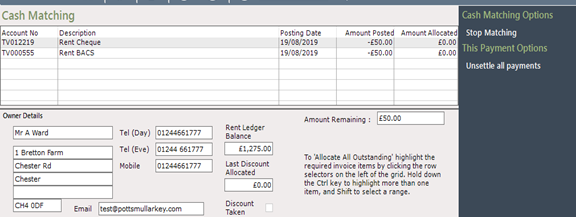
Any outstanding Ledger debts on the selected Account will be displayed in the bottom grid. Double click on the 0.00 in the ‘Allocate Now’ field at the bottom right of the screen to highlight it, enter the amount you wish to allocate.
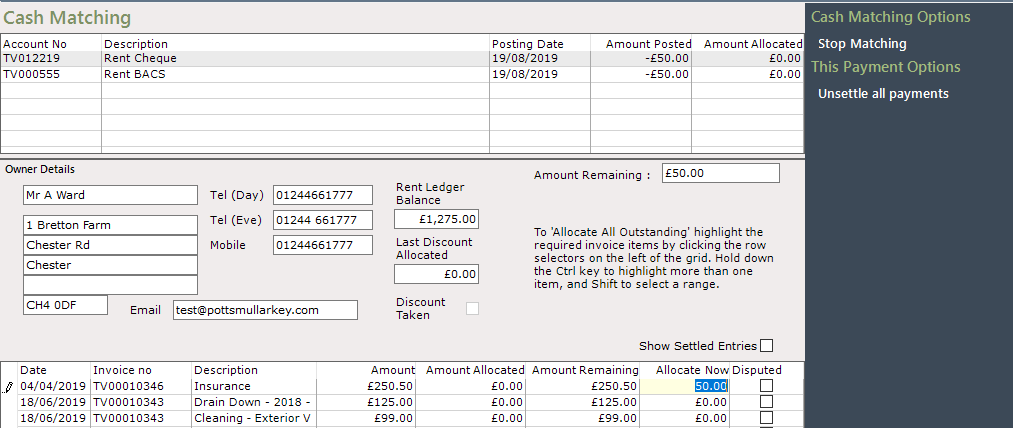
Select ‘Stop Matching’ and then ‘Confirm’ from the Navigation list on the right. Continue until all required amounts are allocated
Once a payment is allocated against a debt on an account it will disappear. If you wish to view it again, in the relevant account Cash Matching screen, click into the ‘Show All Entries’ box above the grid.
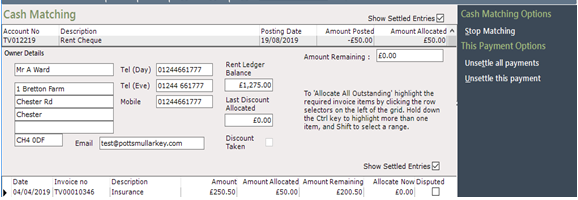
The details will re-appear showing that the amounts are ‘Allocated’.
The ‘Amount Remaining’ field in the centre of the screen will show any further Posted cash waiting to be allocated to the Account, the ‘Rent Ledger Balance’ field also in the centre of the screen will display the current Rent Ledger balance.