☑️ Bulk Communications ‘By Account’ in ParcVu Desktop
Last updated 4 months ago
To access this functionality, the user will need the Allow into Bulk Communications permission
From the Main Menu, select Bulk Communications – ‘By Account’. The ‘Find Account’ screen will then be displayed.
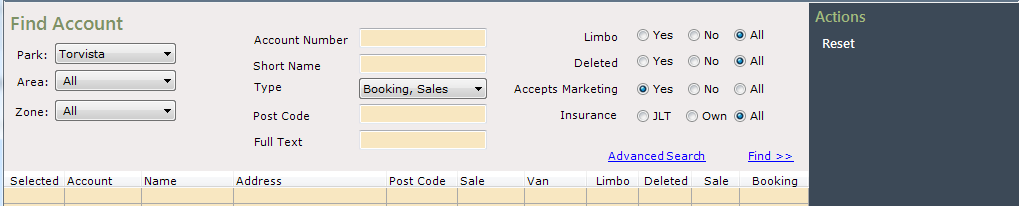
Account Types can be selected by ‘Sales’, By ‘Booking’ or both, any of the yellow highlighted search fields can be used to find the required Account(s). The ‘Limbo’ and ‘Deleted’ Radio Buttons can also be selected to find the required Accounts.
If you only want to send to Owners, choose Sales as the account type and remember to set Limbo to ‘No’ to ensure only current accounts are picked up
The ‘Method of Communication’ filters are located at the bottom of the grid and should only be selected once the initial Find>> has returned results as the initial Find>> will always default these filters to ‘All’

By default, the initial ‘Find’ will only include accounts where the ‘Accepts Marketing’ flag is set on the account, if the communication is required to be sent to All Accounts then the filter should be set to ‘ALL’ and then click Find>> again

Send Account Letters in Bulk in ParcVu Desktop
By Default, the ‘Communication For’ option below the grid will be set to ‘Account’, if the communication being sent is for Marketing then the ‘Marketing’ option should be set, the initial results will then be updated accordingly.

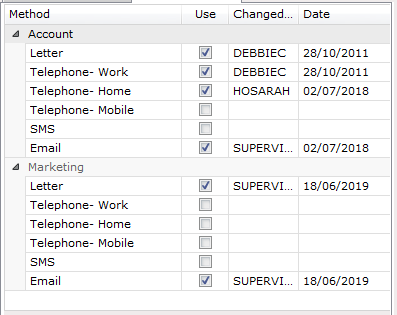
Select ‘Letter’ from the filter options at the bottom of the grid and the results will be updated to show only Accounts where the ‘Letter’ flag is set as a method of Communication on the Account Details screen.

To select the required Accounts to print letters for, click into the ‘Selected’ box on the left side of the grid to ‘Tick’ and ‘Select’ them.

To Select or Deselect All Accounts, use the buttons at the bottom, below the search results
When the required Accounts are ticked and selected, click on ‘Generate Communication’ on the Navigation list on the right.

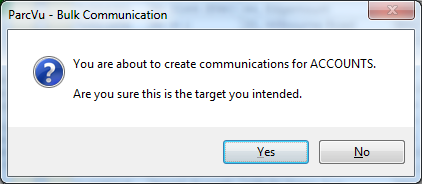
Confirm the communication target message as appropriate
The Bulk Communication pop up will be displayed, select the option you require for successfully sent communications.
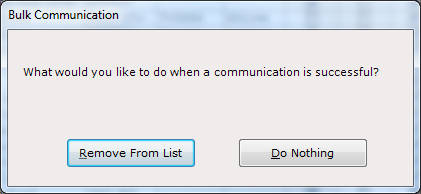
‘Remove from the List’ will show the communications being generated and once complete, the only accounts remaining in the list will be those where communication wasn’t sent
The Letter Template Selector will then be displayed
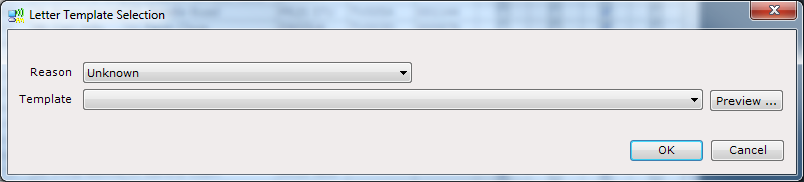
Select the required Reason and Letter in the ‘Template’ fields.
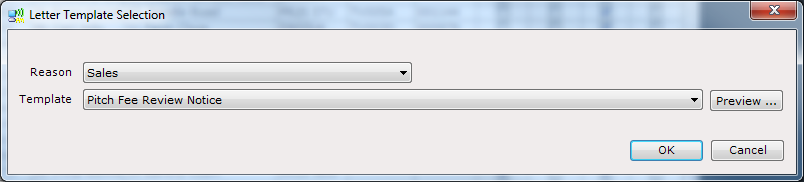
Click ‘Ok’ and then Confirm the printer message and the Printing Documents message will appear.
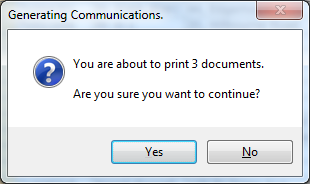
Confirm ‘Yes’ and select the required Printer.
When the printing is complete, the ‘Processing Complete’ message will be displayed.
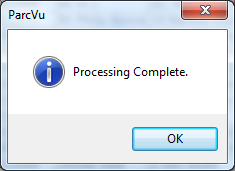
Click ‘OK’ and the documents will have been printed to the selected printer.

If communication was not generated for any of the selected accounts for any reason, the affected accounts will be highlighted in Red on the screen, so that they can be checked and resent.
Send Account Emails in Bulk in ParcVu Desktop
The process is the same as detailed for ‘Send Letter’, however, when the ‘Email’ filter is selected, the results returned will show Accounts/Bookings where there is an Email Address listed and the Contact method of ‘Email’ is flagged on the Account Details screen, either for Account or Marketing or both as appropriate.

Send Account SMS Messages in Bulk in ParcVu Desktop
The process is the same as detailed for ‘Send Letter’, however, when the ‘SMS’ filter is selected, the results returned will show Accounts/Bookings where there is a Mobile Number listed and the Contact method of ‘SMS’ is flagged on the Account Details screen.
To send SMS messages, the Mobile number on the account must be formatted with the country code at the beginning:
