☑️ Automatic Invoicing Calculate (AIC) in ParcVu Desktop
Last updated 7 months ago
Contract Billing Is Now Available in ParcVu Online!
This function is now available in ParcVu Online! For the best experience, we recommend switching to ParcVu Online to ensure you always have access to the latest features
Continue Using ParcVu Desktop:
To access this functionality the user must have the Head Office box ticked and have the Allow Ledgers Sub Menu user permission
Invoices for recurring costs such as Site Fees, Rates and Electrical Admin Fee are raised via the Automatic Invoicing Calculate process when using the Desktop Application.
From the Home screen go to Ledgers Sub Menu > Automatic Invoicing Calculate
A Park must be selected in the top right for this option to be available - this option will be greyed out if this is left as ‘All Parks’

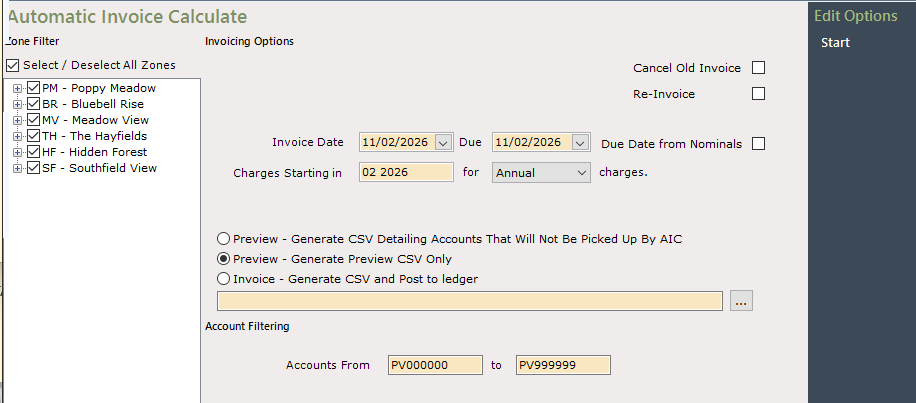
The ‘Automatic Invoice Calculate’ screen will be displayed
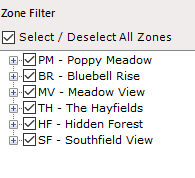
In the ‘Zone Filter’ section on the left, all the ‘Areas’ and ‘Zones’ on the Park will show as ‘Selected’
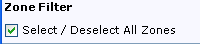
Click into them to either deselect or select all ‘Areas’ and Zones’
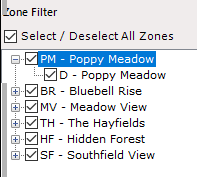
It is possible to run Invoices for only selected ‘Areas’ or ‘Zones’ if required
Use the plus icon at the side of the ‘Areas’ and the ‘Zones’ within the ‘Areas’ will be displayed
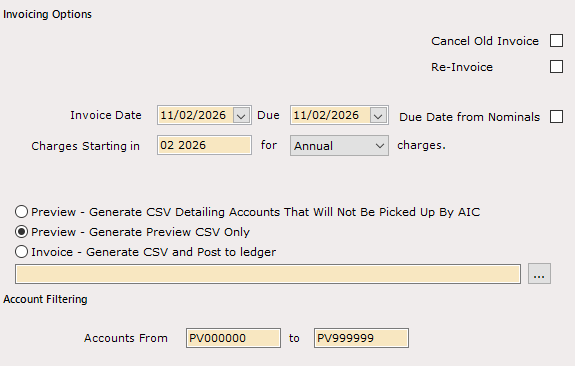
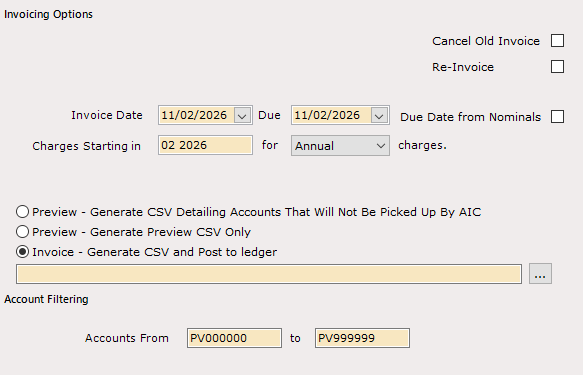
Invoice Date is the date that the invoices will be posted to the ledger. This will default to the day that the AIC is being run - you should double-check this date before posting
Due is the date that the invoices must be paid by the customer. This will default to the day that the AIC is being run - you should double-check this date before posting. Due Date From Nominals can be checked to override the Due Date to use the ones configured in the nominals. For example, if you have your pitch fees set to be due for payment 90 days after invoicing in the nominals, this will be picked up
Charges Starting In is the month and year that the charge period starts - this is not necessarily the same as the date that the customer needs to pay the fee by. In this case, it means “the period that the customer is paying the fee for”. For example, for Pitch Fees you may have a Due Date of 31/12/2025 for a Charge Starting In 01 2026
You can leave the Accounts From/to fields as they are if you want to run the AIC for all customers, or enter a specific Account number/range to bill specific customers only
Previewing The Data in ParcVu Desktop
It’s strongly recommended that prior to running the billing, a Preview of the results is done. This allows you to check the values are correct, all Accounts are included as expected and that there are no unexpected Accounts included. Running a preview prevents the need for reversing invoices and rebilling later.
Once your filters are correctly set, choose Preview - Generate Preview CSV Only then click Start on the right hand side
You will need to specify where to save the file, and give it a name. Click the 3 dots next to the long bar above ‘Account Filtering’ and choose the location, then give the file a name
Remember, this needs to be a location that both ParcVu and your PC can access. For this reason, we recommend this being a folder in your Local Drive (usually called C:)
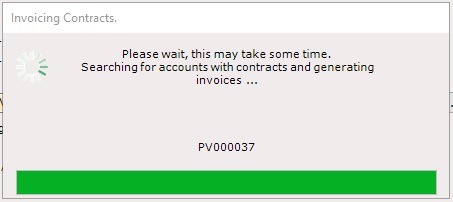
The Processing Invoices screen will appear.
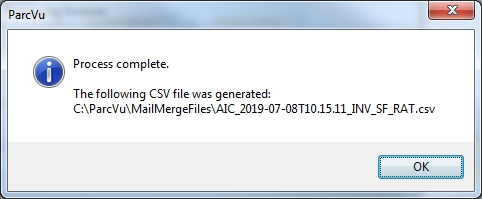
Then the ‘Process Complete’ message will display giving details of where the Spreadsheet (CSV) file has been saved.
You may see a message that looks like this:
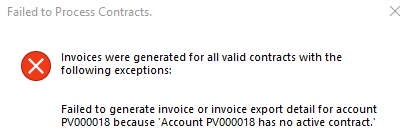
This is not an error message - you do not need to report this and ParcVu Support do not need to take any action
This is a notification that the Accounts listed will not appear on the Preview and why. The Preview will still have generated for any valid Accounts. Make a note of the Accounts listed and take the necessary corrective action. For example, in this case there is no active contract, so the User would need to go and resolve this before this Account will be picked up on the billing. It may be correct that there’s no active contract and this customer shouldn’t be billed - this is why this needs to be checked by the User rather than ParcVu Support, as the Park knows whether or not someone should be getting billed
Once the Account numbers and issues have been noted, you can click ‘OK’ on the message and proceed as normal
Click ‘OK’
Navigate to the selected location and the file will be displayed.
Open the file and the CSV spreadsheet will be displayed showing all selected Accounts and all the charges to be applied for each account.

You can also run a Preview for Accounts that won’t be included - if you have a large Owner base, this may be a more manageable way to ensure no Accounts are missed. Follow the steps for Preview but select the first option Preview - Generate CSV Detailing Accounts Which Will Not Be Picked Up By AIC. This will provide a list of Accounts you can check prior to running billing
Accounts will only appear on 1 Preview - either the ‘Will Not Be Picked Up’ or the regular Preview. This is correct, as they only meet one set of criteria (ie either will or will not be billed)
Billing The Accounts in ParcVu Desktop
Once the Preview has been checked and all data is correct, you are ready to run the invoices to be posted to the Accounts
Once your filters are correctly set, choose Invoice - Generate CSV and Post to ledger then click Start on the right hand side
You will need to specify where to save the CSV file, and give it a name. Click the 3 dots next to the long bar above ‘Account Filtering’ and choose the location, then give the file a name
Remember, this needs to be a location that both ParcVu and your PC can access. For this reason, we recommend this being a folder in your Local Drive (usually called C:)
The Invoicing processing screen will appear and then the ‘Process Complete’
You may see a message that looks like this:
This is not an error message - you do not need to report this and ParcVu Support do not need to take any action
This is a notification that the Accounts listed have not been billed and why. The billing will still have completed for any valid Accounts. Make a note of the Accounts listed and take the necessary corrective action, you’ll then be able to re-run the billing for these Accounts. For example, in this case there is no active contract, so the User would need to go and resolve this before this Account will be picked up on the billing. It may be correct that there’s no active contract and this customer shouldn’t be billed - this is why this needs to be checked by the User rather than ParcVu Support, as the Park knows whether or not someone should be getting billed
Once the Account numbers and issues have been noted, you can click ‘OK’ on the message and proceed as normal
Click ‘OK’, the invoices will now have been posted to the Owner Rent Ledger Accounts, and a CSV showing all the transactions posted will have been created to the specified location, for future reference
The invoices can now be printed or emailed as appropriate. You can find more information about this here: Print Automatic Invoices
Once invoices have been run with the ‘Invoice – Post to ledger’ option then the same batch cannot be posted again for the same date range. Attempting to run invoices for the same dates as a previous successful invoice run will not return any accounts that were included in the previous invoice. The same invoice run can be re-run by using the Re-invoice option (see Re-Invoice section for more details)
NOTE: Once invoices have been run with the ‘Invoice – Post to ledger’ option then the same batch cannot be posted again for the same date range. Attempting to run invoices for the same dates as a previous successful invoice run will not return any accounts that were included in the previous invoice. The same invoice run can be re-run by using the Re-invoice option (see Re-Invoice section for more details)