Park Booking Overview Screen in ParcVu Desktop
Last updated About 1 hour ago
The Park Booking Overview function in ParcVu Desktop is only available to existing customers who previously signed up for the legacy ParcVu Bookings module. New subscribers will be offered enrolment in the Booking Experts module. Existing customers using legacy Bookings will be offered the opportunity to upgrade to Booking Experts - contact your Account Manager for more information
The Park Booking Overview is designed to give a clear view of which Bookings are allocated to a specific unit or pitch. It allows you to see potential opportunities to optimise allocations and move Bookings around to create space for more Bookings
Whilst it can give a general overview of how busy the Park is, it is not designed as an availability checker - this is because the Park Booking Overview screen shows an overview of which Bookings are assigned to specific Pitches/Units - it will not show unassigned Bookings, or Units/Pitches without any Bookings assigned (unless they are explicitly included)
From the Home Screen, go to Bookings Sub Menu > Park Booking Overview
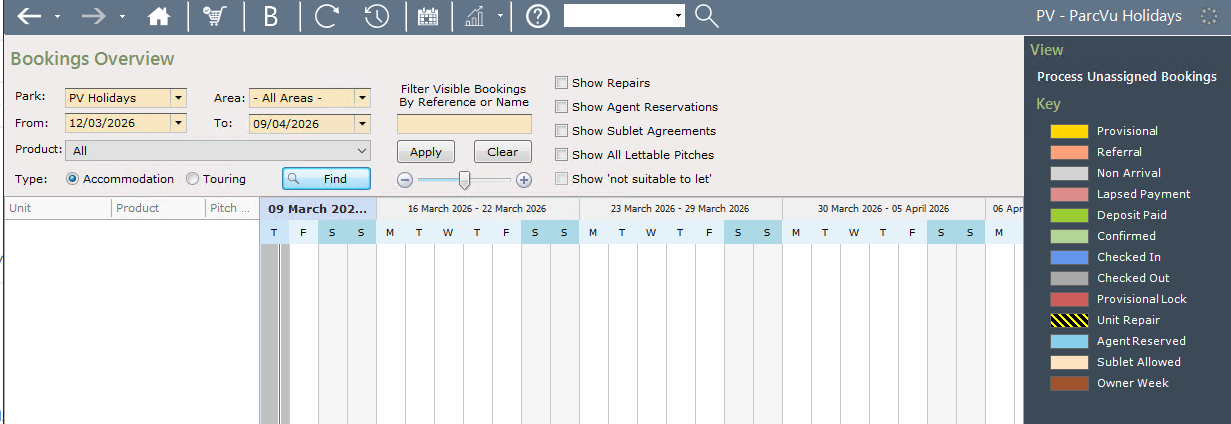
Select the Park you’d like to see the Overview for, and the Date Range you’d like to view (this defaults to a 28 day range) and check other filters as appropriate, then click ‘Find;
It’s possible to filter by one or multiple Products by selecting the Product(s) you’re interested in in the Product dropdown
You can filter by one or multiple Areas by selecting the Area(s) you’re interested in in the Area dropdown
Show Repairs is not checked by default, but it is recommended to manually check this box before each ‘Find’
Repairs are a frequent cause for Units and Pitches being unavailable for Bookings, and account for many of the instances where the system is reporting an Overbooking, where a Booking is assigned and a Repair is subsequently added to that same Unit/Pitch
Remember; the Park Booking Overview showing no Booking in a Unit does not necessarily mean that the Unit is available to Book - it simply shows that no Booking is assigned

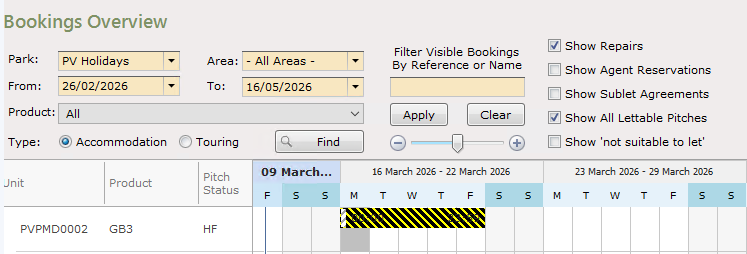
You can choose to Show Agent Reservations or Show Sublet Agreements if you’d like to be able to view this information - similar to Repairs, this can be useful information to display as a Sublet Agreement may have ended, which explains why the Unit is not available to book, despite no Booking being assigned
If you’d like to view all Units/Pitches, regardless of whether they currently have Bookings assigned to them, you can check Show All Lettable Pitches
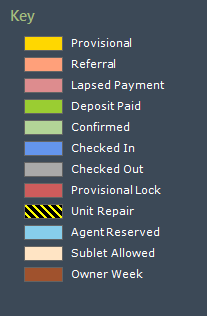
The Bookings are displayed by the Dates of the Booking and by a colour which denotes the current Booking Status.
There is a Key on the right of the screen which shows in colours all possible Statuses that bookings may appear in on this screen.
If you believe Bookings aren’t displayed that should be, it’s likely they are ‘unassigned’. You can access the Process Unassigned Bookings function directly from the Park Booking Overview screen. To find out more about using this function, see the guide Process Unassigned Bookings in ParcVu Desktop