☑️ Set Pitch Markers on a Park Map in ParcVu Desktop
Last updated 10 months ago
Users must have the Can Edit Park Map permission to Edit the Map
Select ‘Park Map’ from the Main Menu and the Park Map will be displayed.
Park Users will only be allowed to access their own Park map
Head Office Users can select which Park Map they wish to View/Edit.
Select ‘Edit’ from the Navigation list and the list of Pitches will show on the left hand side of the screen
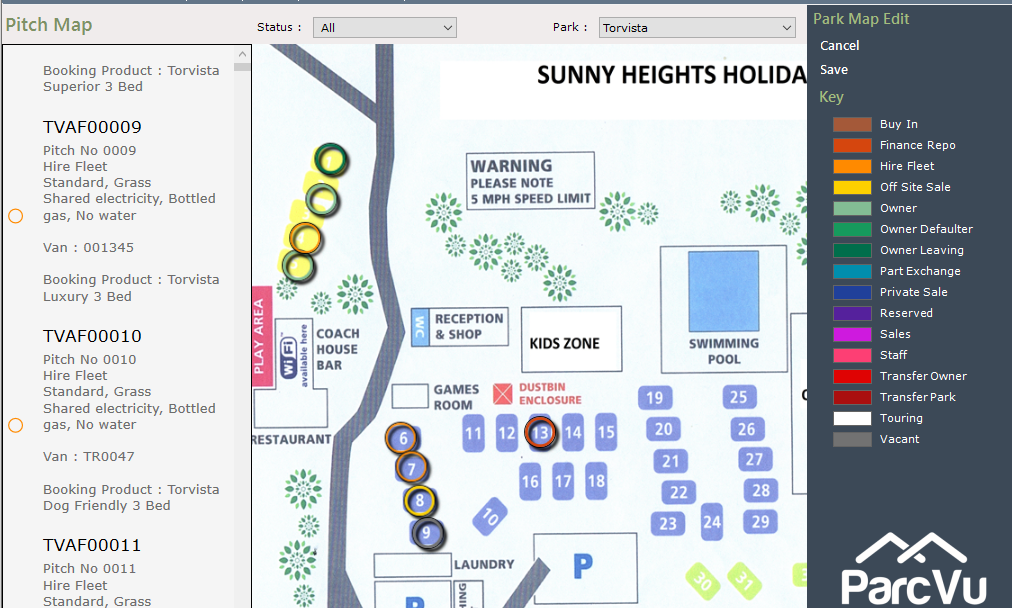
Select the required Pitch number from the list by clicking on it, hold down the left mouse button and drag the selected pitch onto the correct location on the Map
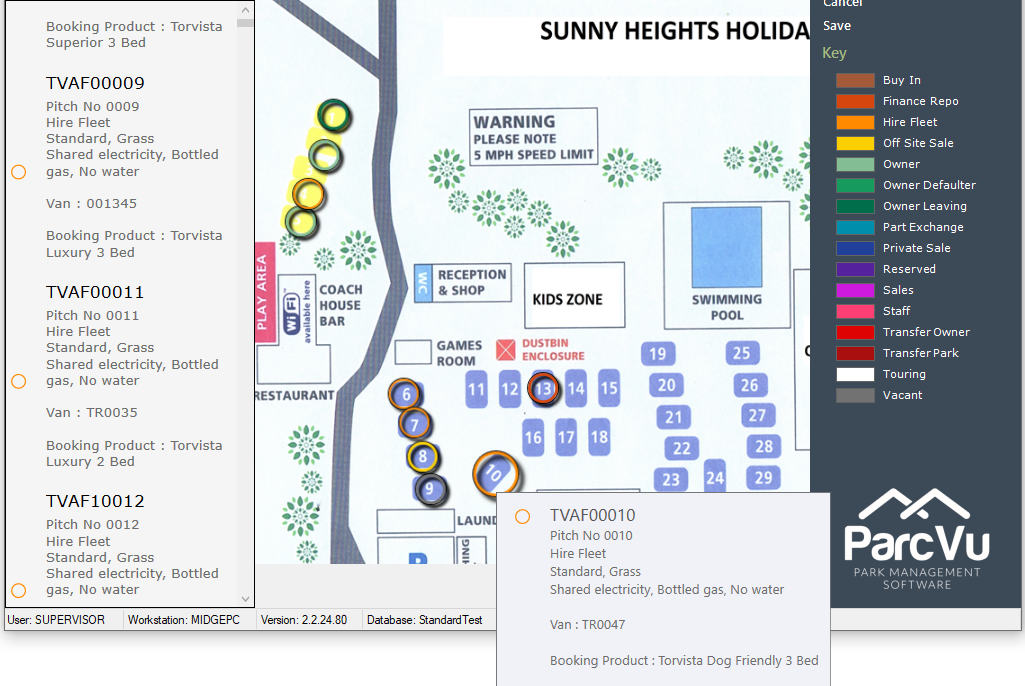
Let go and the Pitch Marker will be displayed in the selected area, continue until all required Pitches are displayed on the Map.
Hovering over a Pitch will display the Pitch Number, Pitch Details and the Booking Product if the Pitch has had a Booking Product assigned.
When finished, select ‘Save’ on the Navigation list and the information will be updated.
The Key on the right of the Park Map shows a list of the colour markers used for Pitches on the map.