☑️ Part Exchange an Existing Owner in ParcVu Desktop
Last updated 8 months ago
On completion of a Part Exchange the newly purchased van will automatically be moved onto the Owners existing Pitch. If the Owner wishes to move Pitch the New Van will need to be manually moved once the Sale has completed. Alternatively, you can move the existing Owners Pitch first (see Re-Pitching an existing Owner)
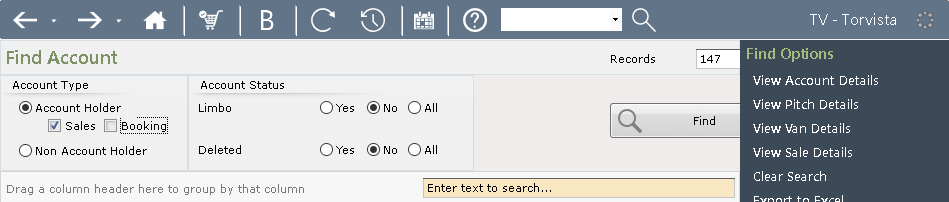
From the Main Menu, select ‘Account’ and the ‘Find Account’ screen will be displayed.
Find the required Owner Account using the search options fields, i.e. Sales Account , Short Name, etc. Ensure the relevant radio Button is selected, then click find>>
Owner Accounts will be displayed in the grid.
Click on the required Owner to highlight them and then select ‘View Pitch details’ from the Navigation list on the right.
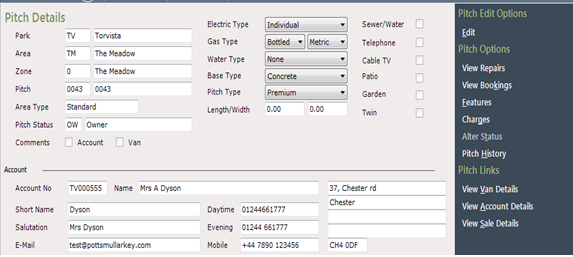
The ‘Pitch Details’ screen will now be displayed showing the Owners Pitch / Account / Van Details etc.
Select ‘Alter Status’ from the Navigation list on the right:

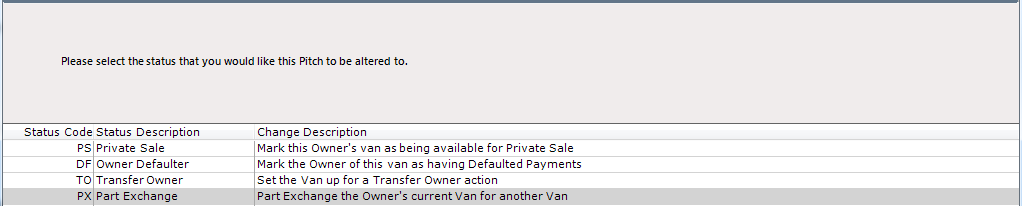
Select ’PX - Part Exchange’ from the Status Description list displayed and click

Read Van selection message and click
The ‘Find Van’ screen will be displayed, either enter the CSN Number of the Van to be purchased or select ‘Sales Van’ from the Drop-Down list in the ‘Pitch Status’ field. Ensure ‘All’ is selected on the Radio Buttons, then click find>>
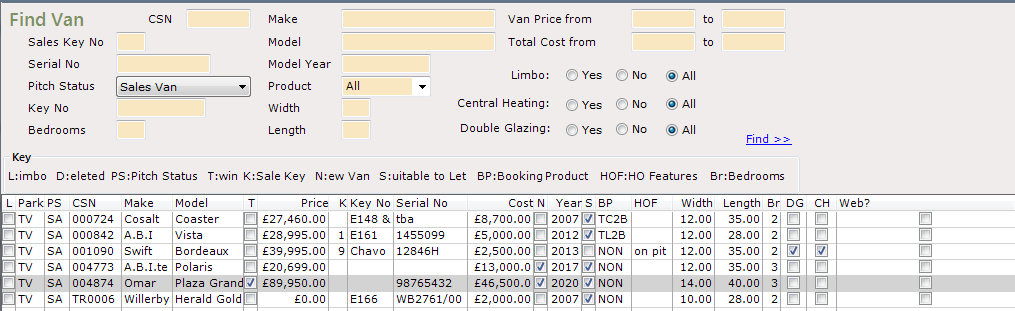

Highlight the required Van and click
The ‘Sales Details’ screen will display. Check the Caravan Value and add in the Ancillary Charges (if not already there) and amend if required by over typing with new amounts.
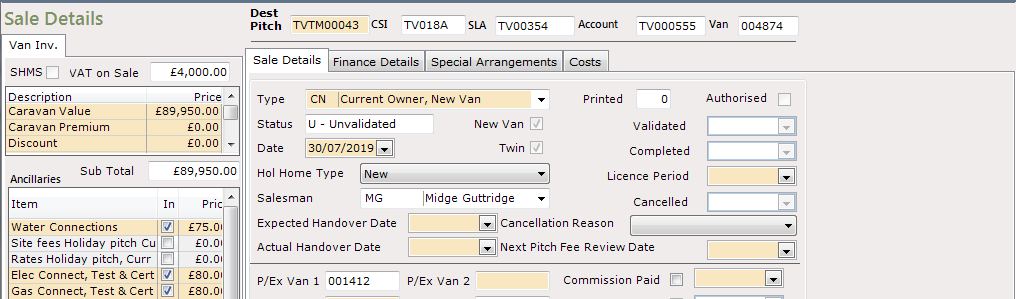
On the main area of this screen to the right of the pricing section check the details are correct for the ‘Type’ of unit, today’s date will be automatically entered, check that the ‘Hol Home Type’ correctly reflects the ‘Sale Type’, i.e. if the Sale Type is CN Current Owner New Van then the ‘Hol’ field should show ‘New’ for a New Van. If it is incorrect, use the drop-down arrow at the side of the ‘Hol’ field and select the correct Van description.
Add Salesperson initials from the drop-down list at the side of the field
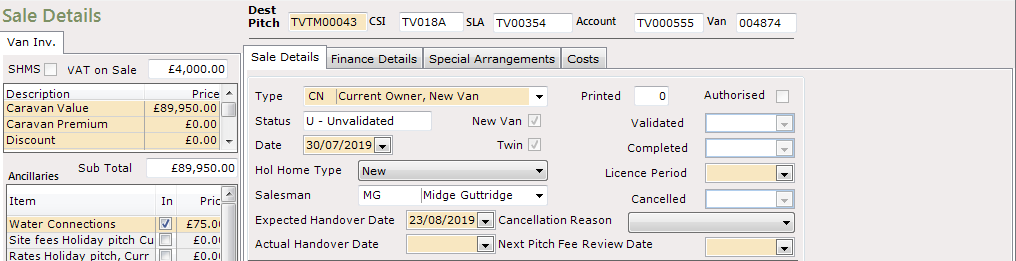
The Sale Date will be automatically input, add expected date of Handover, and use the drop-down Calendar at the side of the field.
The Owners existing Van Number has appeared in the
‘P/Ex Van 1’ field (left centre mid screen).

In the section where the Owners current Van number is listed, in the ‘SIV1’ field, enter the P/X Van ‘Stand in Value’ and in the ‘W Down 1’ field, enter any ‘Write Down’ amount as applicable.

The writedown is the difference between the actual value of the Holiday Home (the SIV or ‘Stand In Value’) and the amount you are offering to the customer. This impacts your margin (profit) so these values should be carefully checked for accuracy
For example, if a Holiday Home has a SIV of £5,000 but I want o offer the customer £10,000 in part exchange, I would enter £5,000 in SIV1 and £5,000 in W.Down 1
The effect of this would be to reduce my margin by £5,000 as I have reduced my profit to give the customer more than their Holiday Home was worth
These two fields added together will appear in the ‘Total Part Exchange Value’ field lower down the screen.
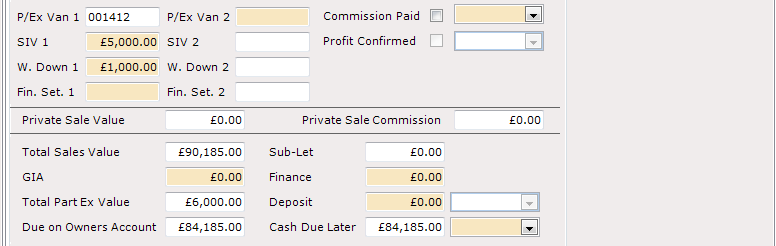
If the Owner was Part Exchanging a second van against this Sale, then all the details for the second van should be entered under the P/Ex Van 2 section. (in the same way as the P/Ex Van 1 detail)
In order to part exchange a 2nd Holiday Home, the unit must not be linked to an existing Owner Account - you’ll need to do an OLP on the 2nd account, if the Holiday Home is linked to an account in ParcVu
Finance Settlements
If there is a Finance settlement on the Owners current van enter the amount outstanding in the ‘Fin Set 1’ field, otherwise leave this field blank
If there is any New Finance on the sale, enter the amount in the ‘Finance’ field on the Sale details screen and then click on the ‘Finance Details’ tab at the top of the screen and complete the required Finance details.

Once in the ‘Finance Details’ section, click next and the red dots will indicate the mandatory sections, which need to be completed.
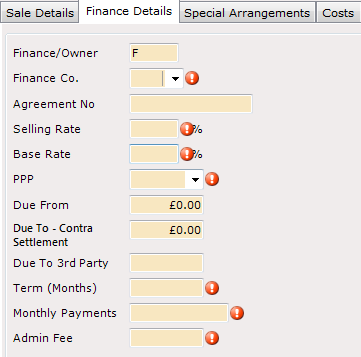
Use the drop-down fields where applicable to select the correct information. Enter the required values in the ’Selling Rate’ and ‘Base Rate’ fields, in the ‘PPP’ field, select N/A, in the ‘Due from’ field enter the amount of Finance required (same amount as entered on the Sale Details screen).
Enter any outstanding settlements in the appropriate field
There are different types of finance settlement:
Contra Settlements are when the customer is taking out new finance with the same lender. When the lender pays out, they’ll usually deduct the settlement amount from the payout, paying just the difference
3rd Party Settlements (sometimes just called ‘Finance Settlements’) are when the customer is taking out new finance with a different lender. The new lender will pay the full amount of the new loan, and you/the customer will need to manually settle the finance with the old lender
For example, if a customer has outstanding finance of £10,000 and their new loan is for £20,000, the payouts would be as follows
Contra Settled Payout would be £10,000 - the new £20,000 loan less the existing £10,000 settlement
3rd Party Settlement Payout would be £20,000 - the whole amount of the new loan. You would then need to arrange for settlement of the old loan
In the ‘Term’ field, enter the agreed number of months for repayment
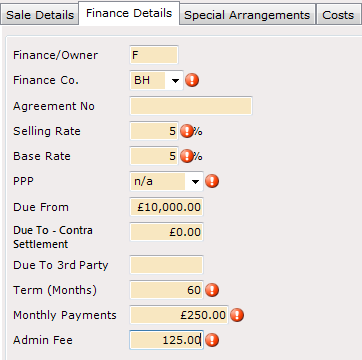
Once all fields are complete, click on the ‘Sale Details’ tab:

The Sales Details screen will be displayed.
Enter any GIA Amount in the ‘GIA’ field if applicable
This is a guaranteed rental scheme which some businesses offer at the point of sale to reduce the cost to change or to offer a guaranteed amount to the rent ledger for future running costs - you may know it by a different name such as IPS or GLA.
You should only enter the amounts relating to the sale here, ie only if the GIA relates to a sale contribution
Enter the Deposit amount and Date taken.
Enter the ‘Cash due later’ (Balance Due) date in the field at the side, using the drop-down Calendar.

When all details are entered, Click

If everything is correct the screen will move on, if red dots appear then further mandatory information is still required. Hovering your mouse over the dots will display information on what is required.
Click and the Destination Pitch message will be displayed:
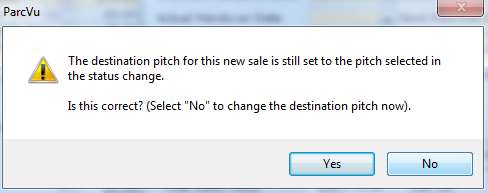
If this is correct click ‘Yes’ (If ‘No’ is selected the Sale Screen will be displayed with a red dot at the side of the ‘Destination Pitch’ field.


Enter the pitch number that the Owner and Van will occupy once the Sale is completed and then click
This field is for information only - entering a different pitch will not automatically move the Holiday Home
Click

The ‘Pitch Details’ screen will then be displayed complete with Pitch Details/Account Details/Van Details/and Sale Details added for this Sale
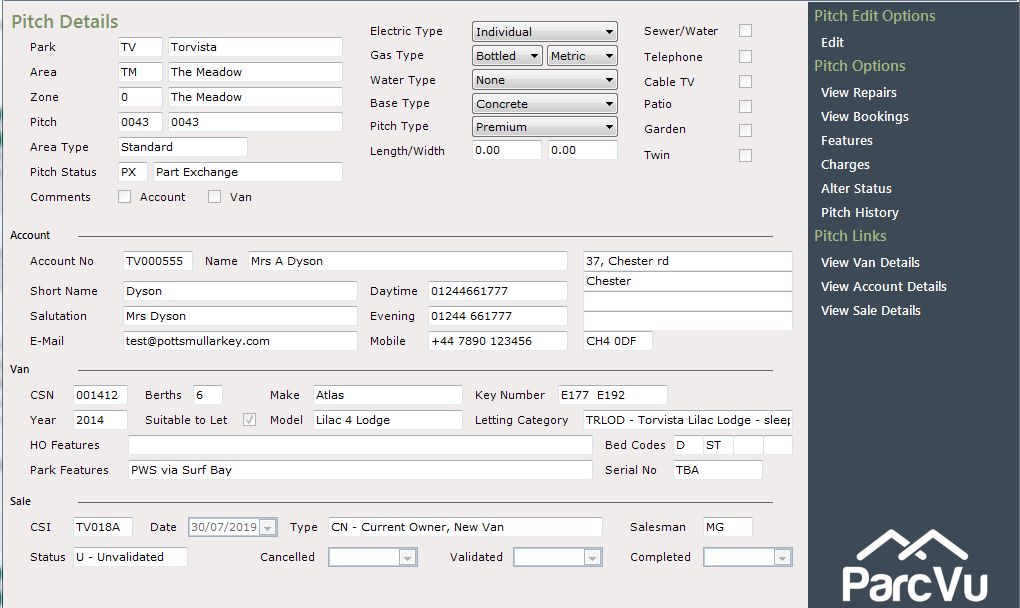
From the Navigation list on the right-hand side of the screen select ‘View Sale Details’, you will then be returned to the Sale Details screen, to allow you to check over the Sale details
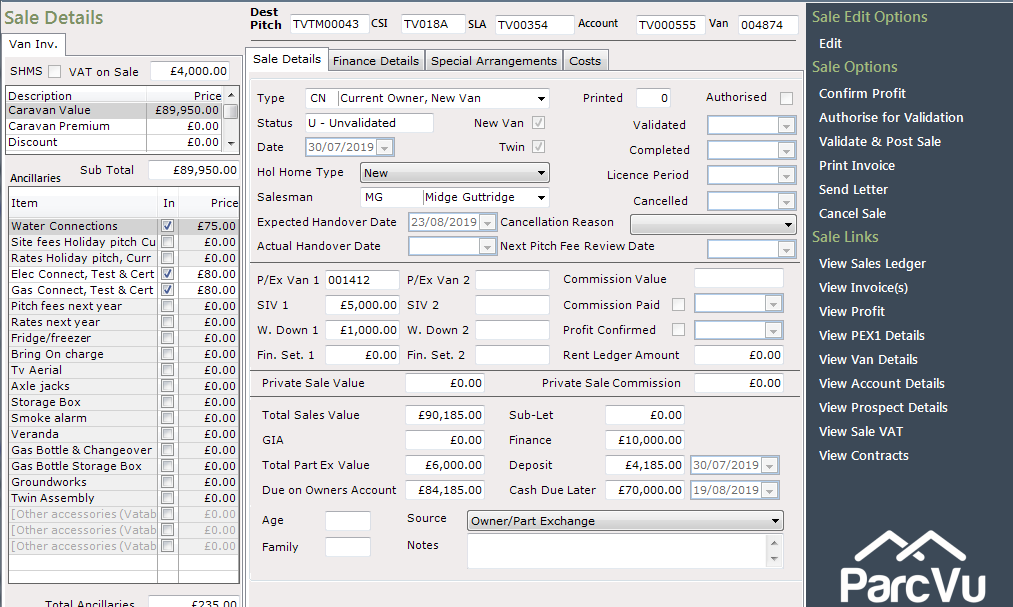
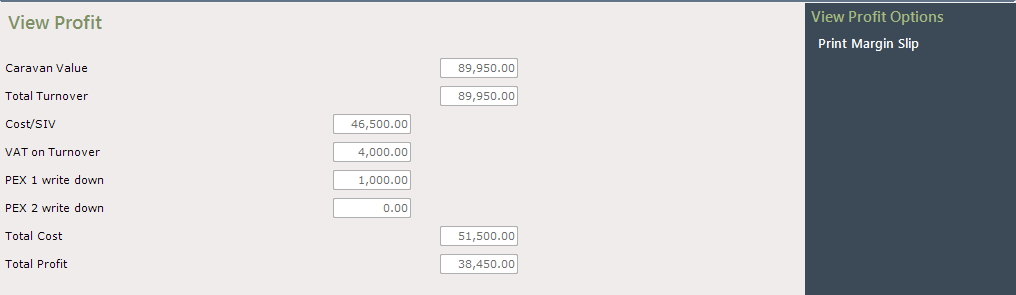
To ‘View Profit’, from the Navigation list on the right, select ‘View Profit’ (if shown), to check the margin.
The ‘Profit’ details will then be displayed.

To print out this information, click on ‘Print Margin Slip’ on the Navigation list on the right-hand side of the screen. Click on the Back Arrow at the top left of the screen to return to the Sale Details screen.
When satisfied that all is correct with the Sale Details, select ‘Print Invoice’ from the Navigation list on the right.
The Sales License Agreement will be displayed on the screen for you to check.
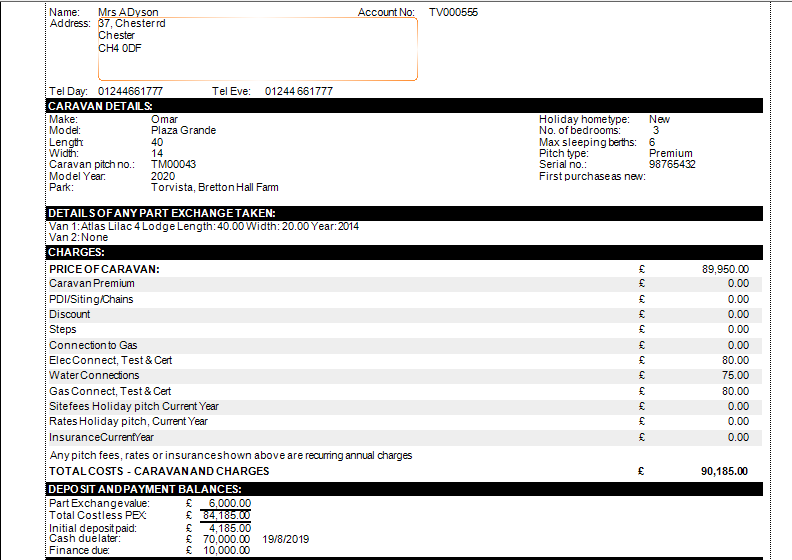

Click on the ‘Printer’ Icon (second one in) at the top left of the screen

Confirm the printer to send the SLA-Sales License Agreement to and click ‘Print’
Click on the Back Arrow at the top left of the screen to return to the ‘Sale Details’ screen.

The Sale is then finished and is in ‘Un-Validated’ and ‘Un-Authorized’ status
If amendments are required to any of the Sale Details, click ‘Edit’ from the Navigation list on the right-hand side of the screen and amend the information, click ‘Save’, check again and then select to ‘Print Invoice’ again if all is now OK.
Once the Sale has ‘Completed’ the purchased Van will automatically transfer onto the Owners current Pitch and the Part Exchange van will go into ‘limbo’ waiting to be Re-Pitched and given a new Pitch Status, i.e. Sales Van etc.