Create a New Group Booking in ParcVu Desktop
Last updated 4 months ago
The Group Bookings function in ParcVu Desktop is only available to existing customers who previously signed up for the legacy ParcVu Bookings module. New subscribers will be offered enrolment in the Booking Experts module. Existing customers using legacy Bookings will be offered the opportunity to upgrade to Booking Experts - contact your Account Manager for more information
In some instances, a person may wish to make multiple Bookings on behalf of a large family or organisation. This is managed in ParcVu Desktop as ‘Group Bookings’
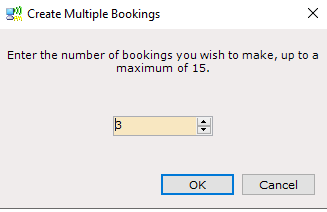
When making a Booking and selecting the required Booking Product in the list, if you want to make more than one booking, click on the ‘Add Multiple Booking’ button at the bottom of the grid. A pop up will be displayed asking how many bookings you wish to make up to the available quantity shown for the selected Product.
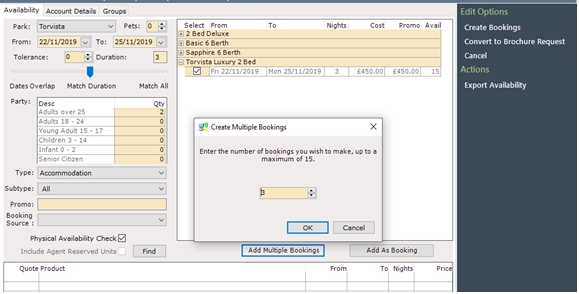
Select the amount of this Product Type required and click ‘OK’
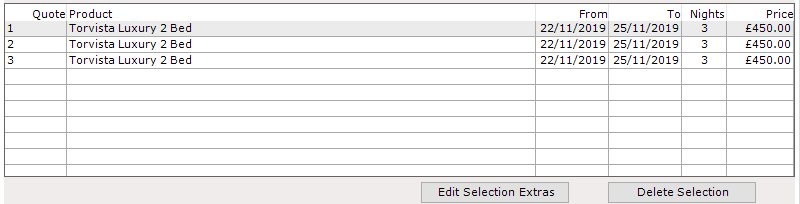
The selected Products and quantity will be added to the booking and appear in the bottom grid.
Other Products can be selected from the list as required and added in the same way. Deselect the first product by ‘un-ticking’ it and select the next one.
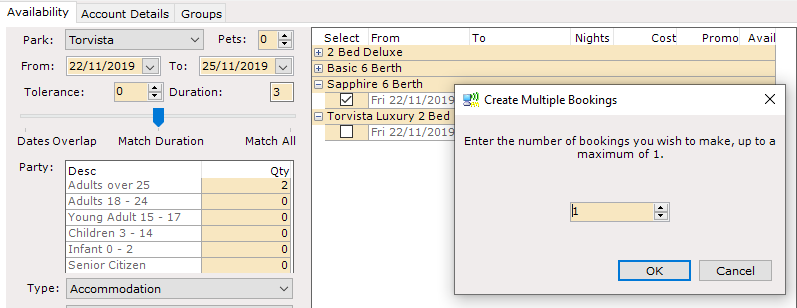
Click ‘OK’ and these will also be added to the booking as before.
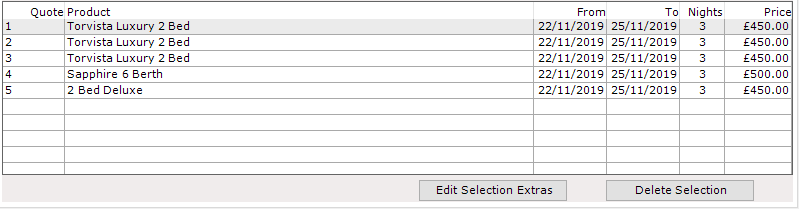
Continue until all requirements are added.
For Group Bookings only add a Minimum amount of Party Members as each Booking can be updated with the correct details per unit/pitch once the Bookings are created. For example, adding 6 Party Members to this booking will add 6 Party Members to all of the bookings. It’s better to put a minimum then update each Booking with the correct number of Adults and Children for that specific Booking
Add the Main Customers details into the ‘Account Details’ tab and then click on the Groups tab.
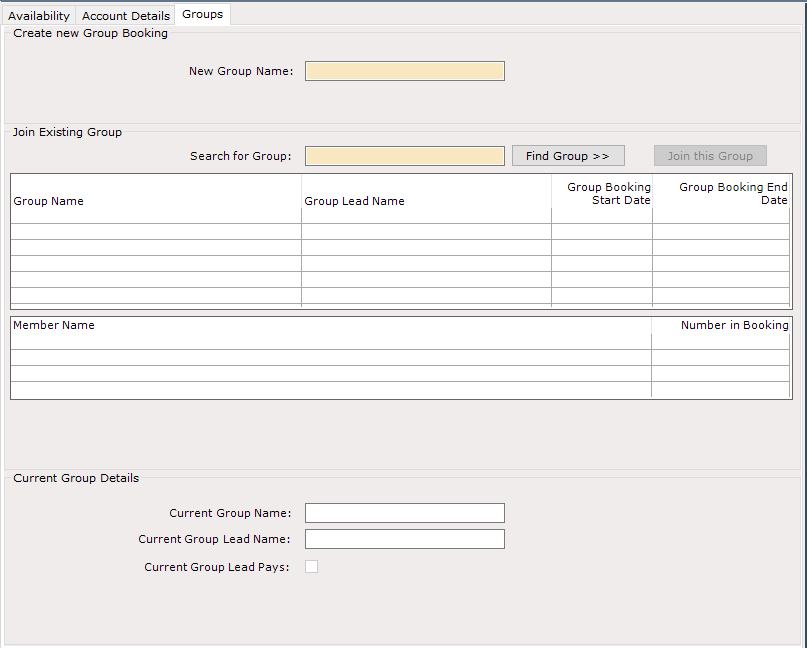
The ‘Create New Group Booking’ screen will be displayed.
To Create the New Group, enter the required Group Name into the ‘New Group Name’ field and then select ‘Create Bookings’ from the Navigation list

All the Bookings will be created and linked as a group by the Group Name entered, they will be displayed in a list for you to access and assign or amend each booking as required. The Group Name entered will be displayed in the ‘Group Name’ column
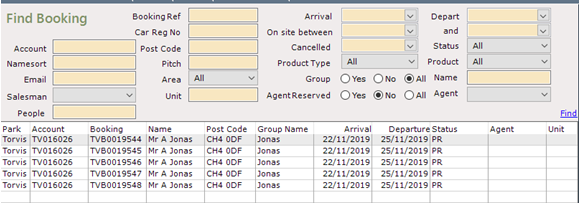
As all these bookings have been created against one Account – the Customer who made the booking, all these bookings will be on the Booking Ledger for that account.
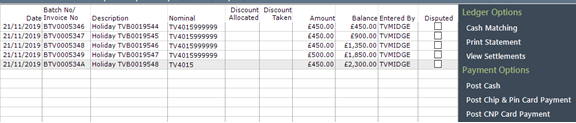
This means that payments taken for any of these bookings will all appear on this same ledger and can be matched to one, several or all the bookings.
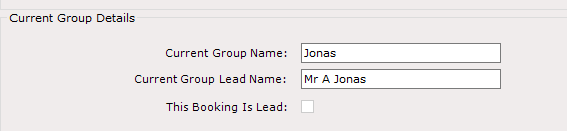
The Customer who made the Booking will be classed as the ‘Booking Lead’, this can be viewed by clicking on the ‘Groups’ tab on the booking Details screen.
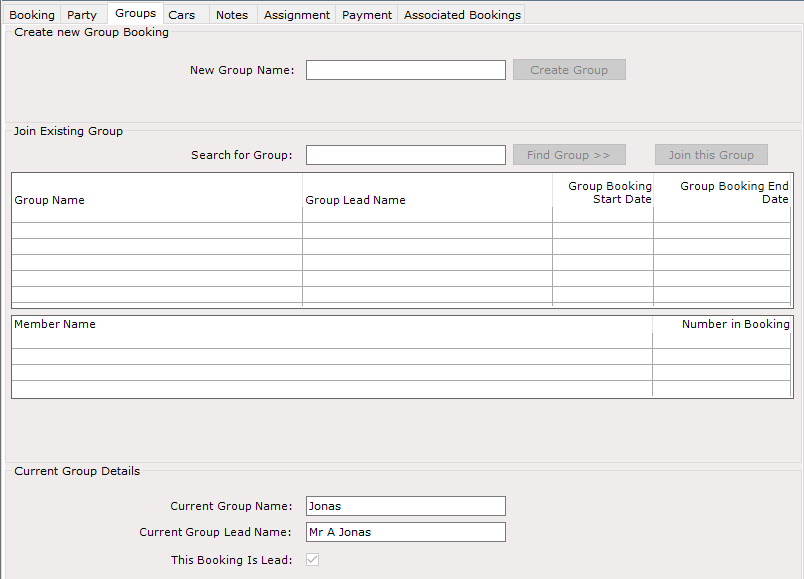
The other Bookings in the group will just be shown as belonging to the Group and will show the ‘Current Group Lead Name’.