☑️SMTP Email Authentication in ParcVu Desktop
Last updated 9 months ago
SMTP Settings in Client Configuration in ParcVu Desktop
To access the Client Configuration screen, the user must have the Superuser permission
To use SMTP Authentication, you must have the main SMTP credentials entered in ParcVu
Go to System Maintenance Sub Menu > Client Configuration and scroll to the Email section, then click Edit from the navigation menu
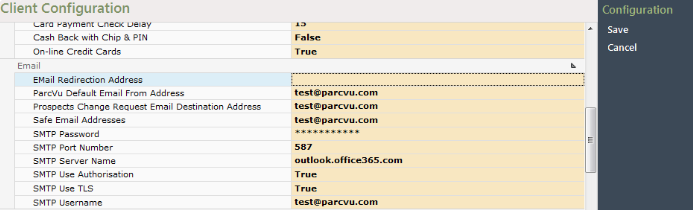
Email Redirection Address: In your Live system, ‘Email Redirection Address’ should always be empty. This is used only for Test, where you don’t want to send emails to real customers by mistake
ParcVu Default Email From Address: This is the email address the system should use if it can’t find another address to use
Prospects Change Request Email Destination Address: This is the email address that any change requests related to Prospects should go to
Safe Email Addresses: Email addresses listed here will have emails sent to them even if an Email Redirection Address is supplied, and can be used for testing purposes in your Test Database. To enter multiple email addresses, separate using a comma
The following information can be obtained from your IT Support Partner, if you don’t know how to find it yourself or don’t have direct access to your SMTP Server
SMTP Server Settings
You should not edit any of these settings without consulting your IT Support partner. Altering these settings incorrectly will result in no emails being sent from ParcVu - this will mean not only will no customers receive emails, but your Team will be unable to receive authentication codes to login to ParcVu Online
SMTP Password: This is the password for your SMTP server - this is a global setting, it is usually not your password for your own email account
SMTP Port Number: The SMTP Port Number
SMTP Server Name: This is the name of the SMTP Server, not the username
SMTP Use Authorisation: This must be set to True if you use SMTP as your authentication method
SMTP Use TLS: Set this to True to use TLS encryption for sending emails
SMTP Username: The username for your SMTP Server account. This is often in the form of an email
SMTP Settings in Email Accounts Lookup in ParcVu Desktop
Once you have set up your main SMTP credentials, you can add multiple email addresses to be used for different Parks or purposes within the system
Here you can
Assign email accounts to multiple or specific Parks
Set a default email account per Park
Set a Head Office default email account
Name accounts in a user-friendly way
Adding a New Email Account in ParcVu Desktop
Go to System Maintenance Sub Menu > Maintain Lookups > Email Account. Click ‘Edit’ from the navigation menu
In the bottom section, click into the top empty line and enter the information about the Email Account you’d like to add
Tick the ‘Active’ box to enable the Email Account for use
Enter the name of the Account, as you’d like it to appear in picklists
Enter the email address itself
Enter the SMTP server that the Email Account uses, then click the 3 dots - the popup will show the default SMTP setting you entered in Client Configuration. If these are the same for the account you’re using, no further action is needed here. If your email address uses different SMTP server credentials, you should enter these here
Click Save from the navigation menu
Setting Park Email Accounts
You must have one Email Account set as your HO Default, and one Email Account per Park set as Default
Go to System Maintenance Sub Menu > Maintain Lookups > Email Account. Click ‘Edit’ from the navigation menu, and select the Park you’d like to assign Email Accounts to
In the top section, click into the top empty line
Select the Email Account you want to add to the selected Park from the ‘Account’ picklist
Select the Account Type - this will usually be None, unless you want to use this Email Account purely for Prospects
If this is the Default Account for the selected Park, tick ‘Default’ - note you should only have one Default Account per Park
Continue the steps above for each Park you wish to add the Email Account to
Selecting Email Accounts When Sending Emails in ParcVu Desktop
Where there is a choice on who the email can be sent 'from', an email selector dropdown is shown to allow the selection of the account that the email will be sent from.

Where there is a choice of Email Accounts available;
Park Users will be prompted to select from email addresses associated to their Park(s). The default will be the Email Account set as Default
Head Office Users will be prompted to select from email addresses associated to Head Office (HO). In addition, they will also have access to any Park email addresses for the Park(s) associated to their user account