☑️ Post Cash to Multiple Accounts in ParcVu Desktop
Last updated 8 months ago
To use this function, the user will need the Allow Ledgers sub-menu permission. The option will be greyed out unless the user has the correct permissions
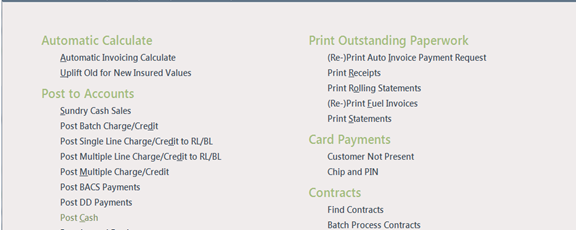
From the ‘Ledgers’ section of the Main Menu, select ‘Open Ledgers sub-menu’.

From the ‘Post to Accounts’ Menu displayed, select ‘Post Cash’
The user must have a Park selected in the top right corner of the screen - if this is set to ‘All Parks’, the option for Post Cash will be greyed out. Regardless of which Park is selected, a user can post payments to Accounts at multiple Parks simultaneously
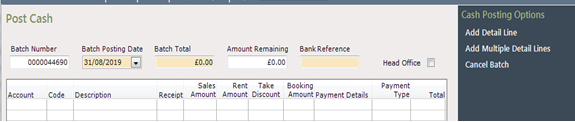
The ‘Post Cash’ screen will be displayed.
The ‘Batch Number and Batch Posted Date’ are automatically entered
Cash batches can be backdated - to do this, the user must have the Allow Park user to backpost cash 3 days or Allow user to back-post more than 7 days permission, depending on how far back you wish to allow back posted transactions
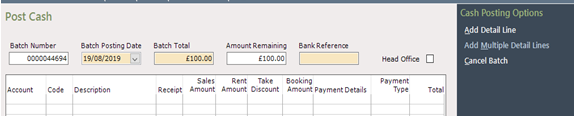
Enter the ‘Total Payment Amount’ (one amount if posting to only one account, or, the total of all amounts if posting to several accounts) to be ‘Posted’ into the ‘Batch Total’ field. If you are posting money as a Head Office User, click into the option to select it, this will identify where the payments were posted from on the Ledger Reports.

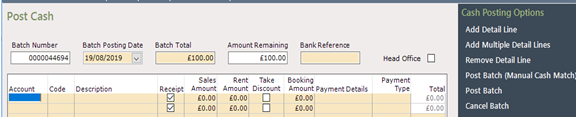
From the navigation list on the right of the screen, select ‘Add Detail Line’ to Post to only one account, or, if you are Posting to more than one account, or, more than one Payment type, select ‘Add Multiple Detail Lines’. Confirm how many lines are required and then click ‘Go’. The required amount of Cash Posting entry lines will then be displayed.
To make an entry, double click the detail line in the ‘Account’ column on the left of the screen to highlight it, enter the ‘Account Number’ if known.
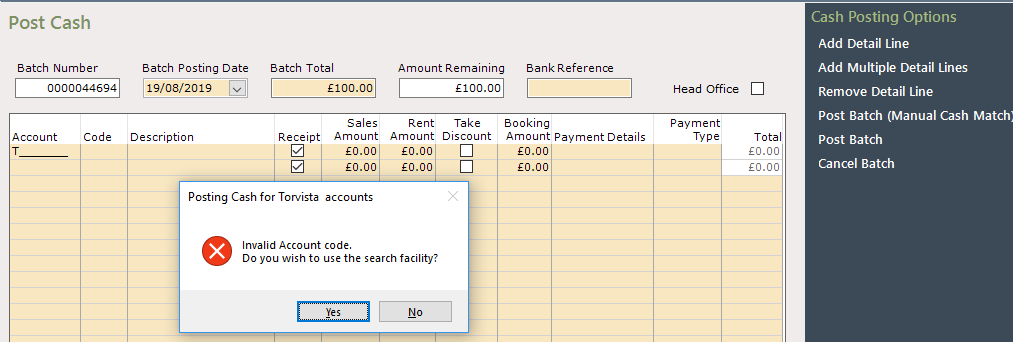
To search for an Account Number, enter the first letter of the Park Code and hit ‘Return’ on your keyboard. A search message will be displayed, click ‘Yes’.
The ‘Find Account’ screen will be displayed, use one of the search fields to locate the required account and click find>>

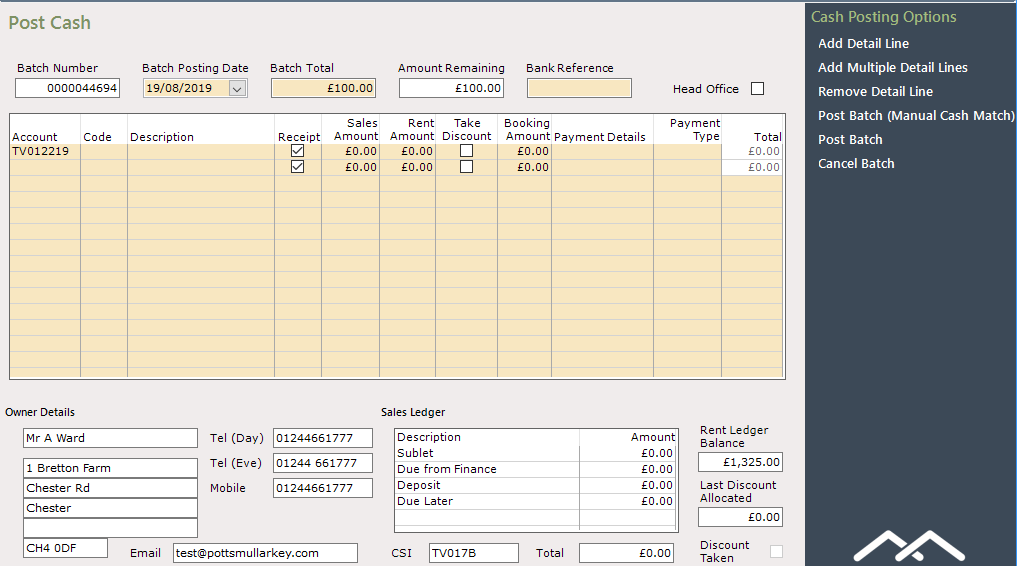
From the list displayed, double click on the required Account and the Account Number will be automatically input into the ‘Post Cash’ screen. (The account details and current Rent Ledger balance will also be shown at the bottom of the screen)
In the ‘Code’ column, click on the arrow to use the drop down list and click on the type of payment to be ‘Posted’ to select it, (Ensure you select the correct Ledger required, i.e. Rent Ledger Codes for Posting Rent Ledger payments and Sales or Booking Ledger codes as required).

Next, click into the ‘Description’ field, and the Payment description will be displayed.
Enter the amount to be ‘Posted’ into the Rent, Sales or Booking Ledger column as appropriately double clicking into it to highlight it and enter the amount
You can only post payments to the Ledger that matches the Description Code - for example, selecting RCA (Rent Cash) and trying to enter the amount in the Booking Amount column would fail
If the Payment is by Cheque, enter the ‘Cheque Number’ into the ‘Payment’ field. Click into the ‘Total’ column and the amount will be automatically entered.

Continue until all payments are listed
All details entered into the ‘Payment’ field will be printed on the End of Day ‘Cash Posted’ Report 213.
The ‘Amount Remaining’ field along the top of the screen will be Zero when all monies have been entered.

Select ‘Post Batch’ from the navigation list and the monies entered will be recorded to the Ledger Accounts.