Add a New Promotion Product in ParcVu Desktop
Last updated 4 months ago
The Promotion Products function in ParcVu Desktop is only available to existing customers who previously signed up for the legacy ParcVu Bookings module. New subscribers will be offered enrolment in the Booking Experts module. Existing customers using legacy Bookings will be offered the opportunity to upgrade to Booking Experts - contact your Account Manager for more information
A Promotion Product holds the information about how the criteria a Booking must meet for a Promotion to apply - for example whether it applies to specific periods, durations, product types and a variety of other factors
Before a Promotion Product can be created, the Promotion must first be set up - you can find out more about how to do this here: Create a New Promotion in ParcVu Desktop
To access this function, the user must have the Allow System Maintenance Menu user permission
From the Home Screen, go to System Maintenance Sub Menu > Maintain Lookups > Promotion Products
Select the Year and click ‘Find’
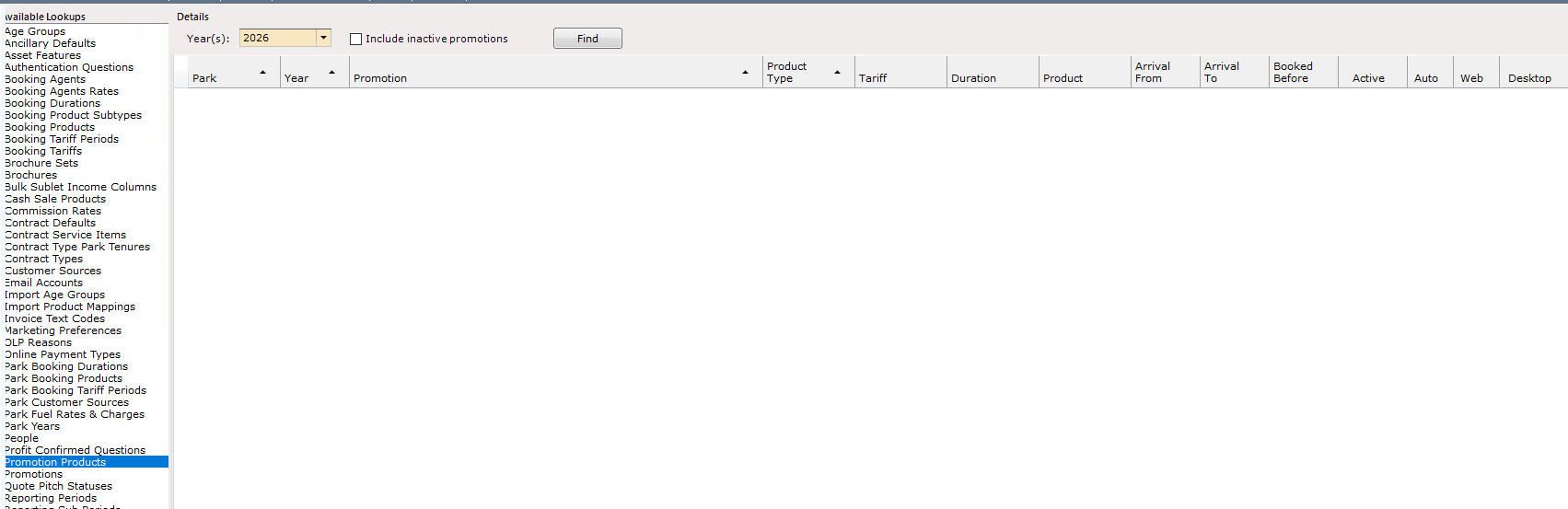
Click ‘Edit’ in the right hand navigation menu, and a blank line will be added so that you can configure the behaviour of your Promotion.
You can be as specific as you like with your criteria, but should ensure that you don’t over-complicate things - if you set the optional criteria, then Bookings which don’t meet all of those criteria will not be eligible for the Promotion. It’s usually best to start out with a broader promotion then think about which criteria are important and include only those
Park is the Park that the Promotion will be available at. This field is mandatory.
Year is the year for which the Promotion applies - it’s possible to set Promotions for future years, for example if you wanted Early Bird offers for 2027 Bookings in 2026. This field is mandatory.
Promotion is the Promotion you’re looking to configure. This field is mandatory.
Before a Promotion Product can be created, the Promotion must first be set up - if you don’t see the Promotion you want in the dropdown, it may not be set up. You can find out more about how to do this here: Create a New Promotion in ParcVu Desktop
Product Type is the type of Product that must be included in a Booking for the Promotion to apply. For example, you might set this as Touring if you wanted to offer 25% off Touring breaks in the low season, or Extras if you’d like to offer free cot hire. This field is optional - if you don’t fill in a Product Type, the Promotion will apply to all Bookings that meet the other criteria
Tariff is the Tariff which the Booking must be within for the Promotion to apply. Tariff is not available to select unless a Product Type is also specified. This field is optional - if you don’t fill in a Tariff, the Promotion will apply to all Bookings that meet the other criteria
Duration is the Duration that the Booking must be for in order for the Promotion to apply. This field is optional - if you don’t fill in a Duration, the Promotion will apply to all Bookings that meet the other criteria
Product can be used if you only want a specific type of accommodation, touring pitch or extra to be eligible for the Promotion. This field is optional - if you don’t fill in a Product, the Promotion will apply to all Bookings that meet the other criteria
Arrival From and Arrival To can be used to further narrow the period during which a Booking must take place to be eligible for the Promotion. This field is optional - if you don’t fill in Arrival dates, the Promotion will apply to all Bookings that meet the other criteria
Note that these dates refer to the ARRIVAL of the Booking only - this means any Bookings which arrive up to and including the ‘Arrival To’ date will be eligible for the Promotion. It is not possible to set a ‘must depart by’ date. For example, if your Arrival To date is 23rd December, and a Booking is made for 23rd December - 30th December, that Booking would still be eligible for the Promotion as the arrival is within the scope of the Promotion
Booked Before allows you to specify the last date a Booking can be accepted to be eligible for the Promotion. This relates to the date the Booking is made, not the date of the break. This field is optional - if you don’t fill in Booked Before, the Promotion will apply to all Bookings that meet the other criteria
A Promotion Product must be set as Active before it’s available to be applied
You can choose to have a Promotion apply automatically by checking Auto
Web and Desktop control the ways the Promotion can be applied For example, if you wanted a Promotion to be available only when it’s applied by your Reception team, you would check Desktop and leave Web unticked. These fields are not mandatory, but in order to use your Promotion you must have at least one of them ticked
Adding a Promotion Product to Multiple Parks in ParcVu Desktop
It is also possible to add the same Promotion to multiple Parks simultaneously by selecting ‘Batch Add’ in the right hand side navigation Menu
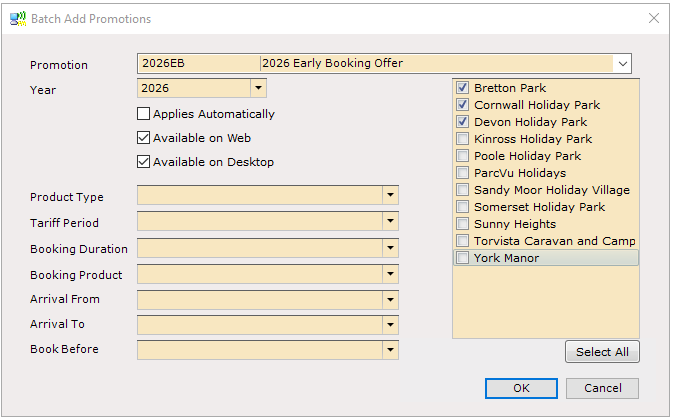
Select the Promotion, Year, Park(s) and then configure the validity criteria as you would for an individual Park - click ‘OK’ and the Promotion Product will be added to the Selected Parks
Remember to ‘Save’ on the right hand side so your changes aren’t lost