Find Screens in ParcVu Online
Last updated 3 months ago
The Find menus have been enhanced in ParcVu Online to enable users to customise views by choosing which columns they’d like to include and in what order, including Dynamic Fields (Custom Fields), creating Saved Views and also the ability to export the results effectively giving users the ability to build their own reports!
From anywhere in ParcVu Online, click the arrow next to Find
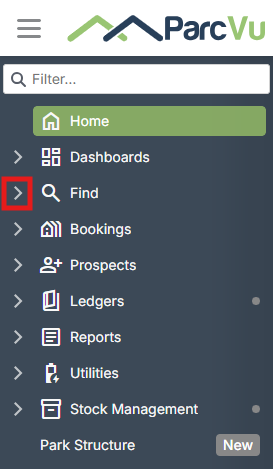
The Find Menu will expand, showing all the Find Screens that the user has access to
Each Find Screen has a corresponding User Permission called Allow Access Find [function] Screen (for example ‘Allow Access Find Account Screen’)
Users will not see Find Screens they do not have permissions for in their Sidebar Menu
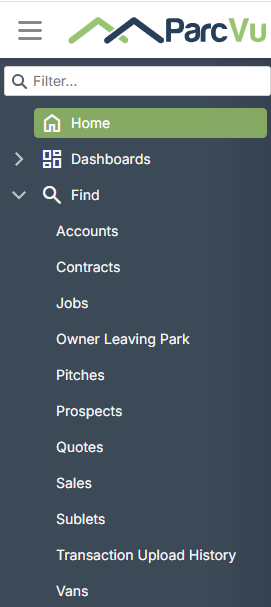
Select the relevant Find Option and the Find Screen will open alongside

Use the filters at the top to find the initial data set you’re looking for - you can filter further once you have some data loaded
Park filter not working? This happens when someone has saved the default view to a particular Park - you can correct this by clicking Layout > Reset Layout
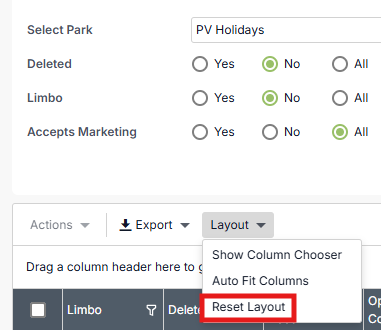
This will reset all columns and filters to the ‘default’ view, so any changes you’ve made to the layout will need to be re-done
Customised Views
Users are able to customise the order of columns, choose which columns to display or omit, and save views for future reference
From any Find screen, after filtering your initial dataset choose Layout above the results grid, then choose Show Column Chooser
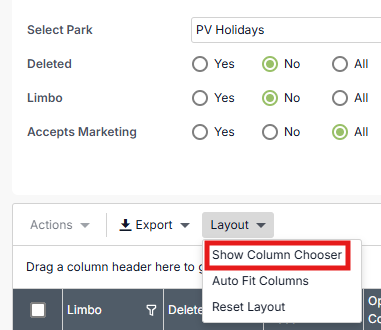
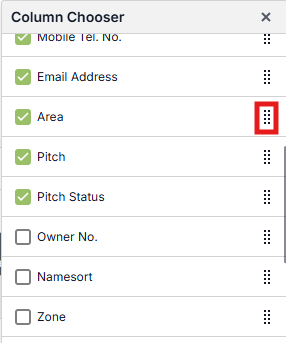
A popup will show all of the available Columns
Columns which are ticked are already in the view - to remove the Column, untick it
Columns which are not ticked are available but not currently included - tick to include
Click the 8 dots and drag to reorder the Columns
Saving Customised Views
If you find you frequently filter a set of data, or if you simply prefer the layout of a Find Screen to be a certain way, you can save the View so that you don’t have to re-do the layout each time
At the top of the Find Screens, you’ll see a list of available Views
To see what Views are currently available, click the dropdown

To add a new one, click the + icon
A popup will show for you to name your View so it’s easy to identify later
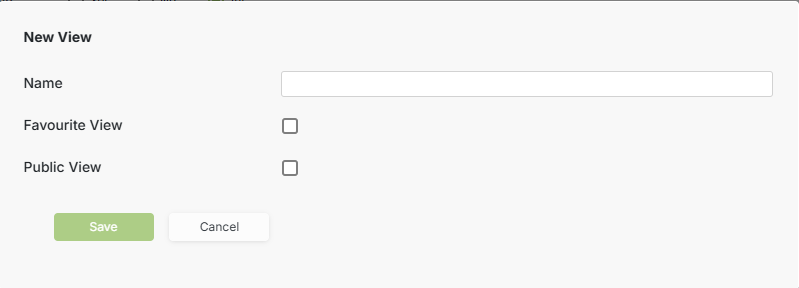
You can choose to mark the view as a Favourite, which will show a star next to the name, as in the example above
If you’d like all Users to see the View, then you can make it a Public View
To create or edit Public Views, the user must have the Can Maintain Public Find Views user permission
If editing an existing Public View, you should be very careful as it will affect all users, you should not save any changes to a Public View without the proper consultation being done first
Exporting Find Screens
Each Find Screen has a corresponding User Permission called Allow Export in Find [function] Screen (for example ‘Allow Export in Find Account Screen’) - this allows you to control which data each user can extract
The Export function will be greyed out for users who do not have the permission for that Find Screen
You may need to export the data from a Find Screen as a form of report or for other purposes
From any Find Screen, click Export and choose the file type
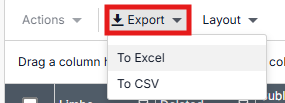
The current View will be downloaded as the selected file type