☑️ Post Multiple Charges (Invoices) or Credits in ParcVu Desktop
Last updated 8 months ago
To access this function the user will need the Allow Ledgers sub-menu permission
The ‘Post Multiple Charge/Credit’ facility can be used to add ‘Ad hoc’ Charges or Credits to multiple Rent Leger accounts at once
From the Home screen, to to Ledgers Sub Menu > Post Multiple Charge/Credit
A Park must be selected in the top right corner of the screen - this option will be greyed out if set to All Parks

Use the drop-down list facility on the right-hand side of the ‘Nominal’ field and select the required nominal to post the Charge/Credit to
If the nominal code is not available to select, your Internal ParcVu Administrator will need to make that nominal available for Manual Invoicing. For more information on amending nominal codes, see the article Amending Nominal Codes in ParcVu Desktop

The ‘Invoice Description’ field is a required field and is free text so type in the required description for the Charge/Credit being posted - this will appear on the invoice received by the customer
Enter the ‘Invoice Date, use the drop-down Calendar to select the required date.

Enter the ‘Default Amount’ to be Charged/Credited.
It’s not necessary to put a minus (-) sign in front of the Default Amount for a credit - selecting Credit as the option will ensure the correct posting is made
It’s not possible to post charges and credits in the same posting - separate batches should be used

If all accounts are being charged / credited the set amount, use the ‘Select All’

tab and all the accounts will be ticked and the set amount entered.

If only certain accounts are to be charged / Credited the amount set, individually click into the ‘Select’ fields to tick and select.
If a different amount is required for some accounts, change the amount entered into the ‘Default Amount’ field to the next required amount.

Click on the required account in the grid and the default Amount Updated message will appear.

Selecting ‘No’ to this message will apply the new amount to all selected accounts from this point, selecting ‘Yes’ will also apply the new amount to those that previously had a different amount.
Select ‘No’ and then individually select the accounts that require the new amount.

Once all accounts have the required amount selected, click ‘Post’ on the Navigation list on the right.
The ‘Confirm Posting’ message will display the number of accounts selected and the total amount to be posted.
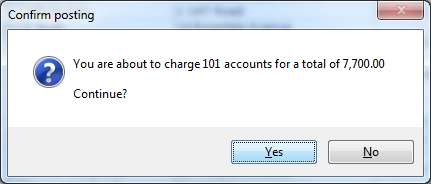
Confirm ‘Yes’ to continue to post to the selected accounts.
The ‘Posting Result’ message will display the actual posting result
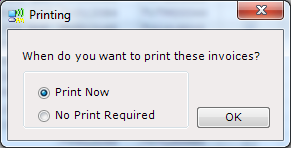
Click ‘Ok’ and the ‘printing Options’ message will be displayed.
Select the required option and click ‘OK’ if ‘Print Now’ is selected, then the invoices will be automatically sent to the default printer
If finished, click ‘No’ on the ‘Posted and Printed’ message.
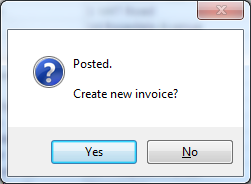
The Charges/Credits posted will now show on the account Ledger If ‘Yes’ is selected, the screen will be reloaded ready for a new Charge/Credits to be raised.
Post Multiple Charge/Credit should not be confused with Post Multiple Line Charge/Credit
Post Multiple Charge/Credit - Post charges/credits for the same item to multiple accounts simultaneously in bulk
Post Multiple Line Charge/Credit - Post charges/credits for multiple items to a single account in bulk